Add an individual issue to your store
Use this when you want one specific issue that your sync rules don't cover — a graphic novel from a publisher you otherwise skip, a one-shot from outside your carried distributors, a request from a customer. Broadening the macro filters to catch it would pull in hundreds of unrelated products; an individual add is scoped to just that issue.
Sync must be enabled globally on the Sync Rules page — the Store Sync card on an issue shows a warning and hides the Add button when it's off.
1. Find the issue
Open Issues and search by title, series, or barcode/ISBN. The list is the entire Masterfile catalog — every comic available from your distributors, whether it matches your rules or not.
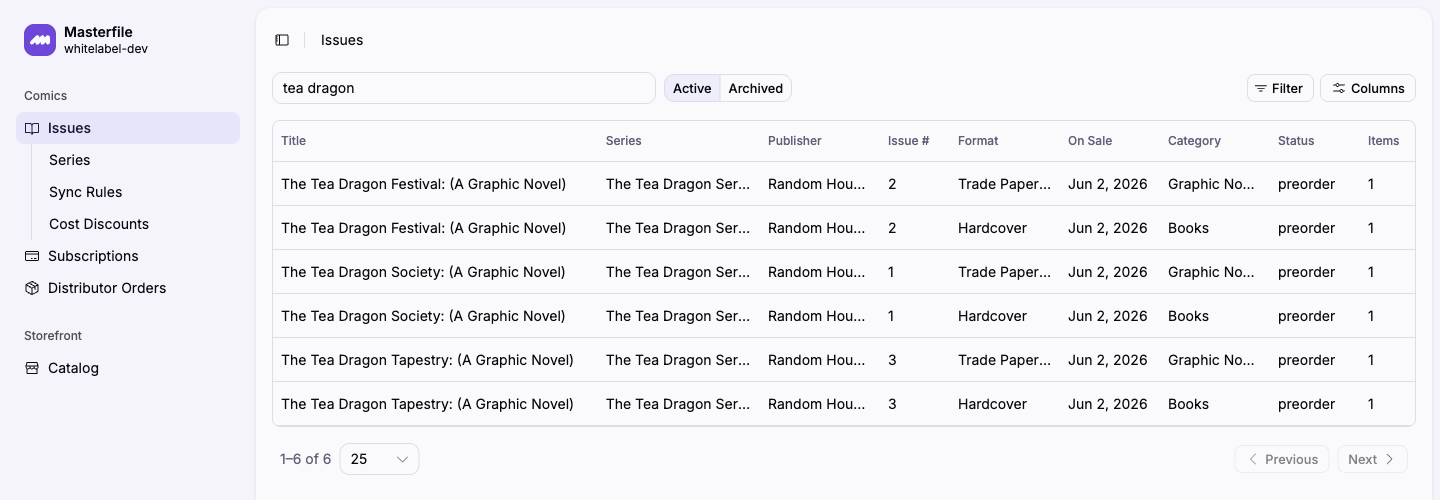
Click the row to open the issue detail.
2. Add it to your store
On the issue detail page, find the Store Sync card on the top right. If the issue isn't in your store yet and isn't picked up by your sync rules, the card shows Not in store and an Add to store button.
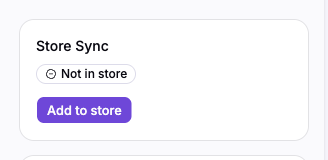
Click Add to store. A product is created in Shopify with the same status and sales channels that your sync rules use. From that point on, upstream catalog updates flow to the product like any other synced issue — see About product sync.
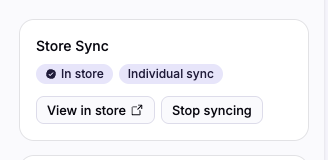
The card updates to show In store and an Individual sync badge. The badge means the product is tied to a per-issue rule rather than the macro filters.
Stop syncing an individual issue
Click Stop syncing on the same card. The per-issue rule is removed and future upstream updates stop applying. The existing Shopify product is not deleted — remove it manually from Shopify if you don't want to carry it anymore.
If the issue also matches your macro rules, stopping the individual sync leaves it covered by the rules — the card switches to the Synced via rules state.