Add a music capsule
A music capsule is an album. A cover, an artist credit, and a track list the reader can play through inside the viewer. For when to pick it over other capsule types, see the concept page.
1. Create the capsule
From your project's Capsules card click Create capsule, give it a title, pick Music, and click Create.
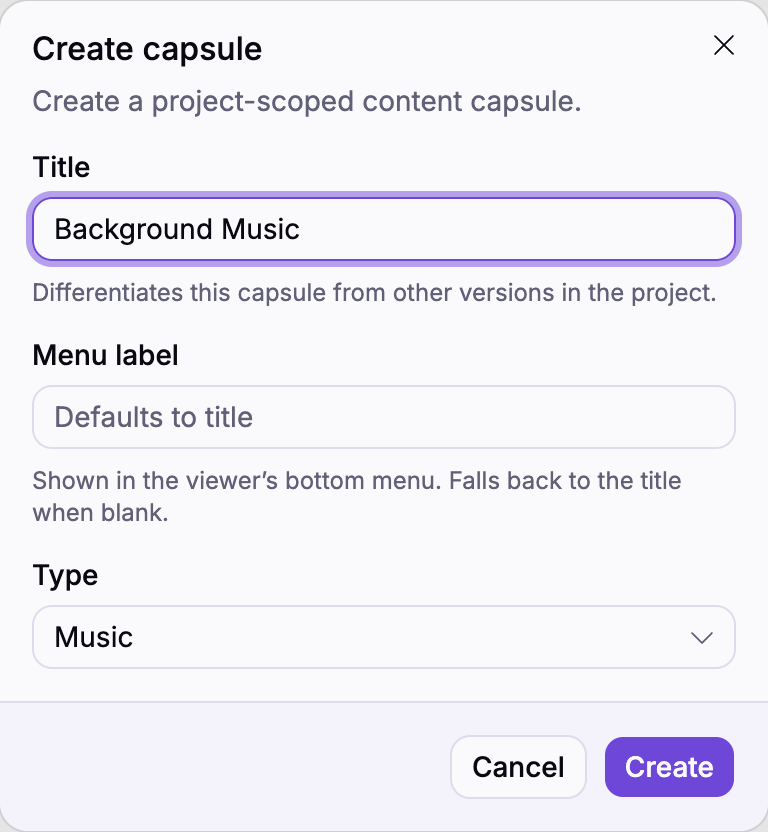
Menu label is what readers see in the viewer's bottom bar. Leave it blank to fall back to the title.
2. Set the album cover and artists
The empty editor opens on the Album card. Click the cover-art tile to pick or upload an image (PNG, JPEG, WebP, or AVIF). This is the artwork readers see while the album plays. Set the Album title, then click Add under Album artists to credit the headline performers.
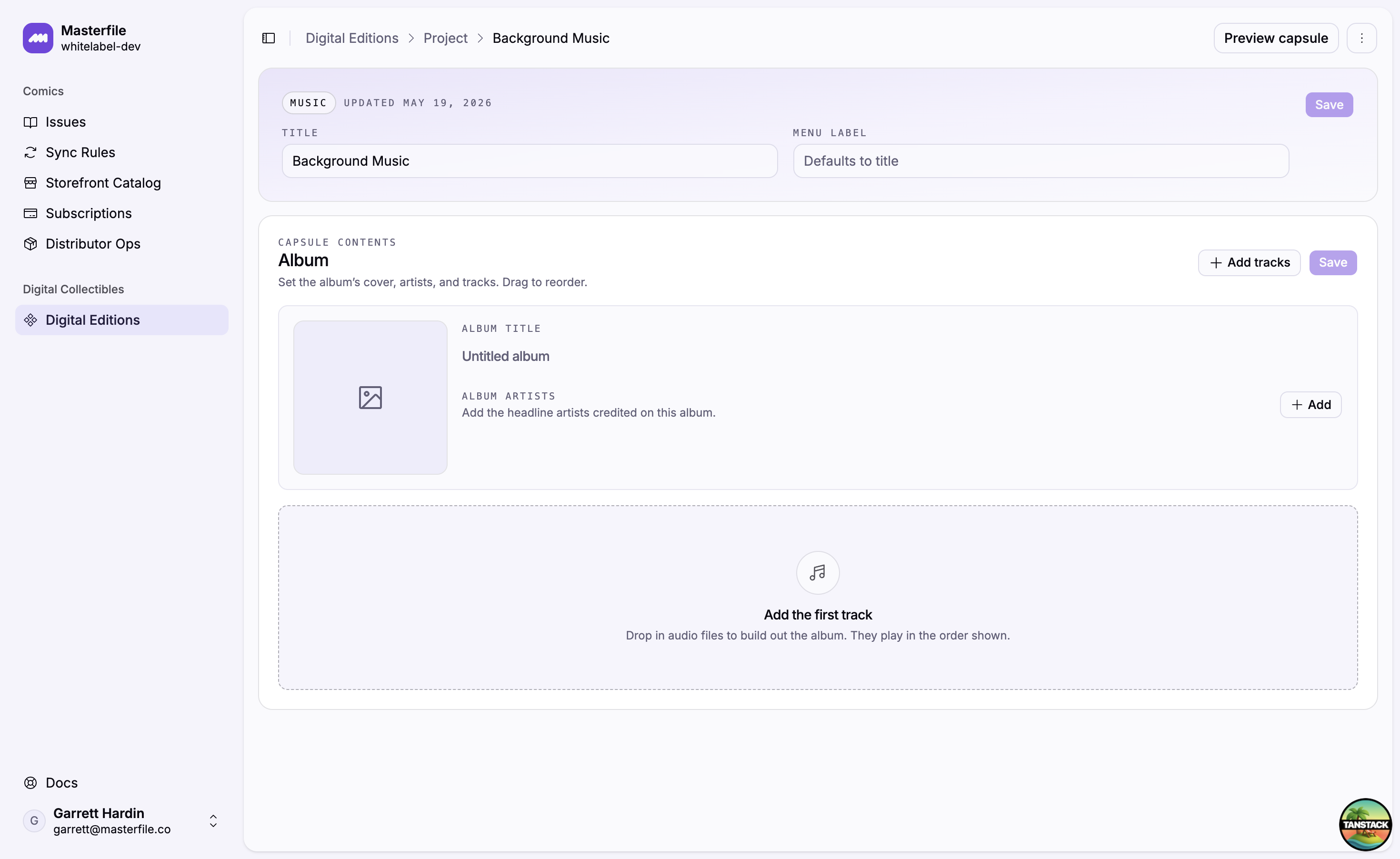
Each performer row has a name and an optional join phrase ("featuring", "with", "&") that's used when stitching multiple names together in the viewer.
3. Add tracks
Click Add tracks (in the album header or the empty state) to open the media library. Pick or upload audio files. MP3, AAC, WAV, OGG, FLAC, or audio-only MP4/WebM. Each file becomes one track, ordered as picked, with its filename used as the initial title and its embedded duration filled in automatically.
Drag the handle on any row to reorder. Track numbers renumber themselves to match.
4. Edit a track
Select a track in the left rail to open its detail panel. Rename it in the header, and use Replace on the audio tile to swap the file without losing the rest of the metadata.
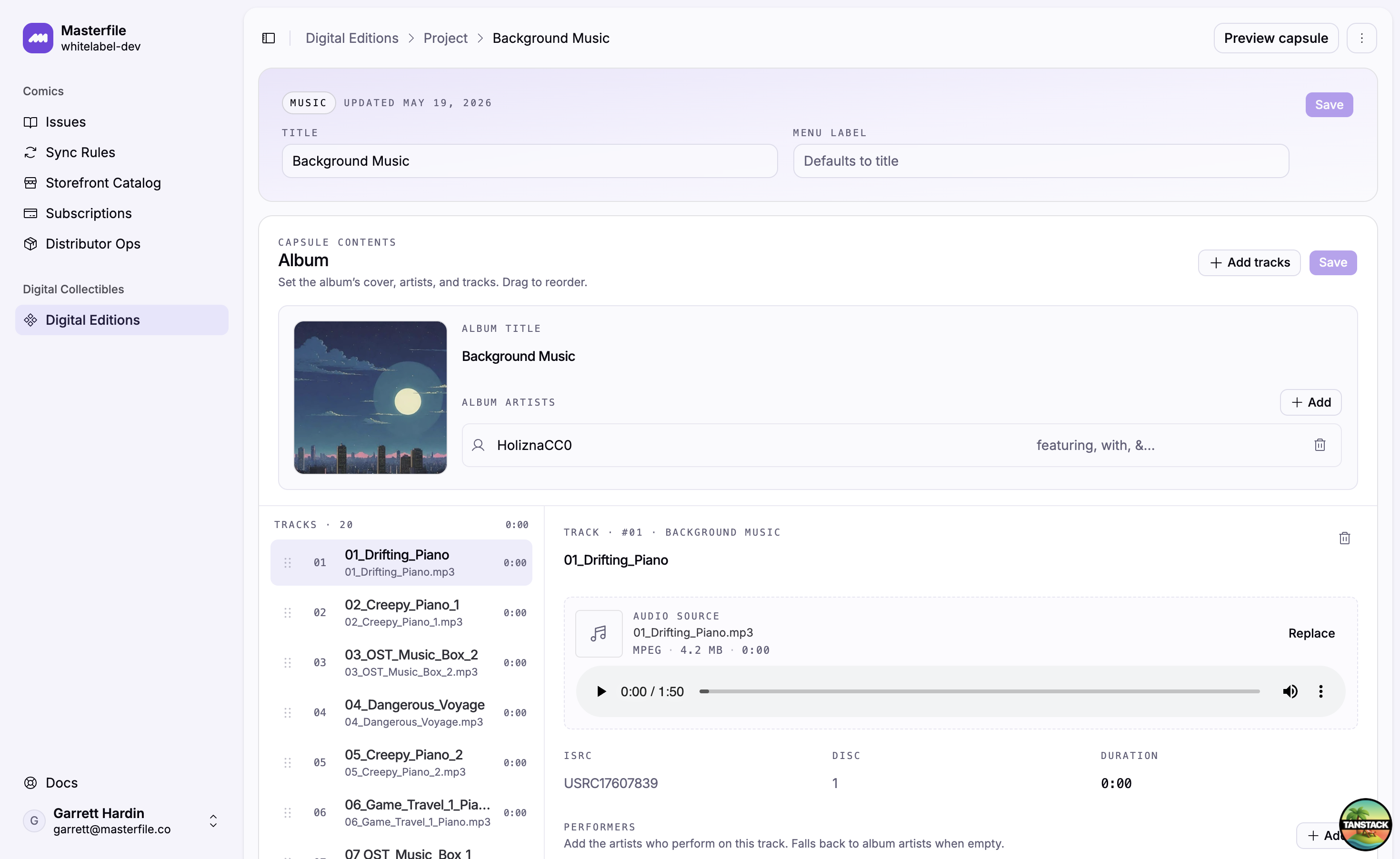
The metadata fields are all optional but show up in the viewer when present:
- ISRC. The track's International Standard Recording Code.
- Disc. Disc number for multi-disc releases.
- Duration. Auto-filled from the file. Override in
m:ssorh:mm:ssif the embedded value is wrong. - Performers. Per-track credits. Leave empty to fall back to the album artists.
- Contributors. Composers, lyricists, producers, engineers, mixers, mastering, conductors, remixers.
5. Save
Click Save in the Album card header. The Unsaved changes banner clears once it's written.
6. Preview
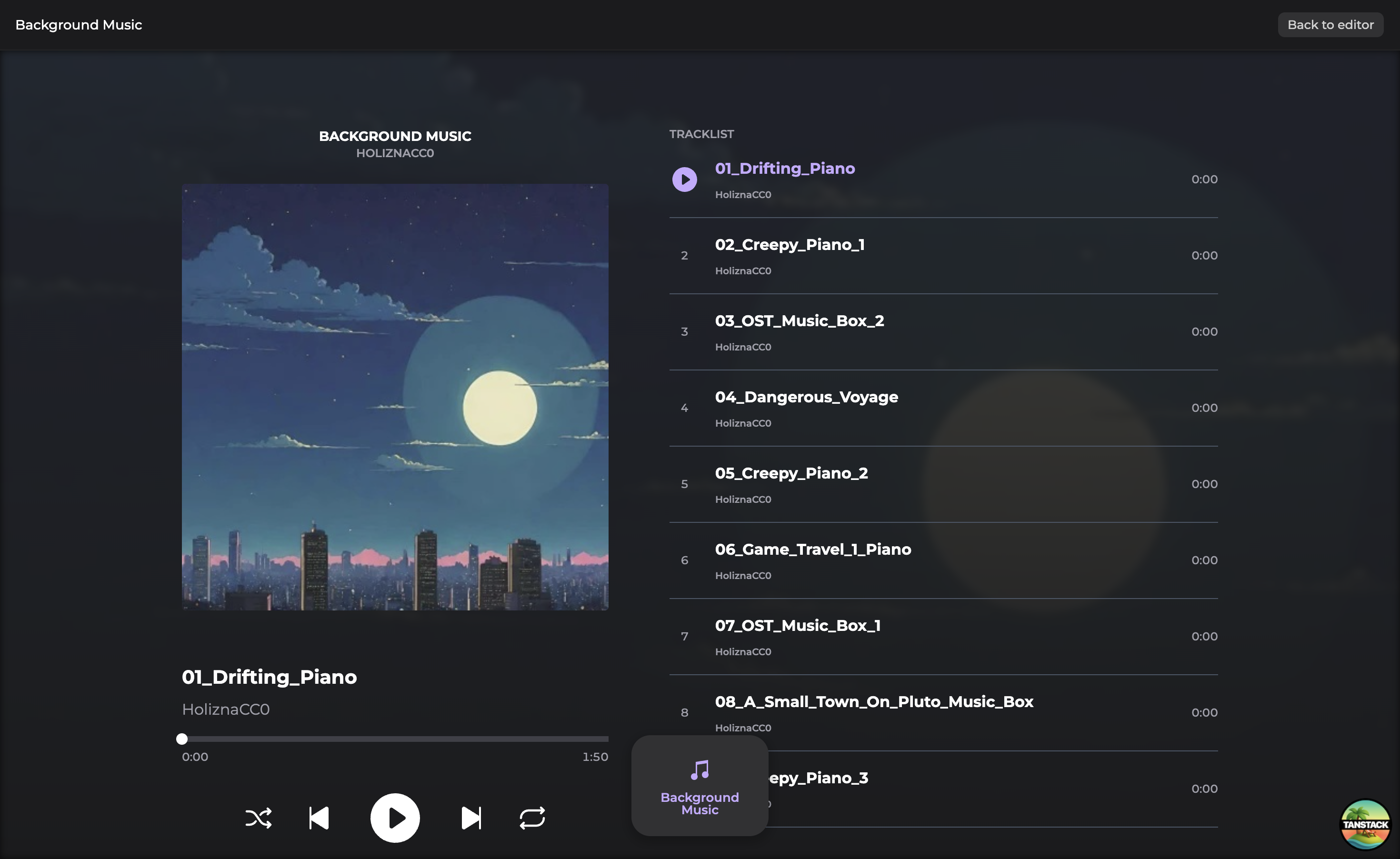
Click Preview capsule in the page header to see the capsule exactly as customers will. The viewer shows the cover, current track, transport controls, and a track list. Tap a track to jump to it, or use the shuffle and repeat buttons in the transport bar.
Next steps
Capsules reach customers once they're bundled into an edition and the project is published. Continue with Compose and preview an edition.