Update your sync rules
The initial setup doc walks through every section. This guide covers ongoing changes — common reasons to revisit the rules, how groups and properties interact, and what applies retroactively.
Common reasons to update
Open Sync Rules when you need to:
- Carry a new publisher, distributor, or series — or drop one you no longer stock.
- Add a curated carve-out (e.g. "all of Marvel, plus a handful of Image titles").
- Tighten or relax your age-rating or format policy.
- Turn series subscriptions on or off.
- Change which sales channels new products publish to.
How rule groups combine
An issue syncs if it matches any group. Within a group, every active property must match. Properties you haven't added are not filtered on.
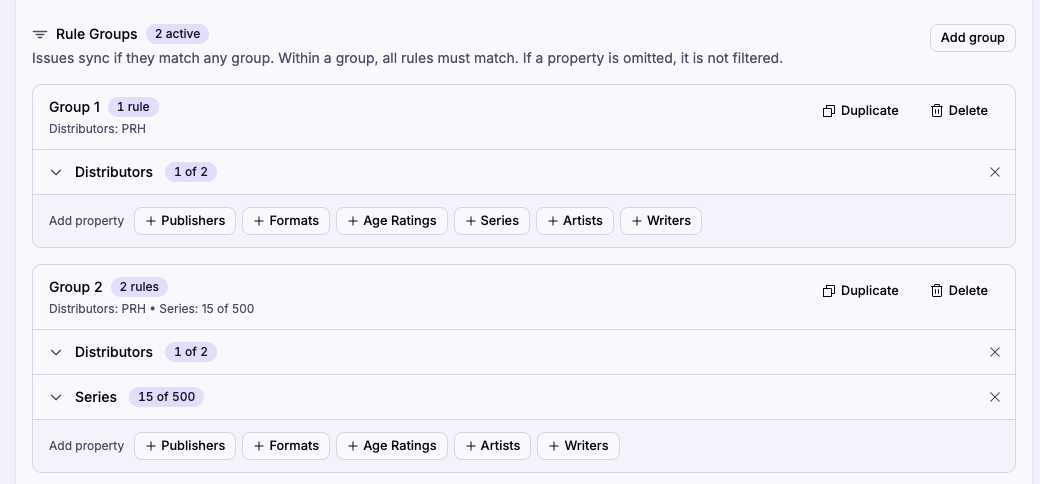
That structure means most catalog tweaks fall into one of three patterns:
- Broaden one rule. Expand a property in an existing group and tick more values, or remove the property entirely with the × button to stop filtering on it. A group with no properties matches every issue.
- Narrow one rule. Untick values, or swap the property out for a tighter one.
- Add a carve-out. Click Add group to layer in a separate set of conditions without affecting the existing groups. Use Duplicate to start from a copy.
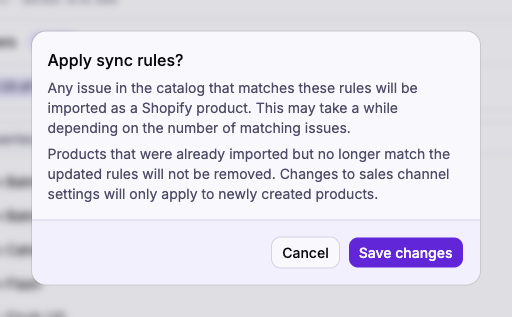
Click Save changes when you're done. Saving re-evaluates the entire catalog against the new rules. Issues that newly match become Shopify products; issues that already match keep updating. A large broadening can take a while to complete.
Editing a property
Expand a property row to see its options. Use the search box to narrow long lists like Series, Artists, or Writers, and use Select matching to bulk-toggle just the visible results.
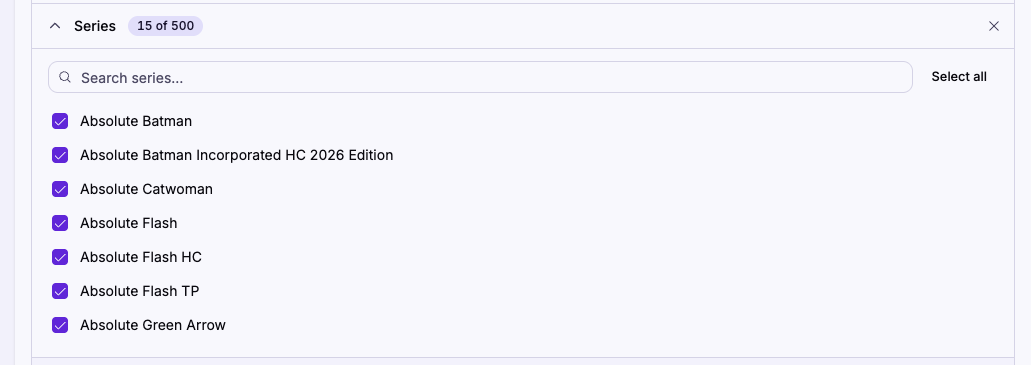
The header badge tells you what state the property is in:
- All N — every value is selected.
- N of M — partial selection.
- None selected — the property is active but no values are picked, so the group will never match. Save is blocked until you fix it.
Sharp edges
A new group starts as Matches all issues — saving with no properties syncs the entire catalog. Add at least one property to narrow it, and every property you do add still needs at least one value or save stays disabled.
Dropping a publisher, distributor, format, age rating, series, or whole group leaves previously synced products in your store. They stop receiving updates but remain live. Delete them manually in Shopify if you don't want to carry them anymore.
Changing Sales channels or Product status only affects products created after you save. Products already in your store keep their current settings — use Shopify's bulk editor to change them.
Alternatives
- One-off addition. To pull in a single issue without adding a whole group, see Add an individual issue.
- Temporary freeze. To stop all creation and updates without losing your rules, pause sync.
See About product sync for how matching, updating, and manual-edit preservation work end to end.