Configure your Shopify product theme
Masterfile ships three storefront blocks for your product page:
- Comic Details — renders synced COMET metafields (series, credits, dates).
- Pre-Order Notice — banner that appears on issues in pre-order state.
- Subscription Picker — the subscribe-to-series option that drives subscriptions.
This page covers adding and positioning the three blocks. Their per-block settings are covered in Choose which comic fields display and Customize pre-order and subscription labels.
Prerequisite
Your theme must support app blocks. Most Online Store 2.0 themes do; older "vintage" themes don't. If the Masterfile blocks don't appear under Apps in the editor, the theme isn't compatible.
Open the theme editor
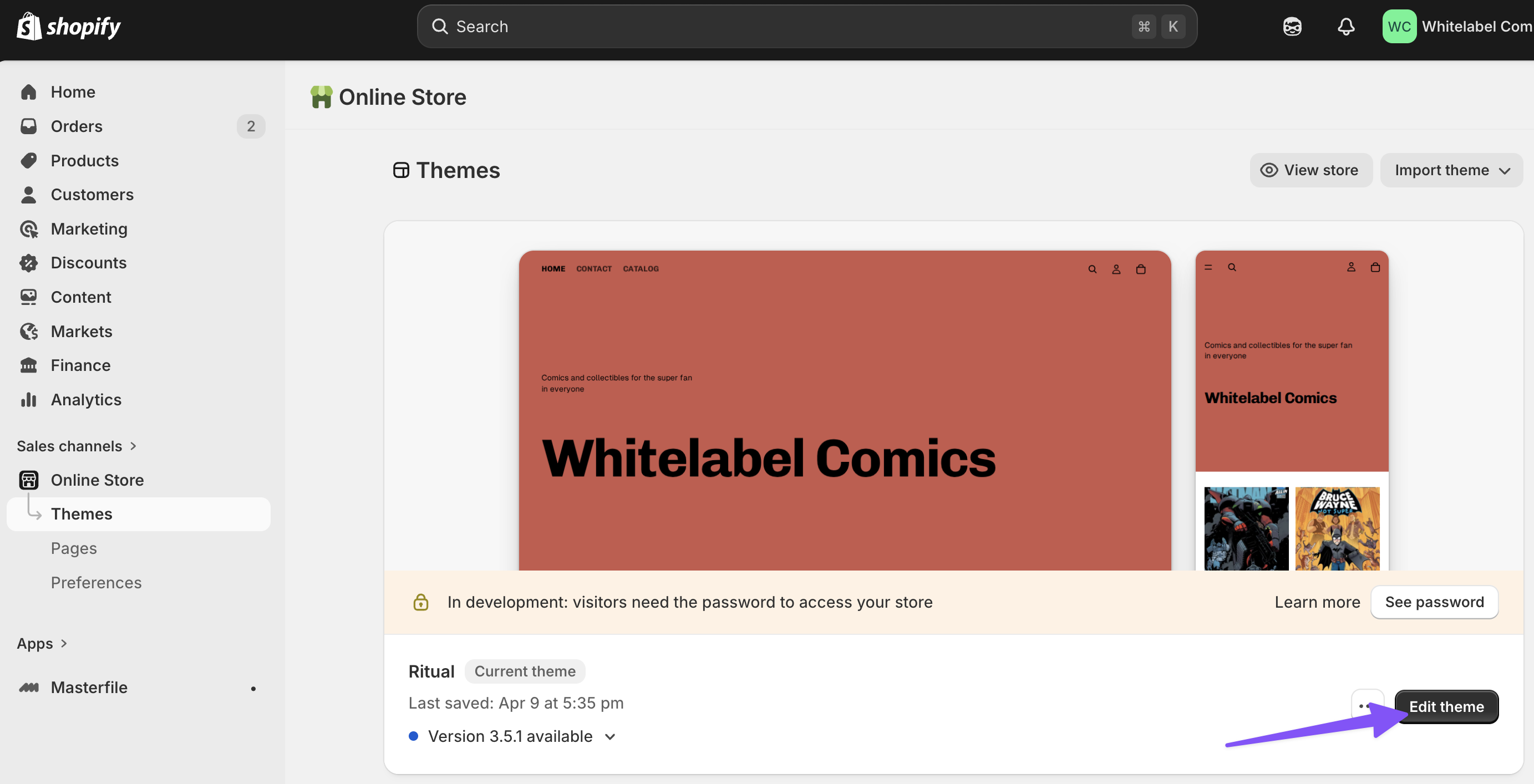
In Shopify admin, go to Online Store → Themes and click Edit theme on your live theme.
Switch to the product template
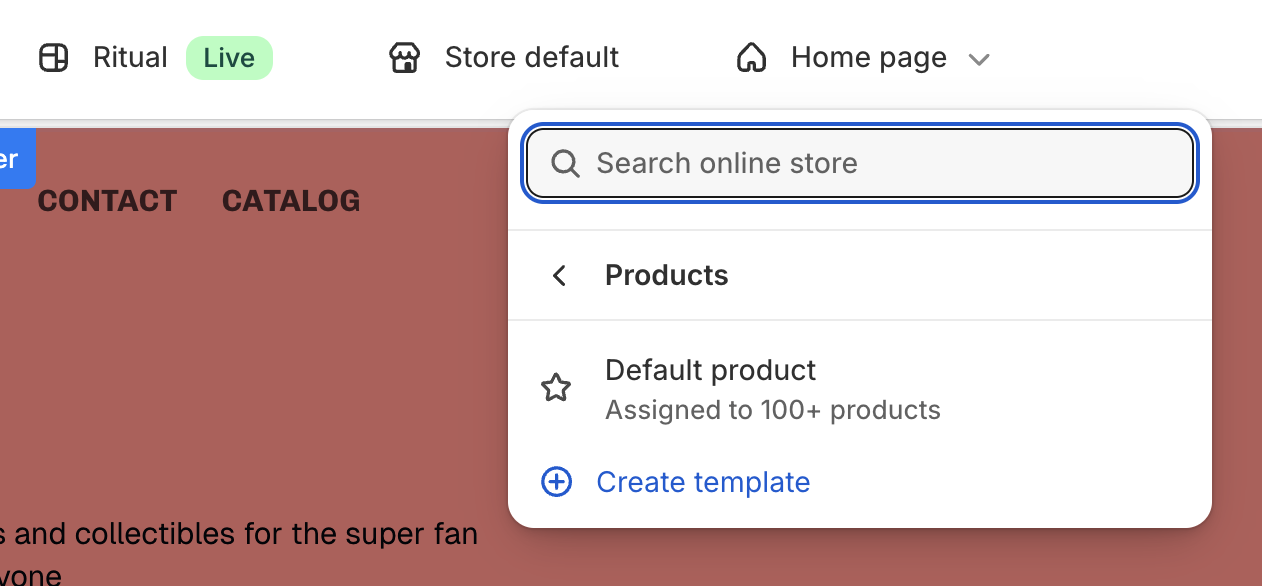
In the top template selector, choose Products → Default product (or whichever product template your store uses).
Add the three blocks
Open the Apps tab in the block panel. You'll see the three Masterfile blocks. Add each one to the Product information section.
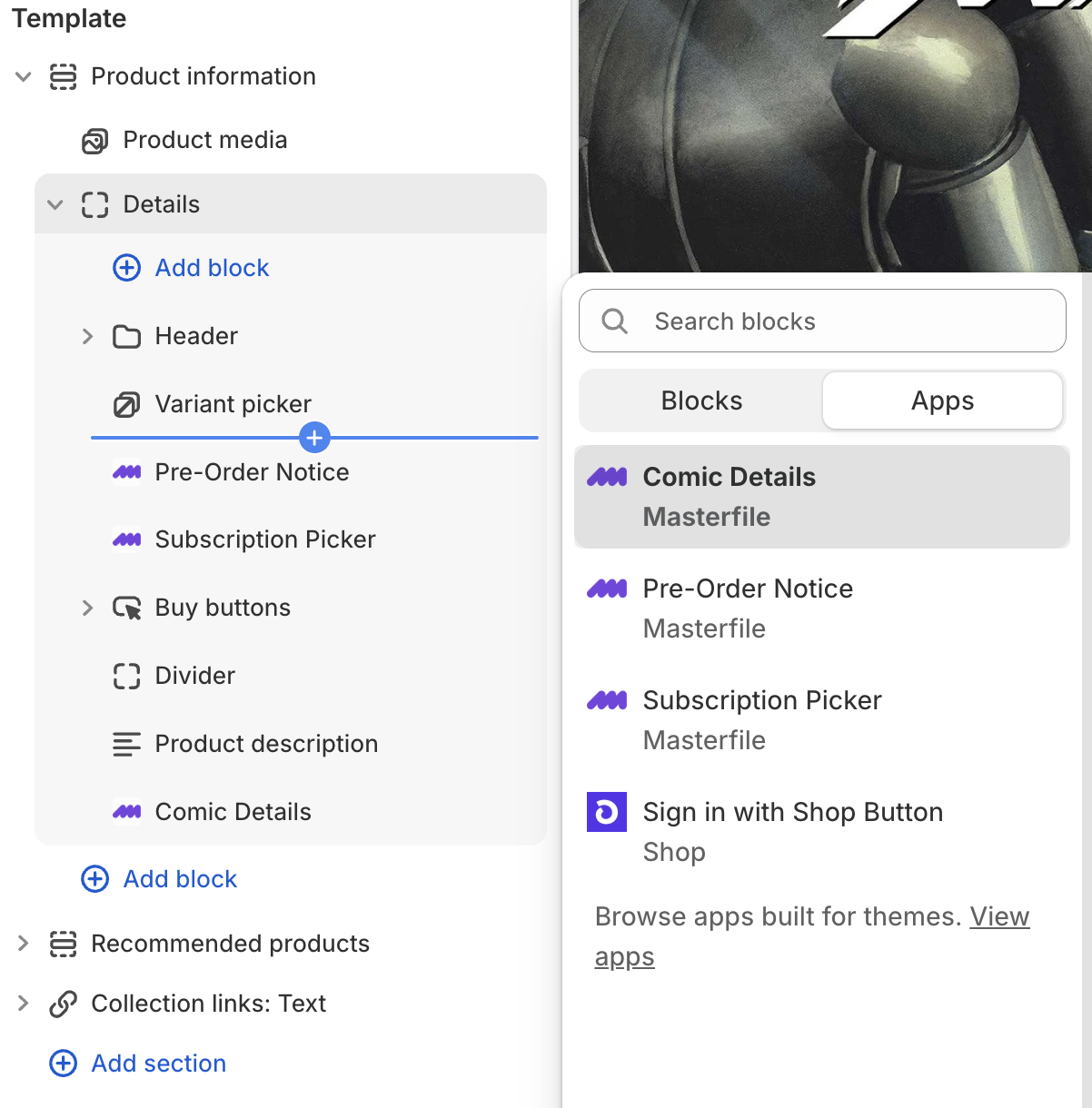
Suggested positions (drag to wherever fits your layout):
- Pre-Order Notice — directly above the Buy buttons.
- Subscription Picker — directly above or below the Buy buttons.
- Comic Details — below the Product description.
All three are safe to add unconditionally:
- Pre-Order Notice hides itself on issues that aren't in pre-order.
- Subscription Picker falls back to the regular buy button on products that don't have a subscription.
- Comic Details hides itself on products without COMET metafields, and only renders the fields that actually have a value.
Click Save. Changes are live on your storefront immediately.
What happens next
Open any synced product on your storefront to verify the blocks render. Then tune the per-block settings:
- Choose which comic fields display for the Comic Details block.
- Customize pre-order and subscription labels for the badge text and subscribe/one-time copy.
If a block isn't appearing on a product where you expect it, see A theme block isn't appearing.
Theme blocks and their settings are scoped to a single theme. If you switch to a new theme — or duplicate yours and publish the copy — re-run the steps above on the new theme. Block placement and per-block settings (badge text, field toggles, etc.) don't carry over.