Configure sync rules
Sync rules decide which issues from the Masterfile catalog become Shopify products. Open Sync Rules and work top to bottom.
The first save kicks off a bulk import. Narrow rules let you sanity-check a handful of products before opening the floodgates.
1. Turn sync on
Leave the top toggle on for setup — nothing else on the page takes effect while it's off. You can pause sync later without losing your rules.

2. Decide on subscriptions
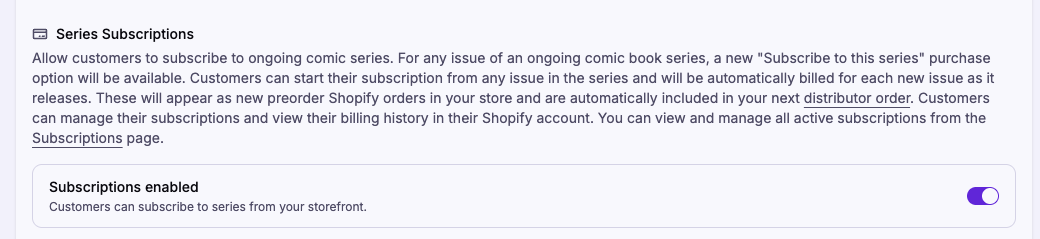
Toggle Series Subscriptions if you want a "Subscribe to this series" option on every ongoing comic book issue. Subscription orders flow into your next distributor order automatically. See how subscriptions work.
3. Set product settings
Pick the initial product status (Active, Draft, or Unlisted) and the sales channels new products publish to.
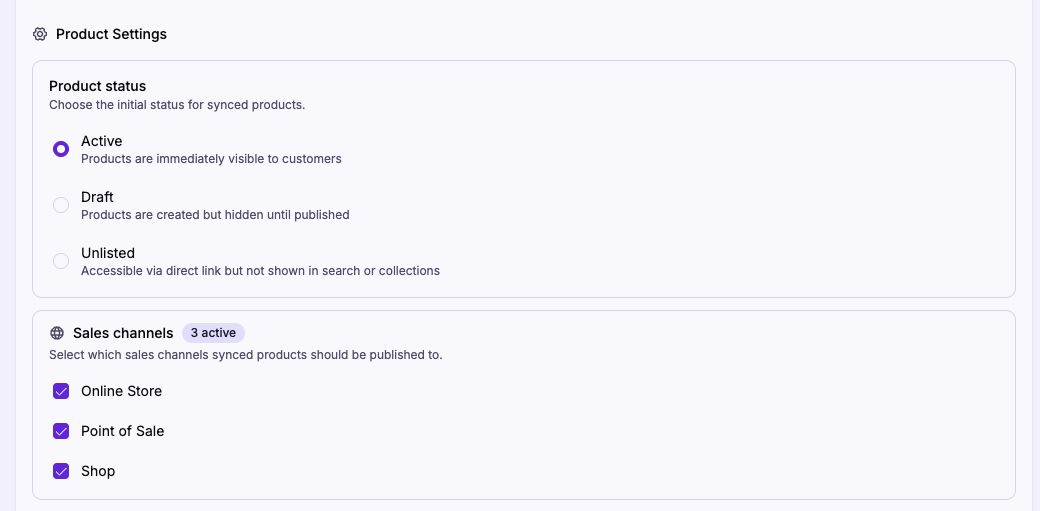
Changing channels later does not republish existing products.
4. Build rule groups
Click Add group. Your first group starts as Matches all issues — save now and you'll sync the entire Masterfile catalog. To narrow it, add properties: an issue must match every property in a group, and any group it matches pulls it in. Properties you haven't added aren't filtered on.
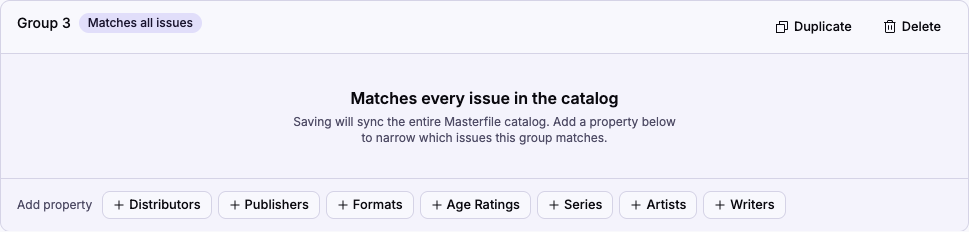
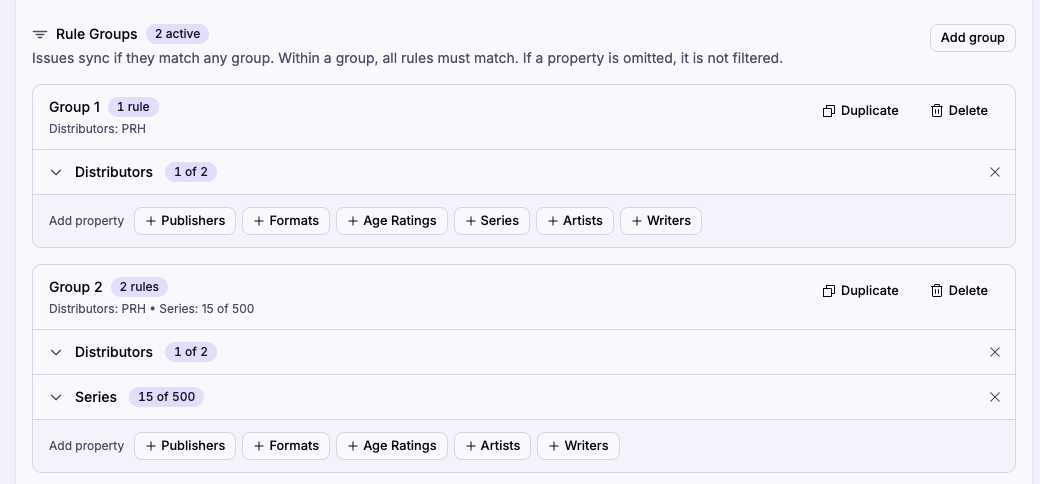
The seven properties are Distributors, Publishers, Formats, Age Ratings, Series, Artists, Writers. Series and creator filters search long lists.

A group with no properties syncs every issue in the catalog. The save dialog calls this out before importing. Every property you do add still needs at least one value, or save stays disabled.
Examples
- Carry the entire catalog. One group, no properties.
- Carry everything from PRH. One group, Distributors = PRH.
- All DC plus selected Image series. Group 1: Publishers = DC. Group 2: Publishers = Image, Series = your picks.
- Mature comics from one distributor only. One group, Distributors = Lunar, Age Ratings = Mature.
5. Save and confirm
Every save re-evaluates the catalog. A broad change can take a while.
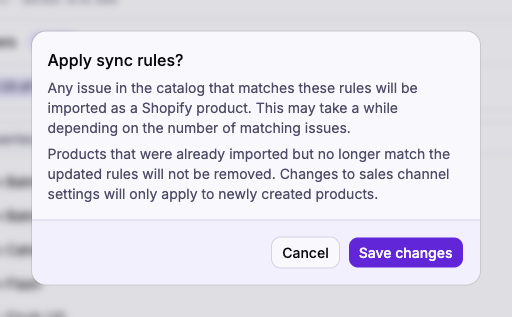
If a group has no properties, the dialog upgrades to a stronger confirmation so you don't import the whole catalog by accident.
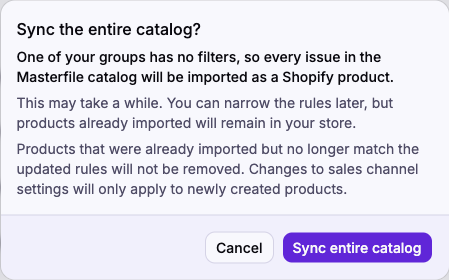
Removing a value, property, or whole group leaves already-synced products in your store — they just stop receiving updates. Delete them in Shopify if you no longer want to carry them.
What happens next
New issues that match any group are created automatically. Upstream catalog changes are pushed to existing products, and your manual edits in Shopify are preserved. See About product sync for the full lifecycle.