Receive a distributor shipment
You'll do this twice for each box: once when the distributor announces what's coming, again when the box lands. The first pass marks inventory incoming in Shopify; the second receives it onto the shelf. See About distributor shipments for the bigger picture.
1. Upload the shipment
Open Distributor Ops → Shipments and click Upload Shipment.
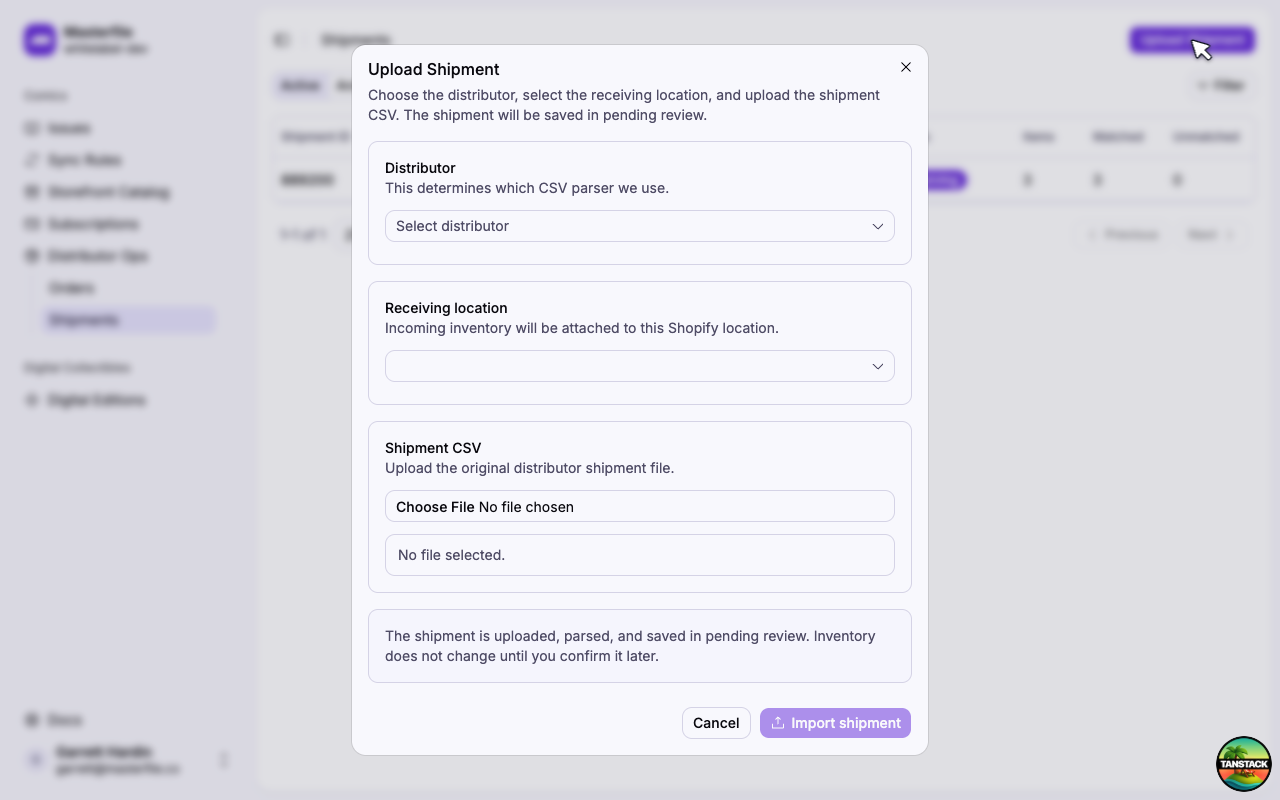
Pick the distributor, the receiving location (where the box will be unpacked), and the shipment file:
- Lunar — the CSV Lunar emails you, or the one from the order detail page.
- PRH — the Delivery Detail CSV from the delivery's actions menu in the PRH portal.
Click Import shipment. The shipment opens in Draft — nothing has touched Shopify yet.
Re-uploading the same shipment is rejected — you'll be sent to the existing one. If the distributor sends a corrected file, treat it as a new shipment.
2. Review and mark incoming
Sanity-check the totals on the summary card — distributor, ship date, ordered count, matched, skipped.
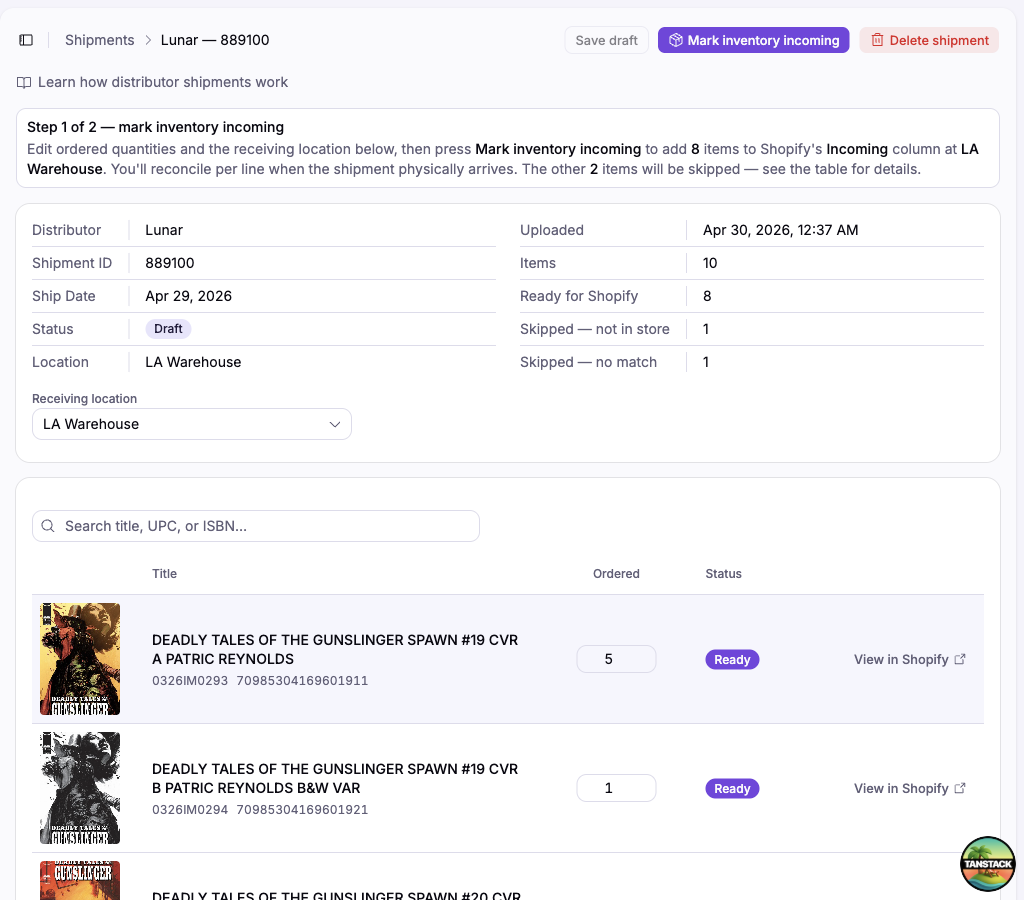
Edit Ordered counts only if the file is wrong (a typo, a substitution noted on paper). Most edits happen at receiving, not here.
Lines on the Skipped tab won't be pushed. Two reasons:
- Not in store — you haven't synced this issue, or it needs to be added as an individual issue. Use the row's Open issue action to fix it, then reload.
- No match — Masterfile doesn't know the code. Usually promos or posters. Note these for receiving manually; nothing to fix.
When the Ready count looks right, click Mark inventory incoming.
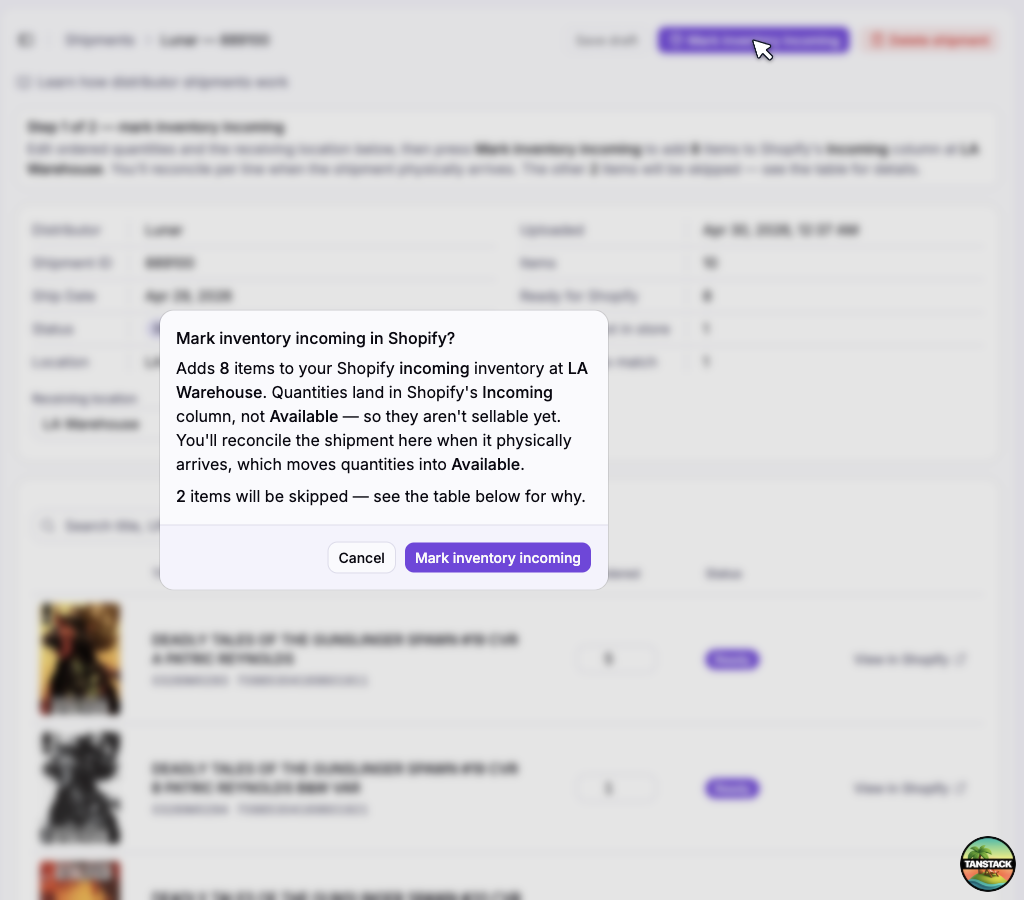
Confirm. The Ready quantities go into Shopify's Incoming at the receiving location, and the page advances to Receiving.
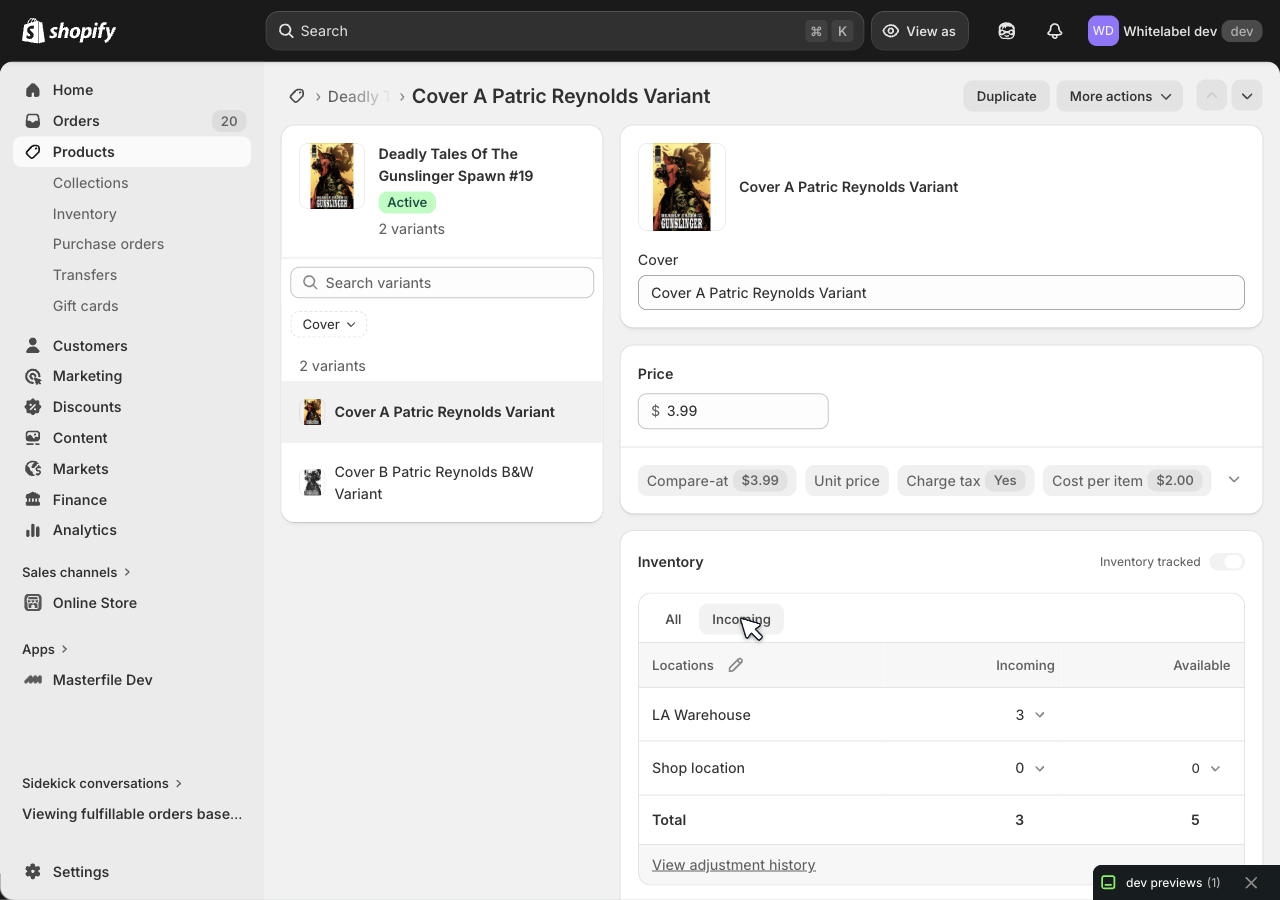
To verify, click View in Shopify on any line and switch the Inventory section to Incoming — the quantity should be sitting at the receiving location:
3. Receive lines as the box arrives
When the box is in front of you, open the shipment. The page is now a working grid with Received and Damaged inputs per row.
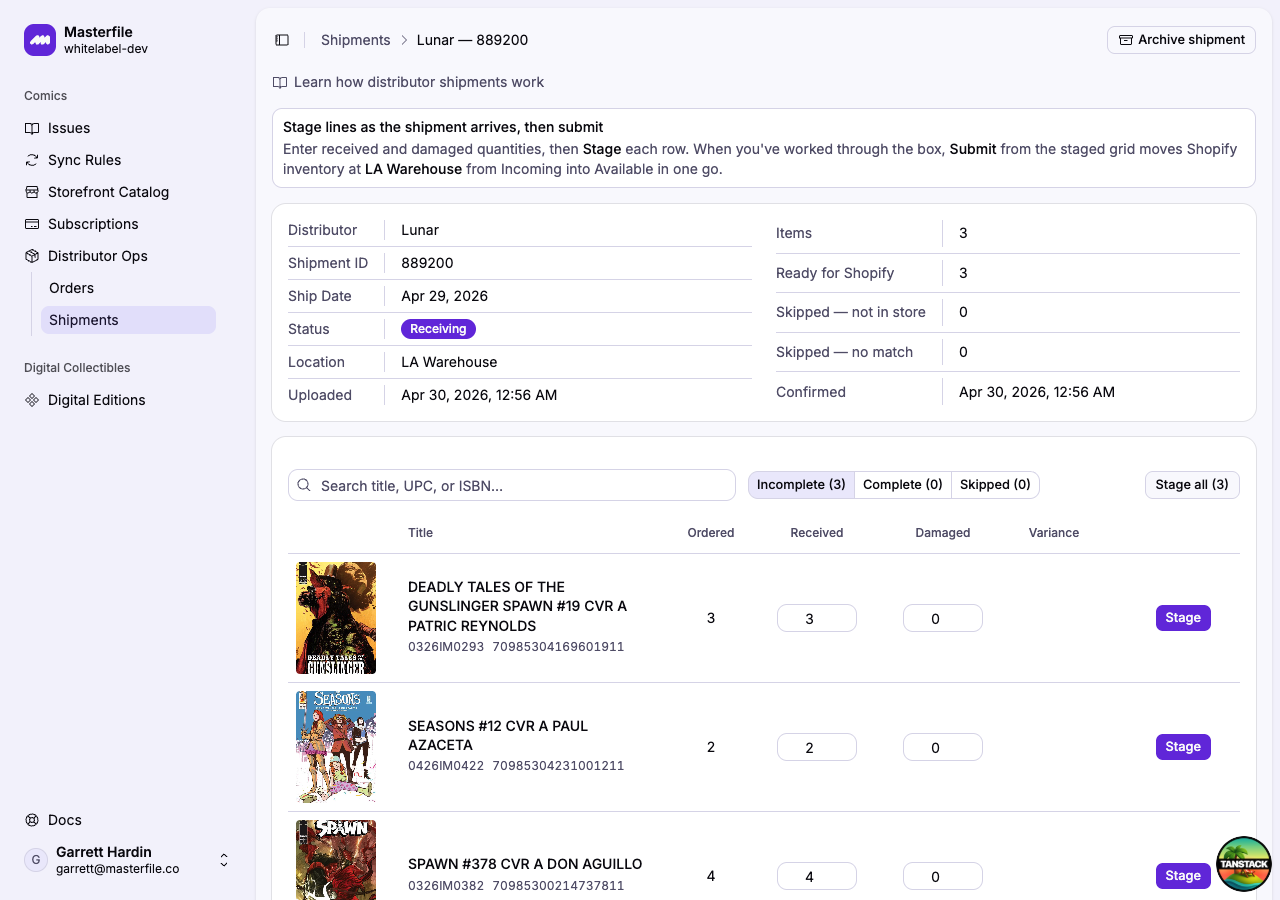
Receiving is two steps: stage what you counted, then submit it to Shopify.
- Type the Received count (and Damaged if any), click Stage.
- When you're ready, click Submit staged.
You can stage and submit as many times as you want against the same shipment. Submit a partial batch when one carton arrives, then come back and finish the rest when the next carton lands or when you have time to keep counting. Submitted lines move to the Complete tab (read-only with their final counts); the Incomplete tab keeps the lines you still need to receive.
A few patterns:
- Everything in full — click Stage all. Each row's Received auto-fills to Ordered. Skim, then Submit staged.
- One short, one damaged — fix those rows individually, Stage all for the rest.
- Partial shipment — stage and submit the rows that arrived; leave the rest for later.
- Mistake on a staged row — click Unstage, fix the numbers, Stage again. (Once submitted, fix it in Shopify directly — see When to edit inventory in Shopify.)
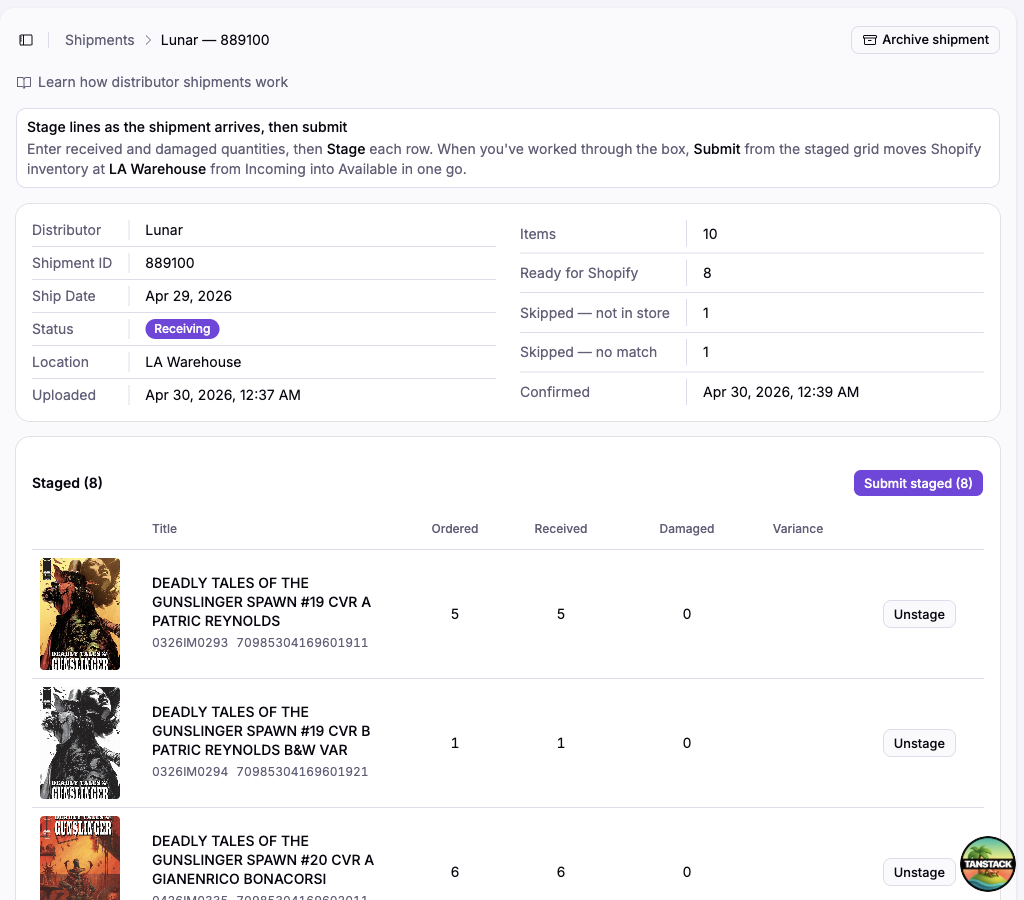
When the staged grid matches what you actually got, click Submit staged.
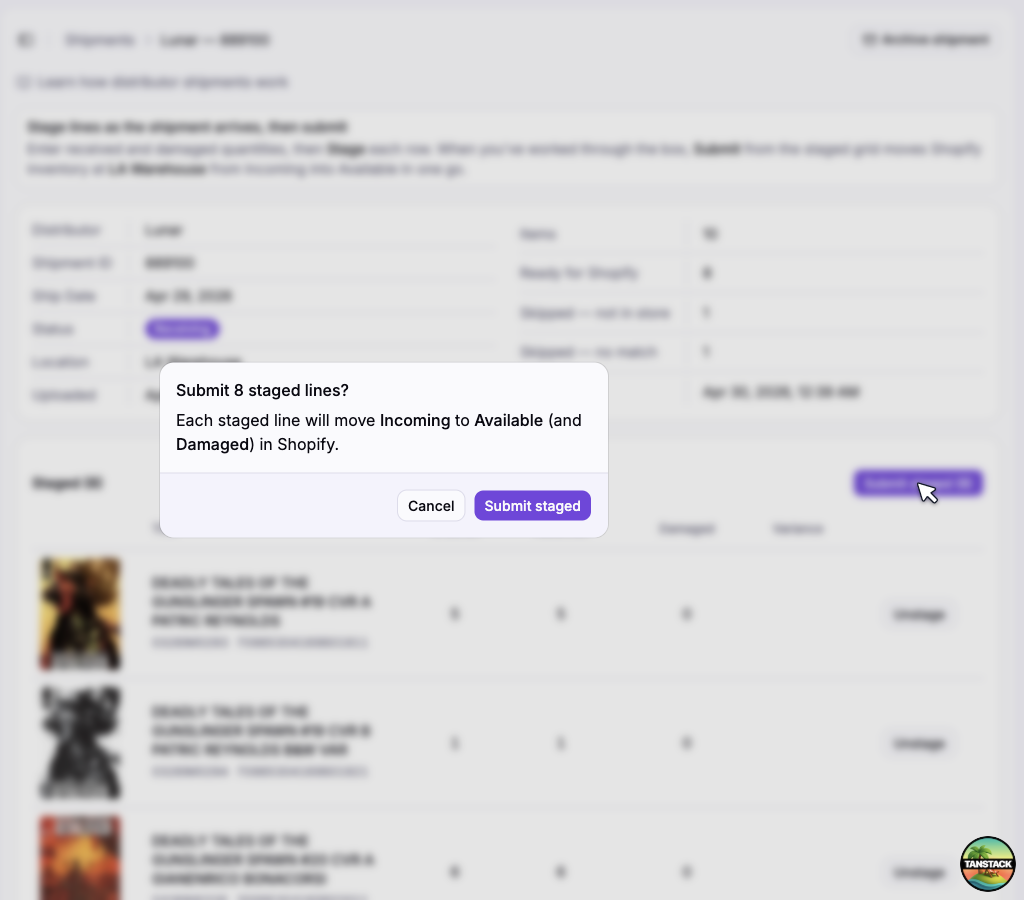
Confirm. The staged quantities move from Shopify's Incoming to Available (and Damaged) at the receiving location. Variance lines submit too — see Handling variances.
If Masterfile previously unlisted a sold-out product after its final FOC, receiving positive available stock automatically makes that product active again. It will return to storefront discovery without you changing its status in Shopify.
Once every line is received or skipped, the shipment auto-archives.
Verifying in Shopify
Click View in Shopify on any received line. The Inventory section now shows the quantity in Available at the receiving location:
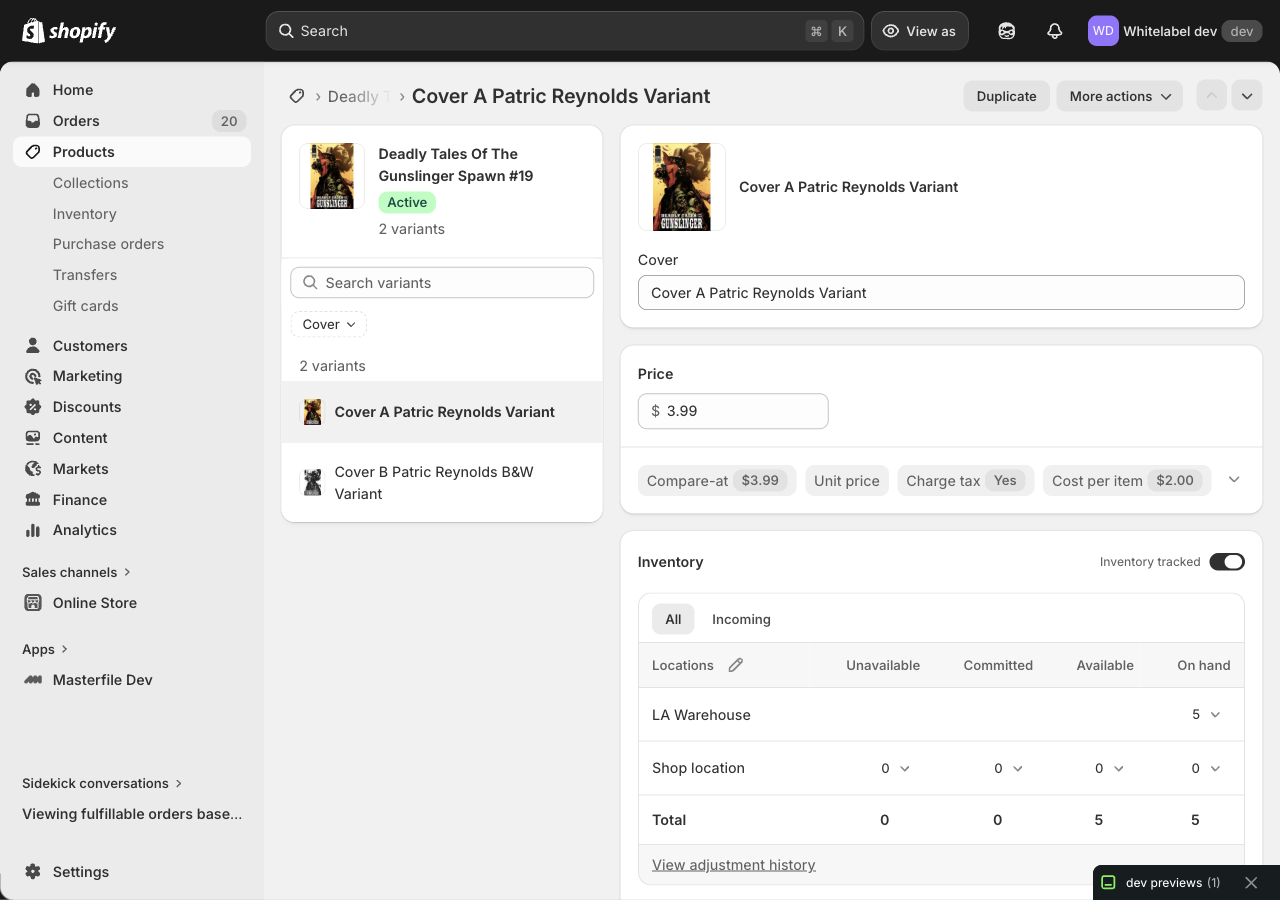
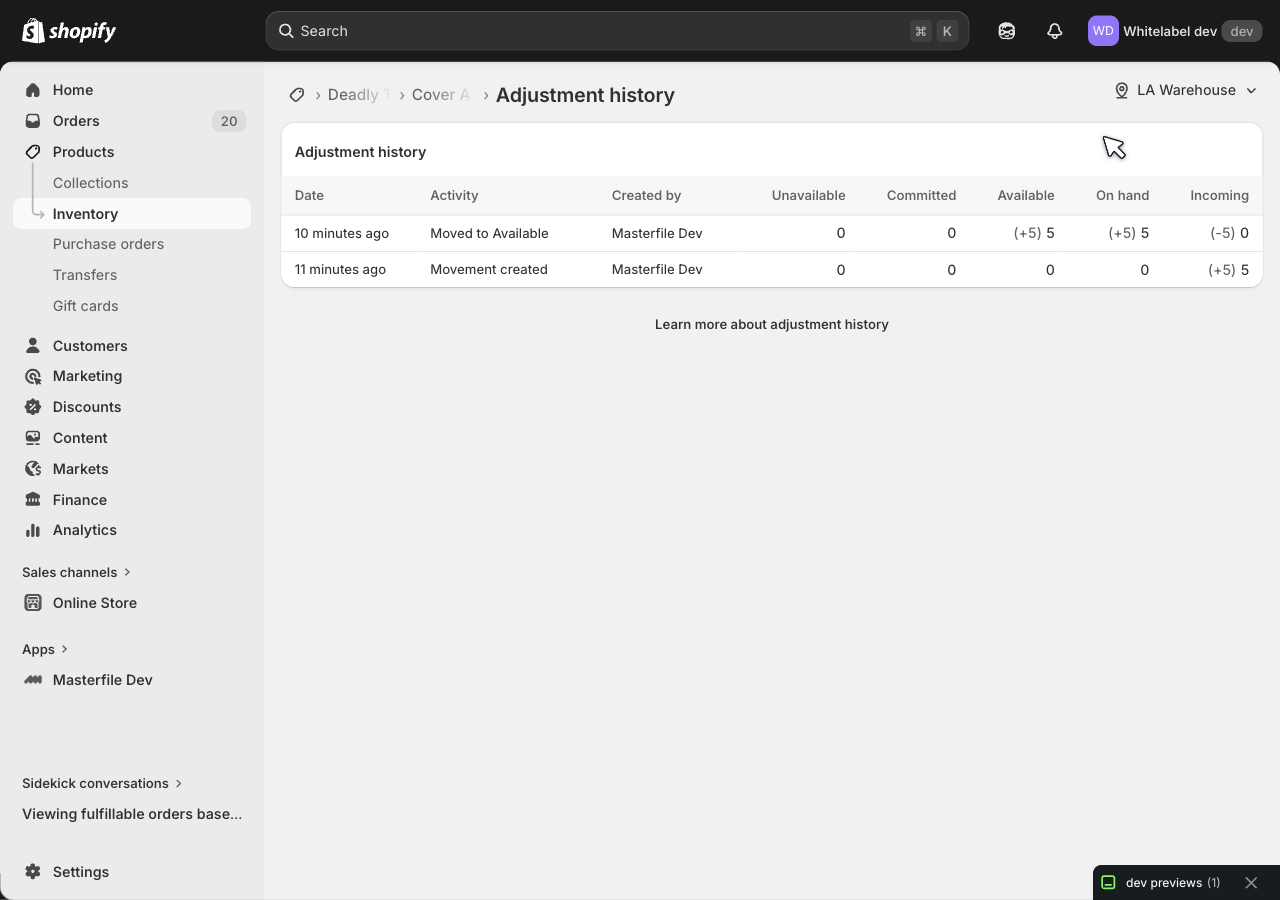
Click View adjustment history for the record — one Movement created entry from marking incoming, one Moved to Available entry from receiving:
Handling variances
If received + damaged doesn't match ordered, the Variance column shows the delta. The line still submits — Masterfile lets it through so you don't get stuck.
The catch: Shopify's Incoming for that variant won't fully drain. If you ordered 5 and got 4, the leftover 1 sits in Incoming until you clean it up:
- Short shipments — wait for the distributor's adjustment, or zero out Incoming in Shopify if it's never coming.
- Over shipments — Available is correct (Masterfile uses the full received count). The leftover negative-Incoming is harmless but ugly; clean it up when you have time.
To clean up Incoming or fix anything else, open the variant via View in Shopify and edit the count directly. See Shopify's adjusting inventory quantities docs.
4. Force-archive (only when nothing else fits)
If a line will genuinely never arrive — the distributor lost the carton, the SKU was substituted out — and you want to close the shipment, use Archive shipment at the top right.
Outstanding lines become Skipped ("won't be received"). Shopify's Incoming for those lines stays where it is — the assumption is that the substituted item will arrive on the next shipment and net out then.
This is one-way; a force-archived shipment can't be reopened. If the missing items eventually do show up, upload them as their own shipment. If you know the stock will never arrive, zero out Incoming in Shopify so your numbers are accurate.
Editing inventory directly in Shopify
For anything outside the standard flow — a damaged copy you didn't catch until later, a miscount on an archived shipment, an unmatched line you decided to count manually — edit the variant in Shopify directly.
The fastest path is View in Shopify on any line: it opens the variant, where you can adjust Available, On hand, or Incoming at any location. Masterfile reads Available for everything downstream — pre-orders, subscriptions, distributor orders — so manual fixes flow through automatically.
Manual inventory edits do not automatically reactivate a product that Masterfile unlisted after FOC. If stock is added outside the shipment receiving flow, set the product back to Active in Shopify yourself.