A product didn't sync
Work through these in order. Most "didn't sync" reports turn out to be one of: the issue doesn't match the rules, sync is paused, or a recent change is still propagating.
1. Check the Store Sync card
Open Issues, search for the issue, and open it. The Store Sync card on the top right is the source of truth for whether the issue is in your store.
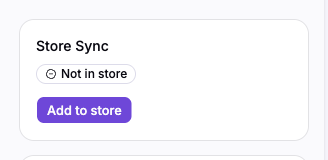
- In store — the product exists. If you can't find it on the storefront, it's not a sync problem; jump to Synced but not visible.
- Not in store — keep going.
2. Confirm sync is enabled
Open Sync Rules. The top card reads Sync is active or Sync is paused. If it's paused, nothing creates or updates products — flip it on and save. See Pause and resume product sync.

3. Verify the issue matches a rule group
Compare the issue's metadata — distributor, publisher, format, age rating, series, creators — against the groups on Sync Rules. The issue syncs only if it matches every property in at least one group. See About product sync — what sync rules select.
If no group matches, you have three options:
- Broaden an existing group — loosen a property or remove it entirely. Worth it only if you want the other issues the change brings in.
- Add a new group — layer in a separate set of conditions just for this kind of issue without touching the existing groups.
- Add the issue individually — scoped to just this one issue, no effect on other products.
4. Wait for the sync to finish
Saving sync rules, saving distributor costs, or resuming sync all trigger a re-sync of every matching product. On a large catalog this can take up to ~20 minutes.
Only one sync runs per store at a time, so back-to-back changes queue up — three saves in a row roughly triple the wait. If you've changed something in the last 20 minutes, give it time before assuming it failed.
Synced but not visible on the storefront
If the Store Sync card says In store but customers can't see the product, the product exists — it's the sales channel that's wrong. Sync only publishes to the sales channels selected in your rules the first time a product is created. Adding a channel to your rules later does not republish products already in your store.
Fix it in Shopify: open the product and add the missing channel under Publishing, or bulk-edit the affected products. See Sales channels only apply going forward.
Still stuck
If the issue is in your catalog, matches a rule group, sync is on, and you've waited
— email support@masterfile.co with the issue title or barcode. Include what you've already checked.