Submit a distributor order
A distributor order is Masterfile's running tally of what you need to order from one distributor by one FOC date — pre-orders, subscriptions, and any shelf copies you add on top, all rolled up from the products sync puts on your store. It's the list you hand to PRH or Lunar every week.
Visit Distributor Ops → Orders before every FOC. Miss the cutoff and those customer copies don't come in — you eat refunds or backorders. Masterfile keeps the draft in sync with demand right up until you submit, but it doesn't transmit anything to the distributor for you: you still upload or paste the quantities into their system, and then mark the order submitted here.
See About distributor orders for how drafts are generated and kept in sync.
1. Open the draft
Open Distributor Ops → Orders, filter to Upcoming, and click the row for the FOC you're working.
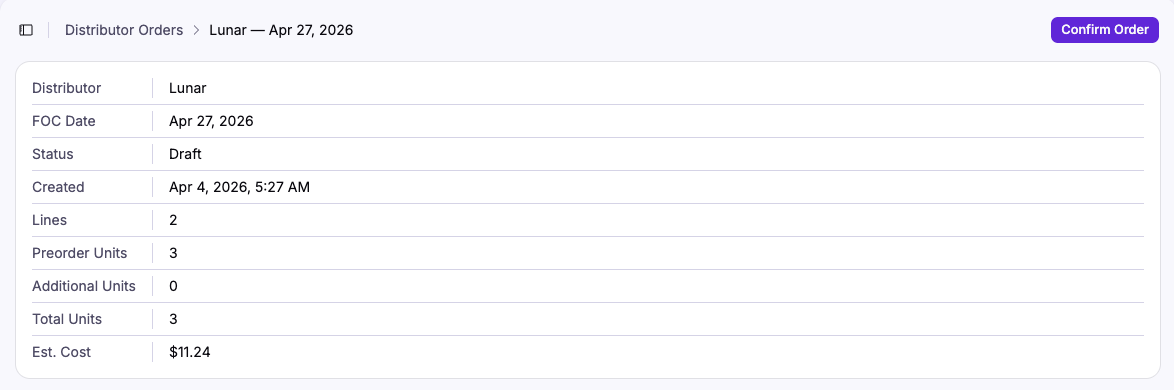
Sanity-check the totals on the summary card — distributor, FOC date, line count, total units, and estimated cost. If something looks off, the fix is usually upstream: check sync rules, distributor costs, or the pre-order and subscription demand feeding the line.
2. Add buffer copies
The Additional column on each line is editable while the order is a draft. Enter shelf copies, out-of-store subscriber copies, or buffer there. The Preorder column is read-only — it mirrors customer demand.
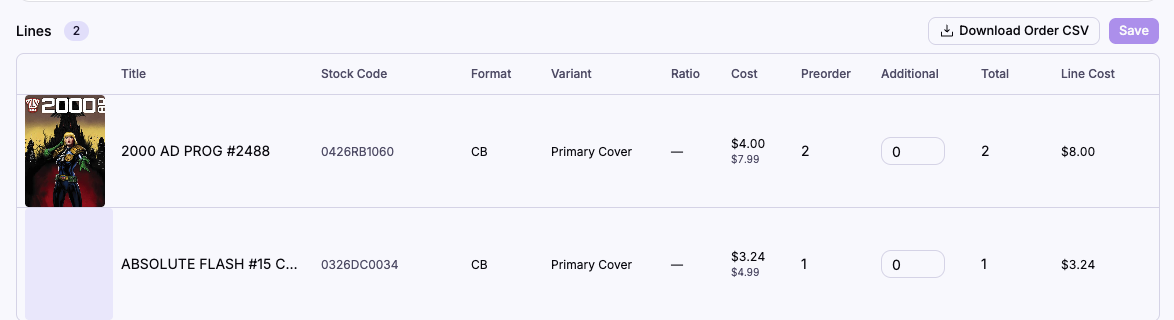
To stock something no customer has pre-ordered, scroll to Add Items — the browser is pre-scoped to this distributor and FOC. Enter a quantity and click Add. Click Save in the Lines header when you're done editing.
3. Export to the distributor
Use the button in the Lines header to hand the quantities off.
Lunar
- Click Download Order CSV on the Masterfile order.
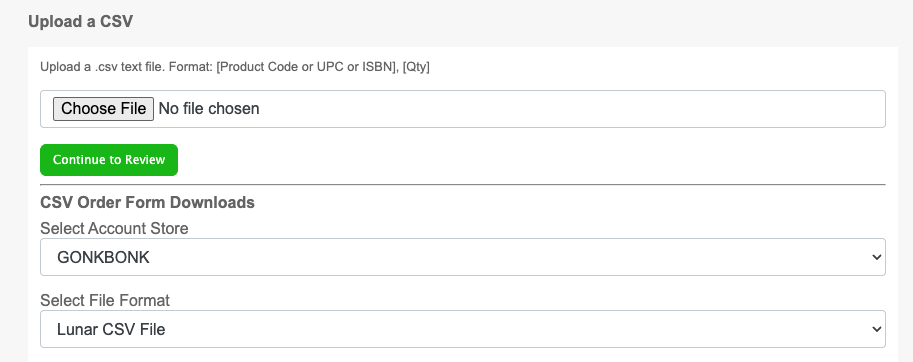
- In your Lunar account, go to lunardistribution.com/order/csvupload — or New Order → CSV Upload.
- Leave Select File Format on Lunar CSV File (the default), choose the downloaded CSV, and click Continue to Review.
PRH
- Click Copy Order Lines on the Masterfile order.
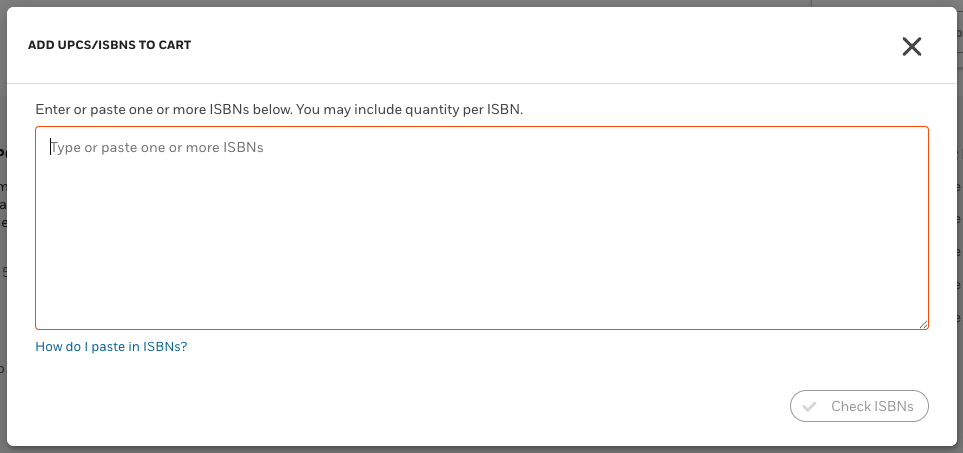
- In the PRH portal, open Cart → Add ISBNs/UPCs and paste into the text area.
- Click Check ISBNs to load the lines into your cart.
Exporting doesn't change the order status — the draft stays a draft until you mark it submitted.
4. Mark it submitted
Once you've uploaded or pasted the order into the distributor's system, click Submit Order at the top right to flip the status from Draft to Submitted.
This freezes quantities. Masterfile stops updating the order and it becomes a permanent record of the quantities you placed with the distributor. Notes remain editable.
After you submit
Once an order is submitted, Masterfile stops adding demand to it. Any new demand between submission and FOC (late subscription billing, last-minute pre-orders) starts a new draft for the same distributor and FOC instead of reopening the submitted one — this is how the system avoids double-counting or over-ordering against the quantities you've already placed.
The new draft shows up as its own row in the Distributor Ops → Orders table and is linked from the Additional Orders card on the submitted order. Check for siblings in the last day or two before cutoff and submit them the same way. See late demand after submission.