Customize pre-order and subscription labels
Requires the Comics Catalog plan (or Retailer Ops). Compare plans.
The Pre-Order Notice and Subscription Picker blocks expose their shopper-facing copy as block settings. Edit them in the theme editor.
Open Online Store → Themes → Edit theme, switch to your product template, and click the block in the canvas (or in the left sidebar) to open its settings panel.
Pre-Order Notice
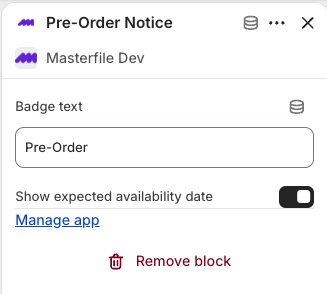
Two settings:
- Badge text — the label shown next to the expected date on pre-order products. Defaults to
Pre-Order. Common alternatives:Coming Soon,Reserve Now. - Show expected availability date — toggle the
Expected {date}line on or off. Leave it on unless you have a specific reason to hide the date.
Click Save in the theme editor. The new copy is live on your storefront immediately.
Subscription Picker
Three settings:
- Heading text — the label above the purchase options. Defaults to
Purchase options. - One-time purchase label — the label on the regular buy option. Defaults to
One-time purchase. - Subscribe label — the label on the subscribe option. Defaults to
Subscribe to this series.
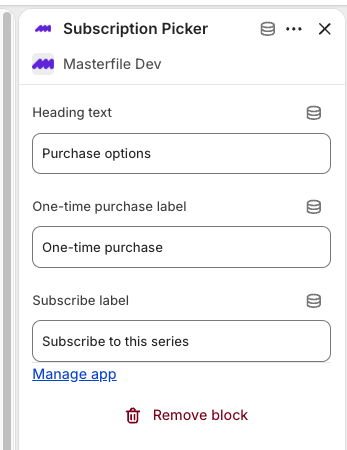
The plan cadence (e.g. Every new issue) and per-issue savings line are generated automatically and aren't configurable.
What you can't customize from the theme editor
A few pieces of pre-order and subscription copy are not block settings:
- The cart and checkout line annotation (
Pre-Order — Expected {date}) is rendered by the checkout extension and isn't configurable. - Plan names that appear under the subscribe label come from Shopify's selling plan and are managed by Masterfile per series. See About subscriptions.
If you need different copy in those surfaces, contact support.
Related
- Configure your Shopify product theme — initial setup for both blocks.
- Choose which comic fields display on product pages — the companion settings on the Comic Details block.