Create a digital editions project
A project is the container that holds the capsules and editions for one title. For where projects fit alongside capsules and editions, see About digital editions.
1. Open Digital Editions
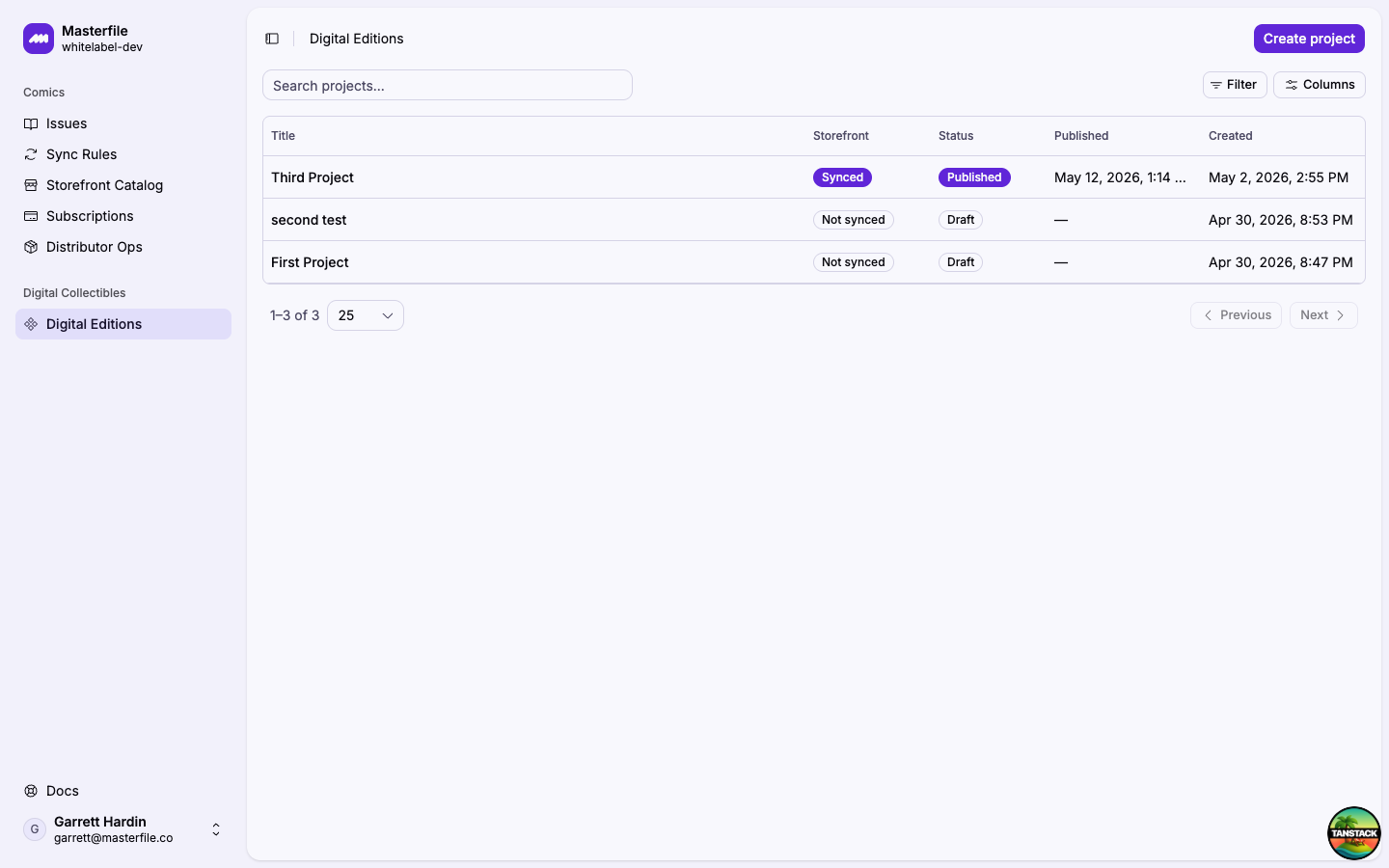
From the dashboard, click Digital Editions in the sidebar (under Digital Collectibles). The page lists every project in this store with its publishing and Shopify-sync status.
2. Create the project
Click Create project in the page header, give it a title, and add an optional description. The description is a private note for your team. Customers don't see it.
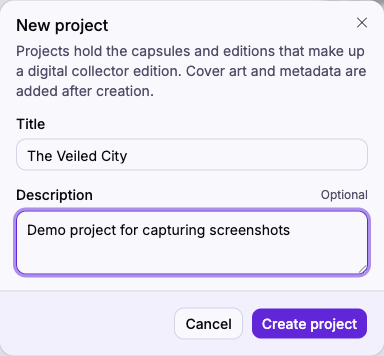
Click Create project. You'll be taken straight into the new project's page.
3. Add cover art and metadata
The project starts as a Draft with an empty cover and no metadata. Click the cover tile to pick or upload an image (PNG, JPEG, WebP, or AVIF). This is the artwork shown on the project's Shopify product once it's published.

Use Metadata → Add field to attach key-value metadata to the project. Click Save in the header to commit changes.
Next steps
A project doesn't reach customers until it has at least one capsule, one edition, and is published. Continue with one of:
- Add a scroll capsule, layered art, music, or attachment.
- Compose and preview an edition once you have a capsule or two.
- Publish the project when you're ready to push it to Shopify.