About capsule types
A capsule is one self-contained reading experience inside a project. An edition is built by stacking capsules together, and the type you pick when creating a capsule determines what the customer sees and interacts with. There's no "switching type" later. Pick the right one up front.
For where capsules fit alongside projects and editions, see About digital editions.
Scroll
A Webtoons-like vertical scrolling experience. Each chapter is an ordered stack of images the reader scrolls through end-to-end, with an optional audio track that plays from the top of the chapter. Best for long-form sequential comic art that doesn't break naturally into pages.
Reach for it when you'd otherwise be cutting a tall composition into pages just so it fits. Let the customer scroll the whole thing instead. The optional per-chapter audio is good for atmosphere or narration.
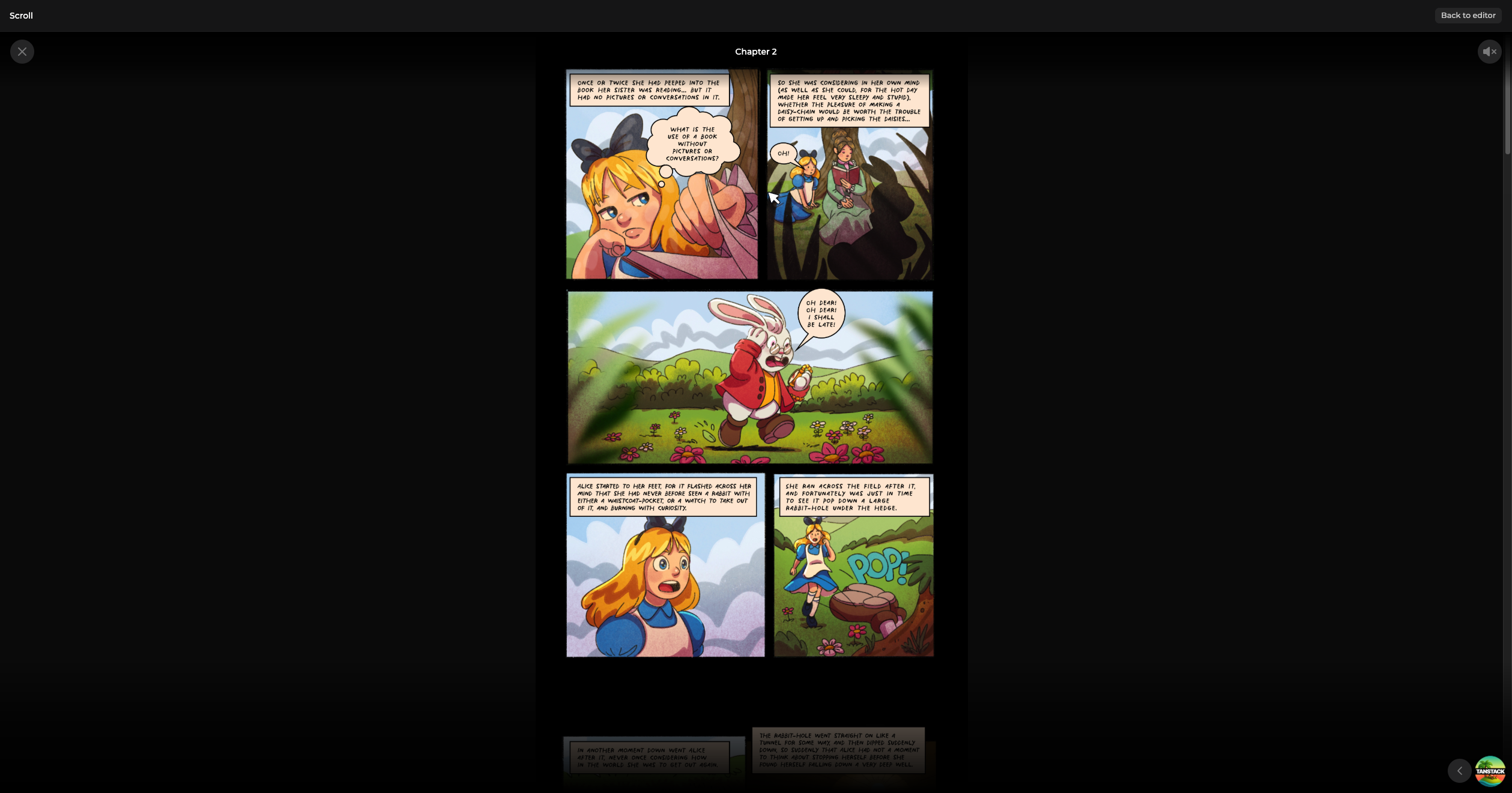
How to build one: Add a scroll capsule.
Guided reading
A panel-by-panel tour through a comic page. Each page is a single image with an ordered set of frames drawn over it; the reader taps to advance and the view pans and zooms from one frame to the next. Tapping into a page starts the tour; readers can also drop into free-look to pan and zoom the full page themselves.
Reach for it when the page layout matters but you still want to lead the eye, panel by panel, on a small screen. It keeps the original page art intact rather than slicing it into a vertical stack the way scroll does.
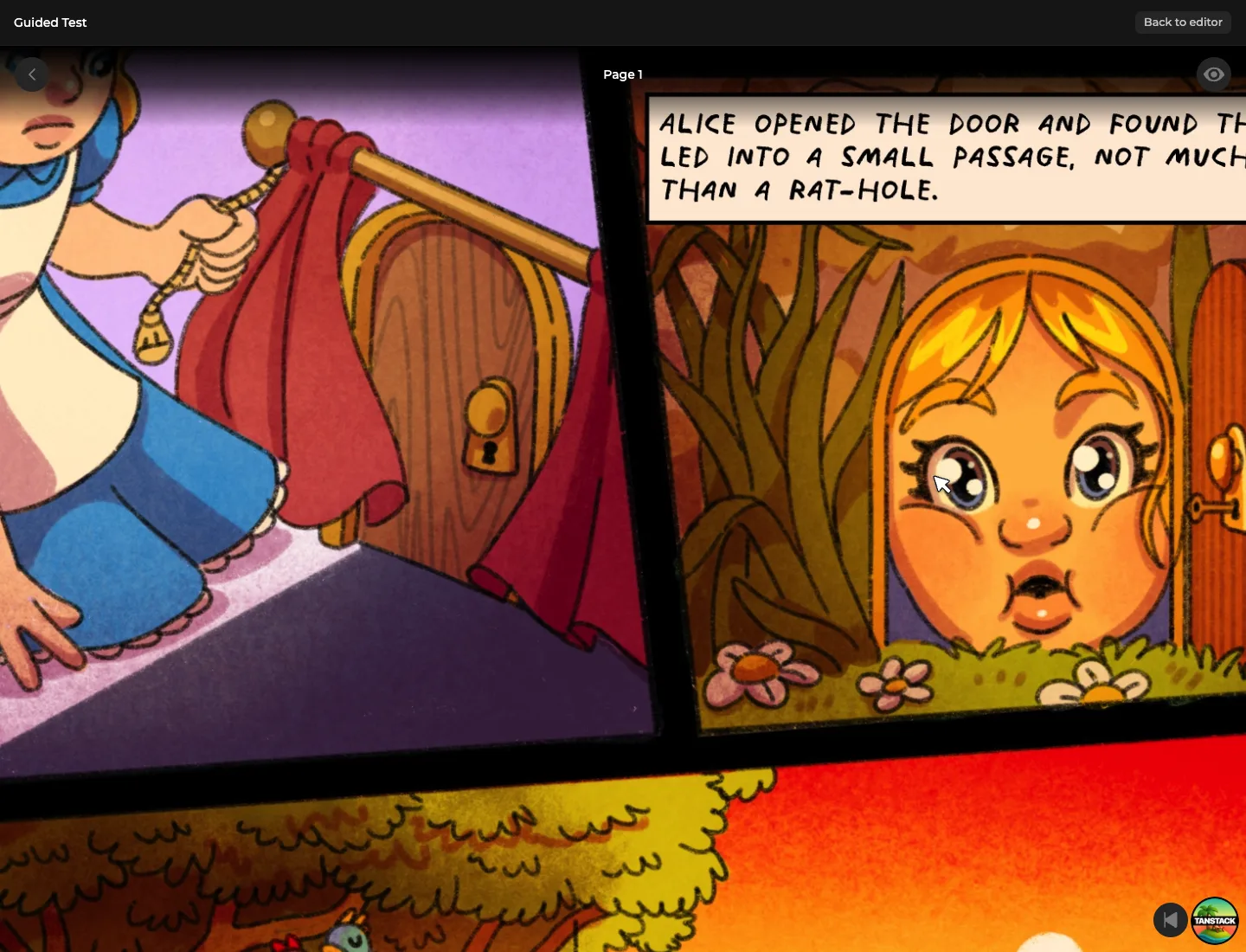
How to build one: Add a guided reading capsule.
Layered art
A stack of transparent images the reader can peel apart layer by layer. The viewer shows the composed image with a side panel of toggles. One per layer, plus an All layers master toggle.
Reach for it when the work is the construction. Turnarounds, character sheets, peelable line/colour/effects passes, alternate-outfit overlays, surprise reveals. Anything where seeing the layers separately is the point.
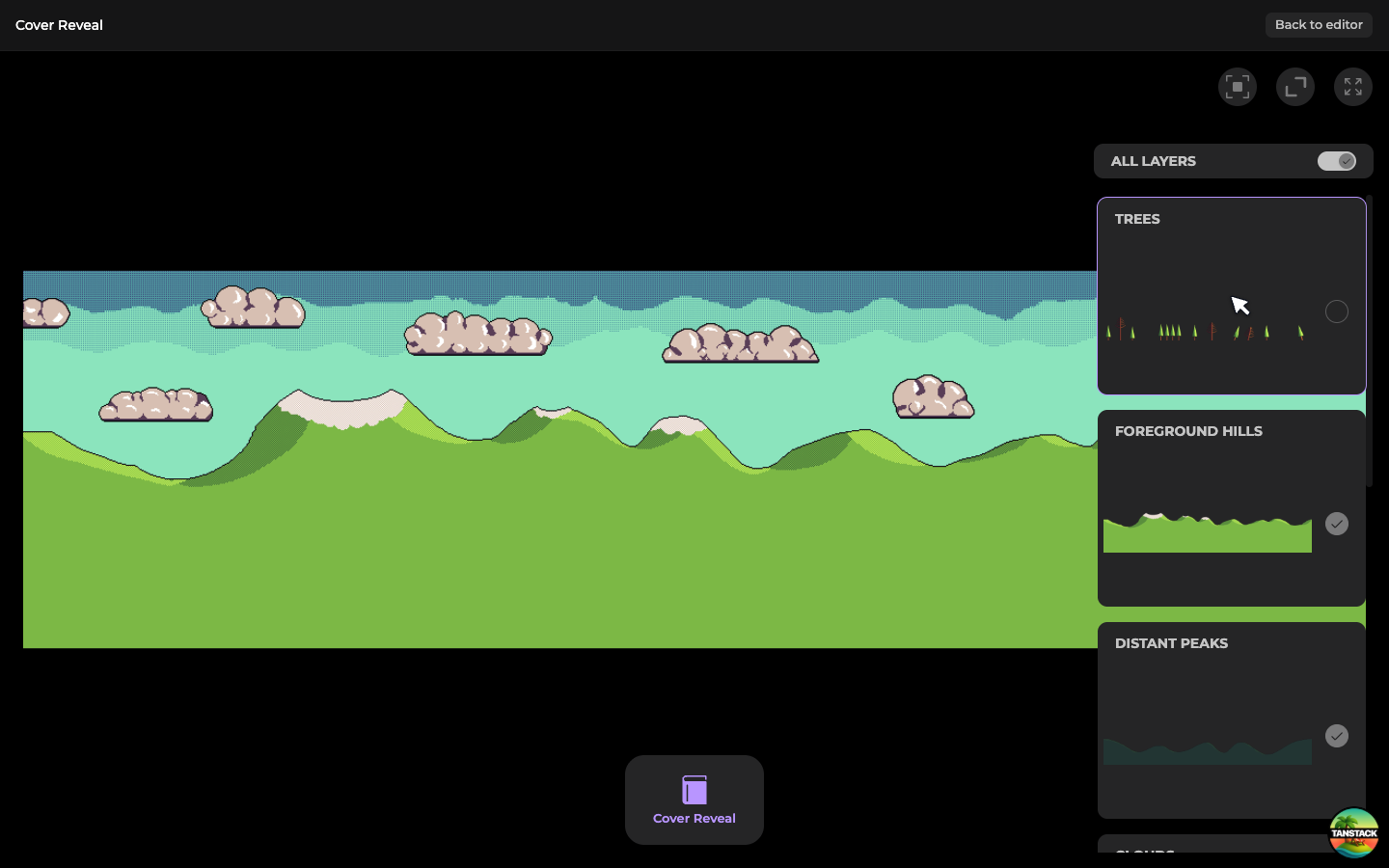
How to build one: Add a layered art capsule.
Music
An album bundled into the edition. Cover art, album artists, and a track list the reader plays through inside the viewer. Per-track metadata covers performers, ISRC, disc number, duration, and contributor credits (composer, producer, engineer, and so on).
Reach for it when you're shipping a soundtrack, EP, or themed playlist alongside the visual content. Most editions don't need one; the ones that do tend to lean into it heavily.
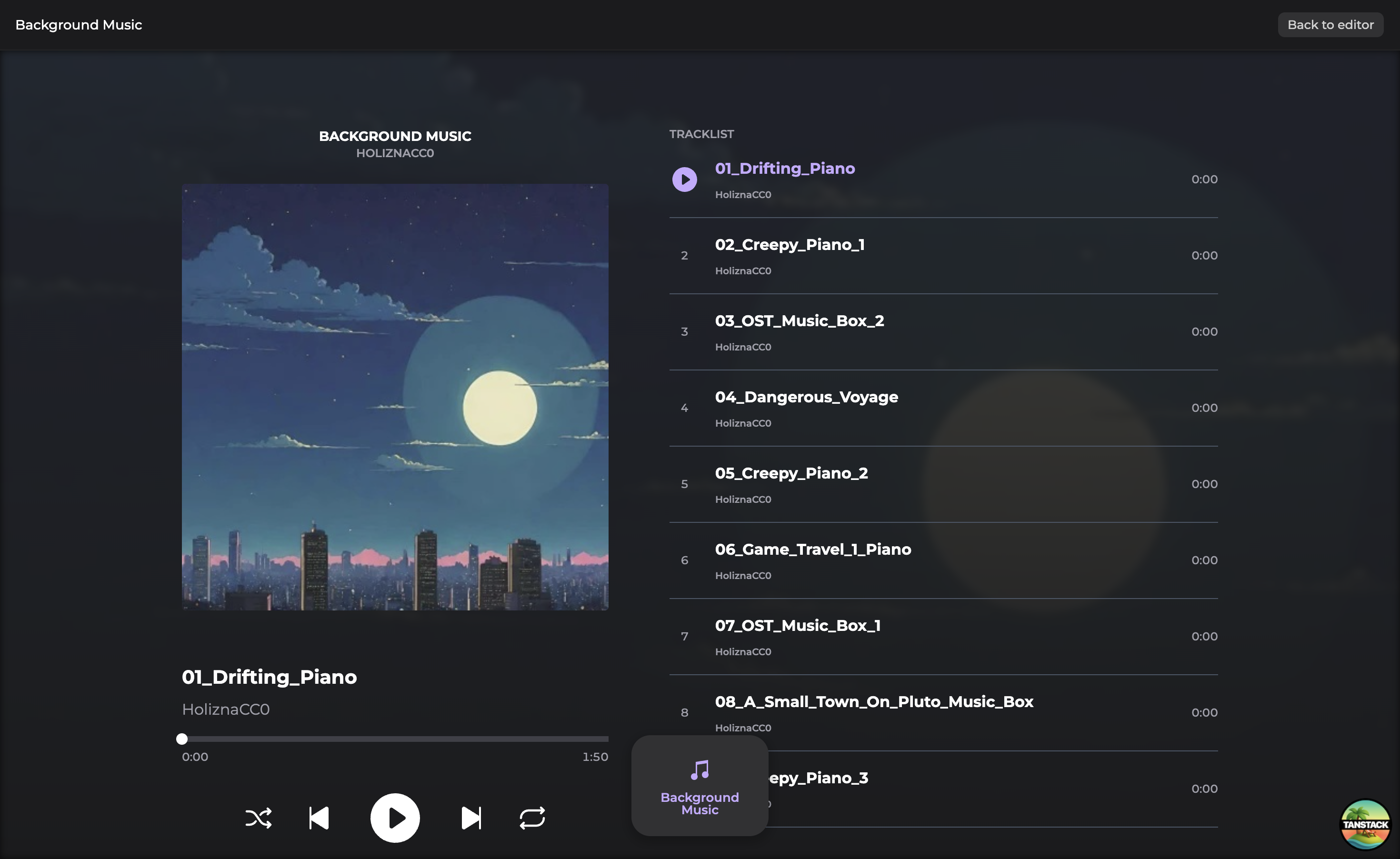
How to build one: Add a music capsule.
Attachment
A grid of files the customer can open from inside the viewer. PDFs, images, video, or audio. PDFs open in a built-in reader with page navigation and zoom; images, video, and audio open in their own detail view; other files open in a new tab.
Reach for it for bonus content that doesn't warrant its own first-class capsule type. Scripts, behind-the-scenes art, alternate covers, a making-of video, downloadable wallpapers. Anything the customer might want to keep.
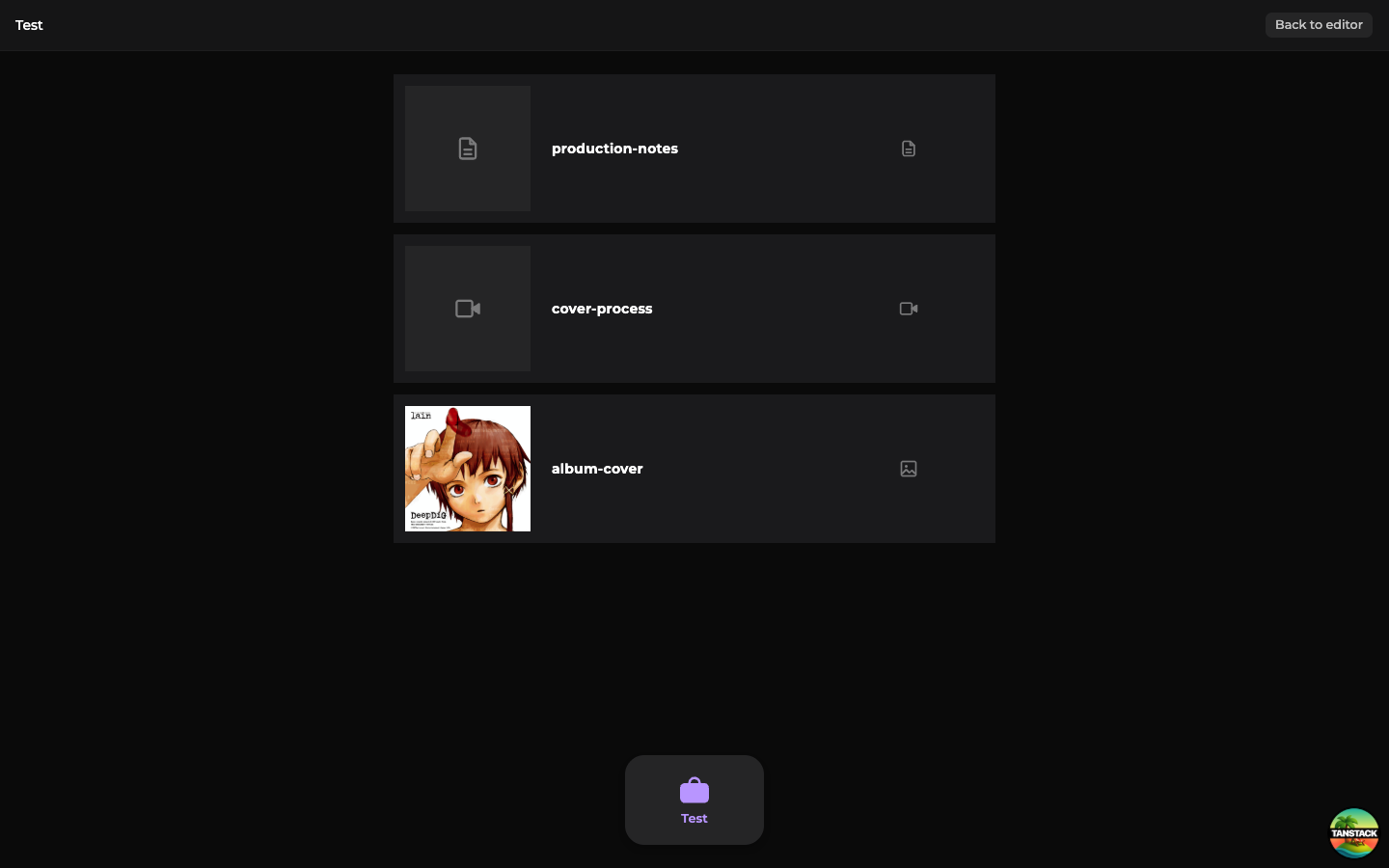
How to build one: Add an attachment capsule.
Picking a type
A few patterns from how merchants tend to compose editions:
- A standard edition often pairs one reading capsule (scroll, guided reading, or layered art) with one attachment capsule of bonus material. Scroll suits long-form vertical art; guided reading suits traditional paged layouts.
- A deluxe variant adds a music capsule on top.
- An exclusive variant might be the same composition with one extra capsule (an alternate-art layered piece, a B-side track). Share the project's capsule library, vary which capsules end up in each edition.
For how a customer's session opens an edition and which capsules they see, continue with About digital edition entitlements.