Add an attachment capsule
An attachment capsule is a grid of files. Script PDFs, behind-the-scenes video, hi-res art, an alternate-cover image. That customers open from inside an edition. For when to pick it over other capsule types, see the concept page.
1. Create the capsule
From your project's Capsules card click Create capsule, give it a title, pick Attachment, and click Create.
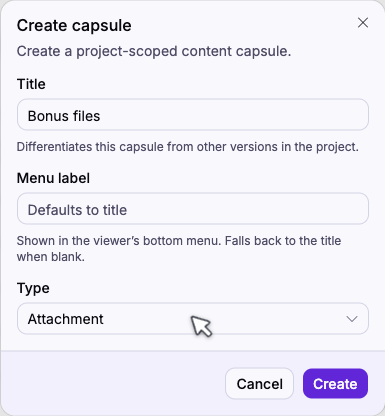
Menu label is what readers see in the viewer's bottom bar. Leave it blank to fall back to the title.
2. Add files
Click Add files to open the media library. Pick existing assets or switch to Upload to add new ones.
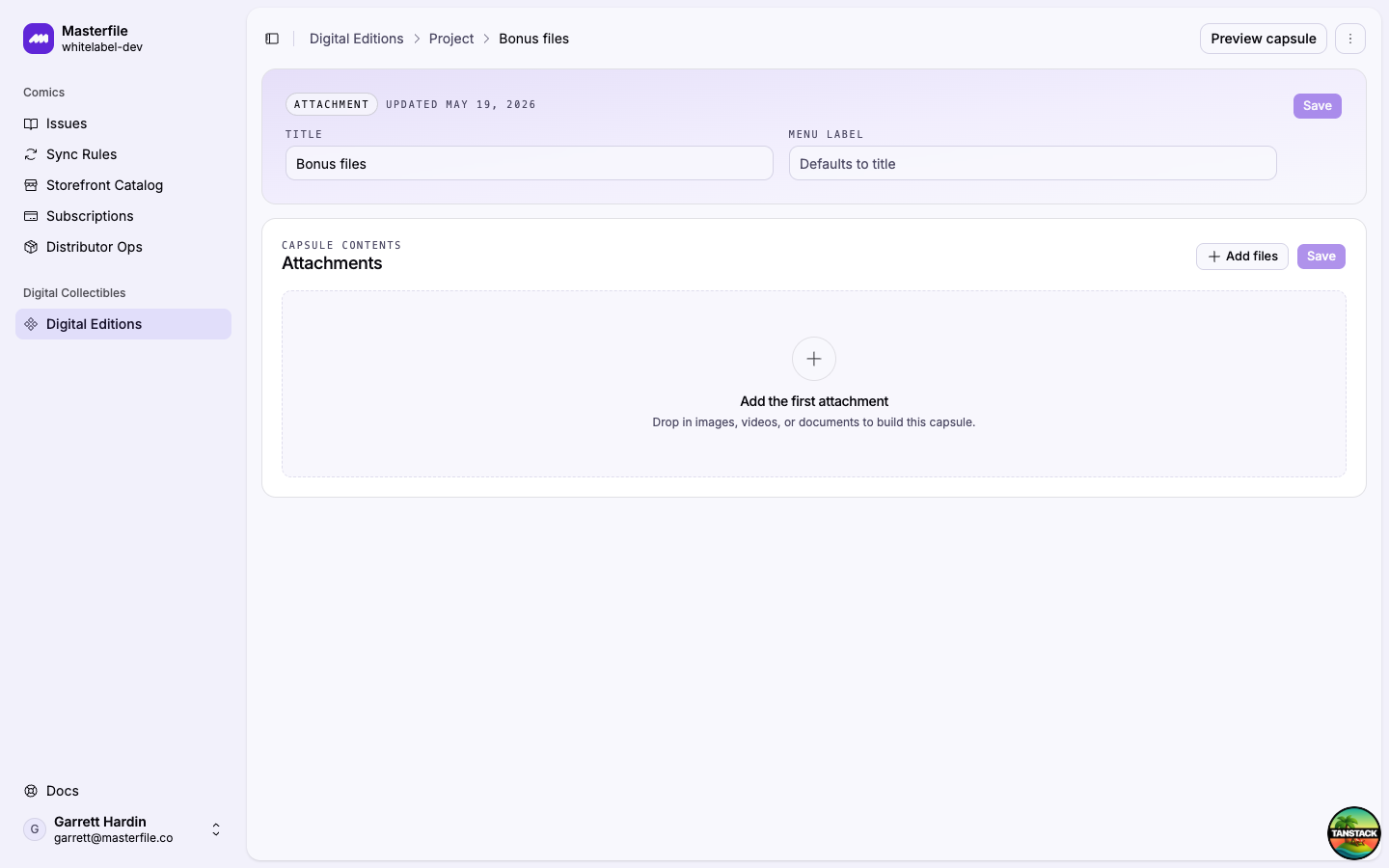
Supported types are image (PNG, JPEG, WebP, AVIF), video (MP4, WebM), audio (MP3, AAC, WAV, OGG, FLAC, MP4/WebM audio), and PDF. Each file picked becomes one row, ordered as picked. Drag the handle on any row to reorder.
3. Title and customize each row
Each row has the file's filename pre-filled as its title. Overwrite it with what should show in the customer-facing grid.
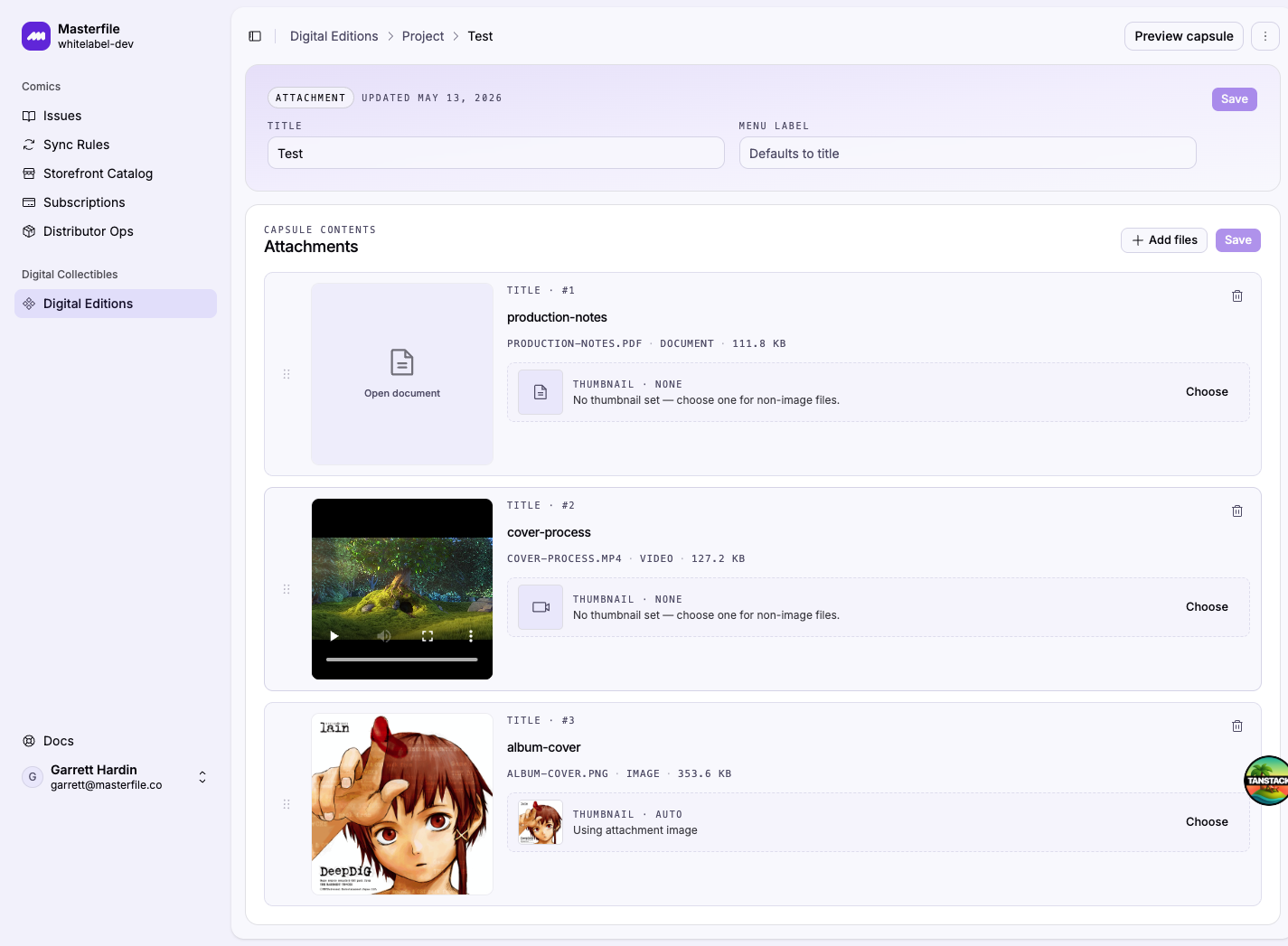
The left tile previews the file inline. Images render directly, video and audio show transport controls, PDFs link out. The right card controls the thumbnail shown in the customer's grid:
- Auto. Image files use themselves; nothing to set.
- None. Non-image files show only a kind-typed icon until you set a thumbnail.
- Custom. Click Choose to pick an image. Use this for video, audio, and PDFs you want to look polished in the grid.
Click the trash icon on a row to remove it.
4. Save
Click Save in the Attachments card header. The Unsaved changes banner clears once it's written.
5. Preview
Click Preview capsule in the page header to see the capsule exactly as customers will. The grid shows each attachment with its title and thumbnail.
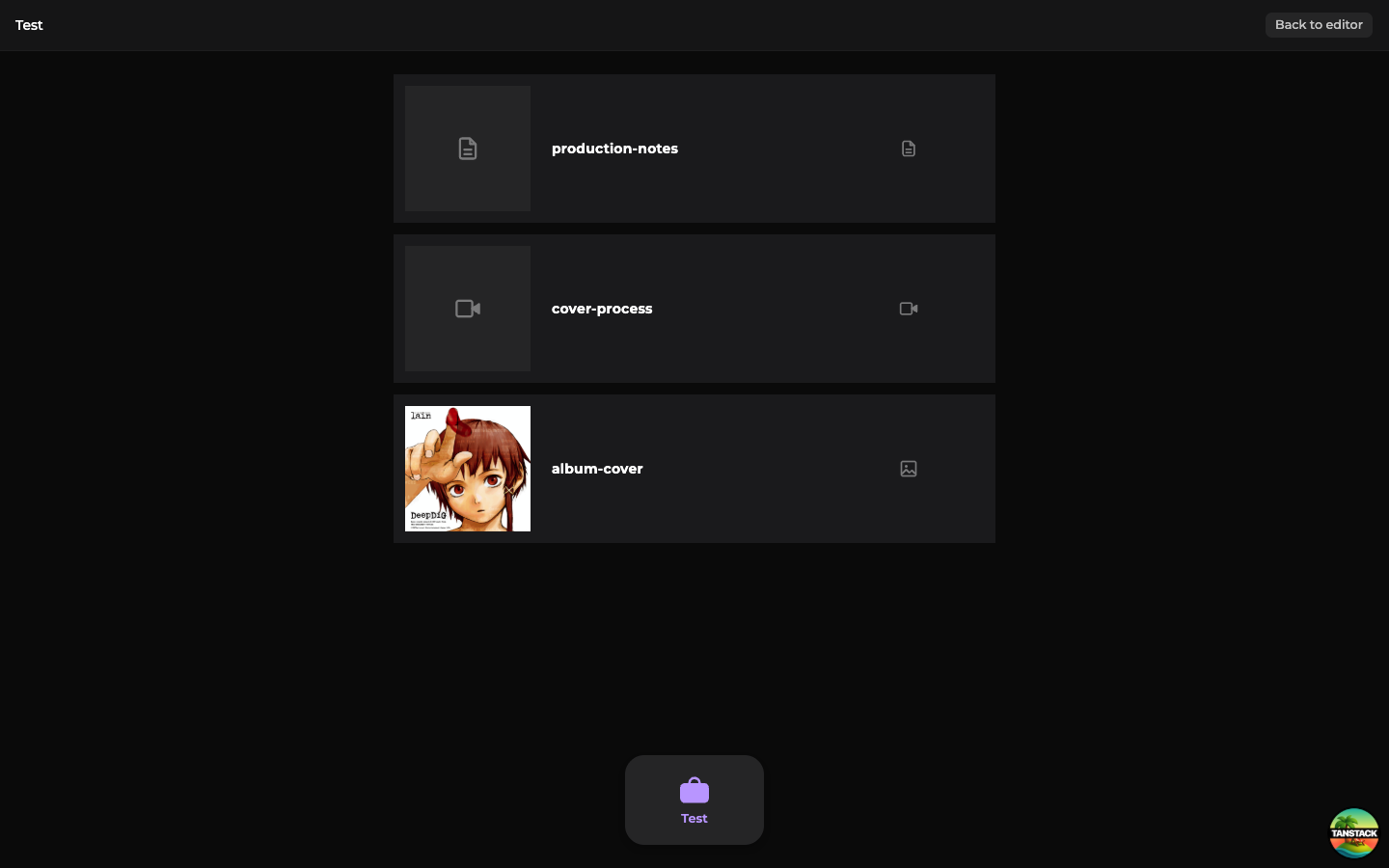
Customers click a row to open it. PDFs open in an in-viewer reader with page navigation and zoom; images, video, and audio open in their own detail view; other files open in a new tab.
Next steps
Capsules reach customers once they're bundled into an edition and the project is published. Continue with Compose and preview an edition.