About distributor shipments
A shipment is what your distributor actually pulled and packed for the week — separate from your order, which is what you asked for at FOC. What ships and what you ordered don't always match.
Masterfile uses each shipment to update Shopify inventory in two steps:
- Mark incoming — when the shipment is announced, the quantities go into Shopify's Incoming column so customers see "stock arriving soon."
- Receive — when the box is on your counter, you count down each line and the quantities move to Available (and Damaged).
Open Distributor Ops → Shipments for the running list.
The shipments page
Each row is one shipment. The Active / Archived toggle splits the page — anything still in flight is Active; finished shipments move to Archived.
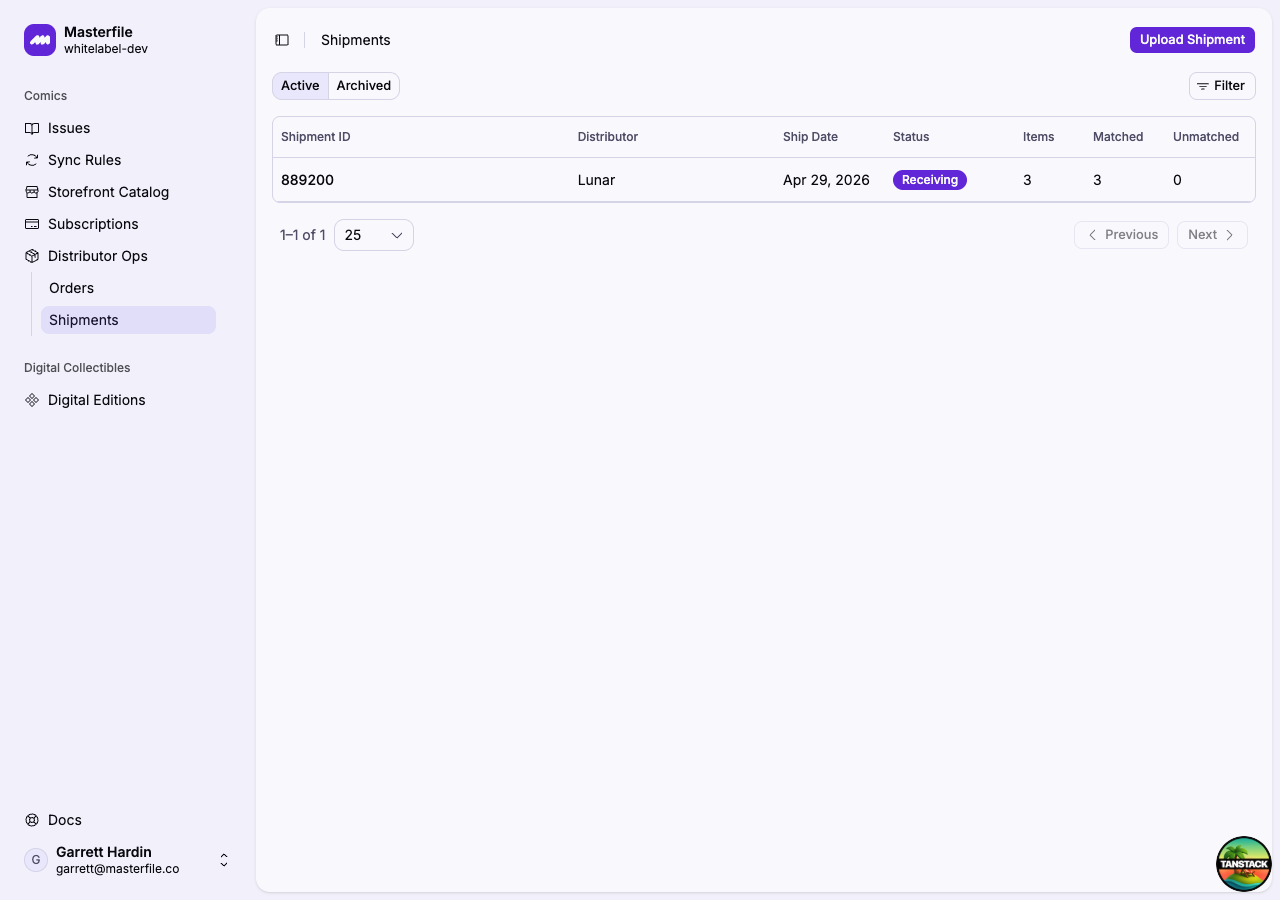
The Matched / Unmatched counts on each row are a quick health check on how well the shipment lines up with your synced catalog. A high unmatched count usually points at a sync gap — see How matching works.
Inside a shipment
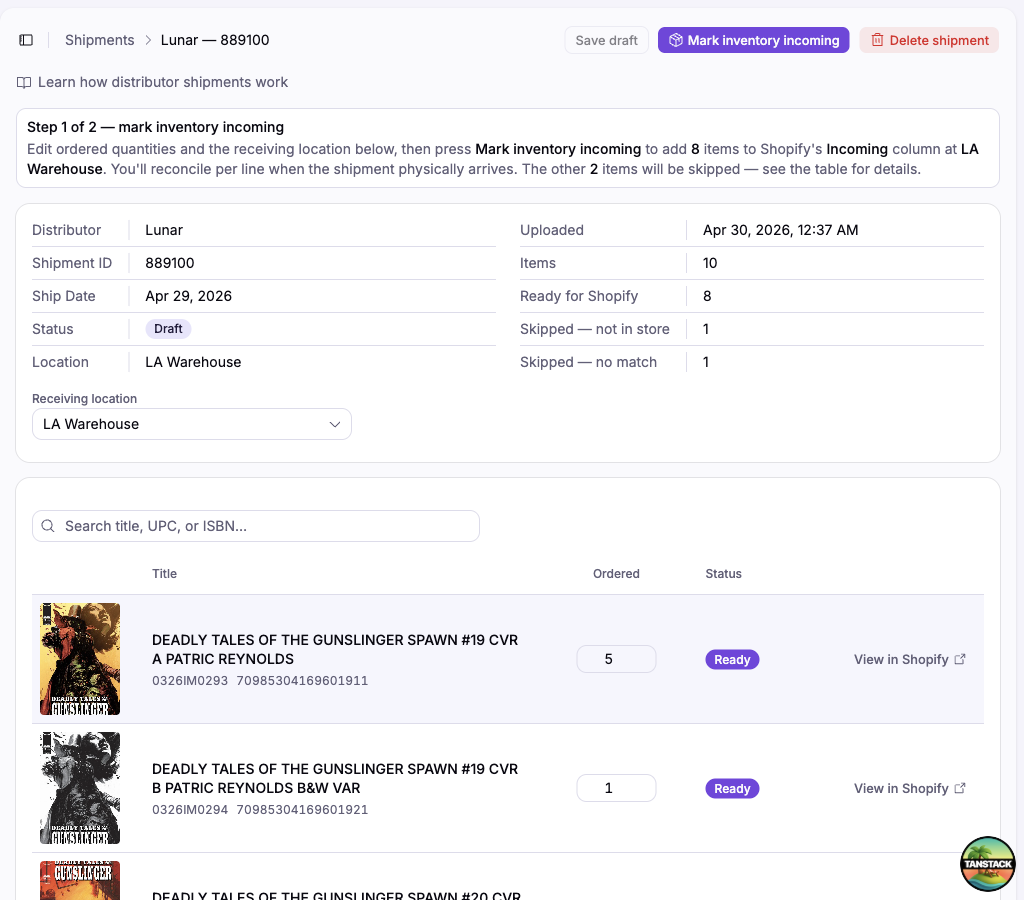
The detail page changes shape based on where the shipment is in its lifecycle.
How matching works
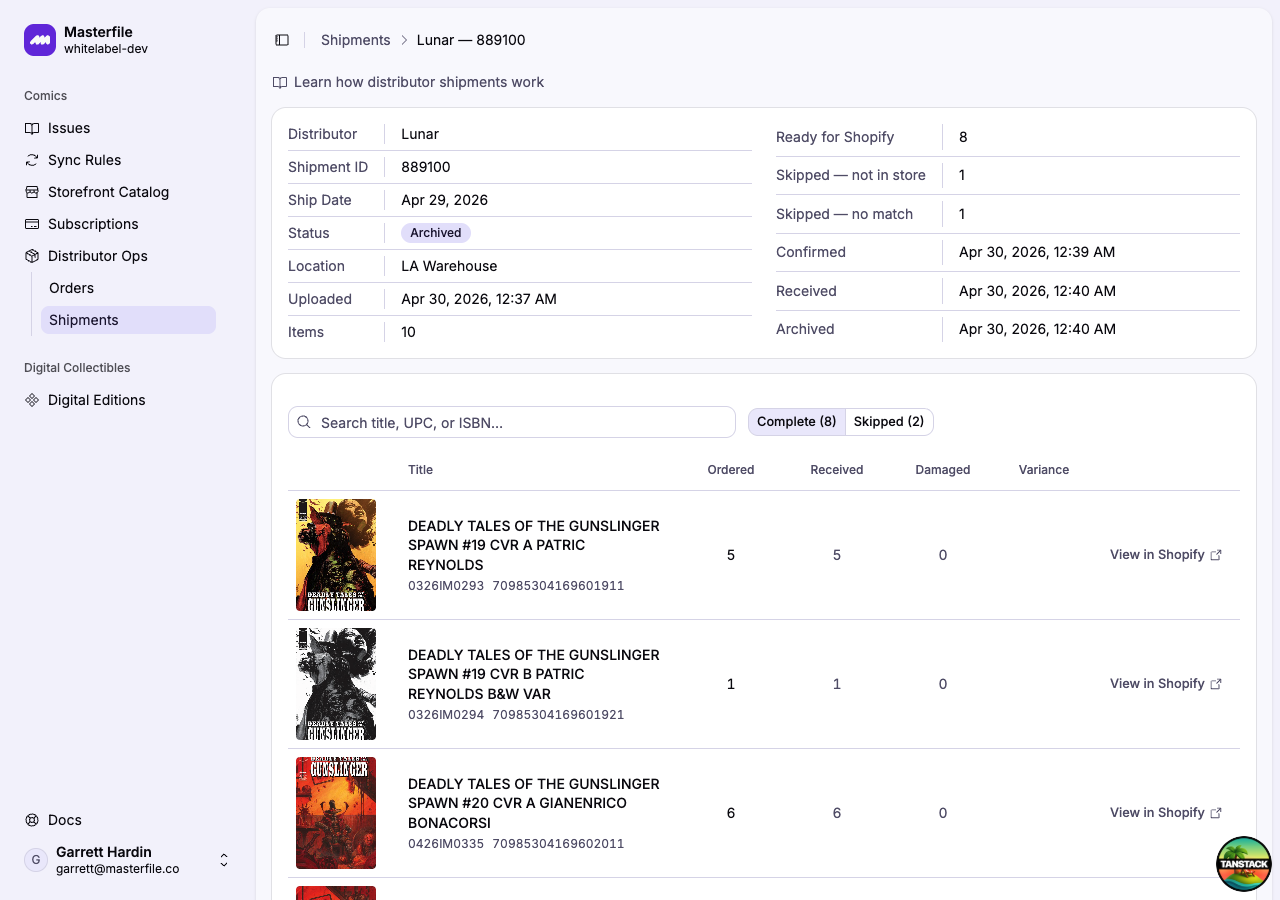
Each shipment line carries a UPC or ISBN. Masterfile matches the code against your synced catalog — and tags the line as one of:
- Ready — matched to a product you've synced. This is what gets pushed to Shopify.
- Not in store — Masterfile knows the issue, but you haven't synced it. Sync it (or add it as an individual issue) and reload to flip it to Ready.
- No match — the code is unknown. Usually promo material, posters, or something pre-FOC the catalog hasn't seen.
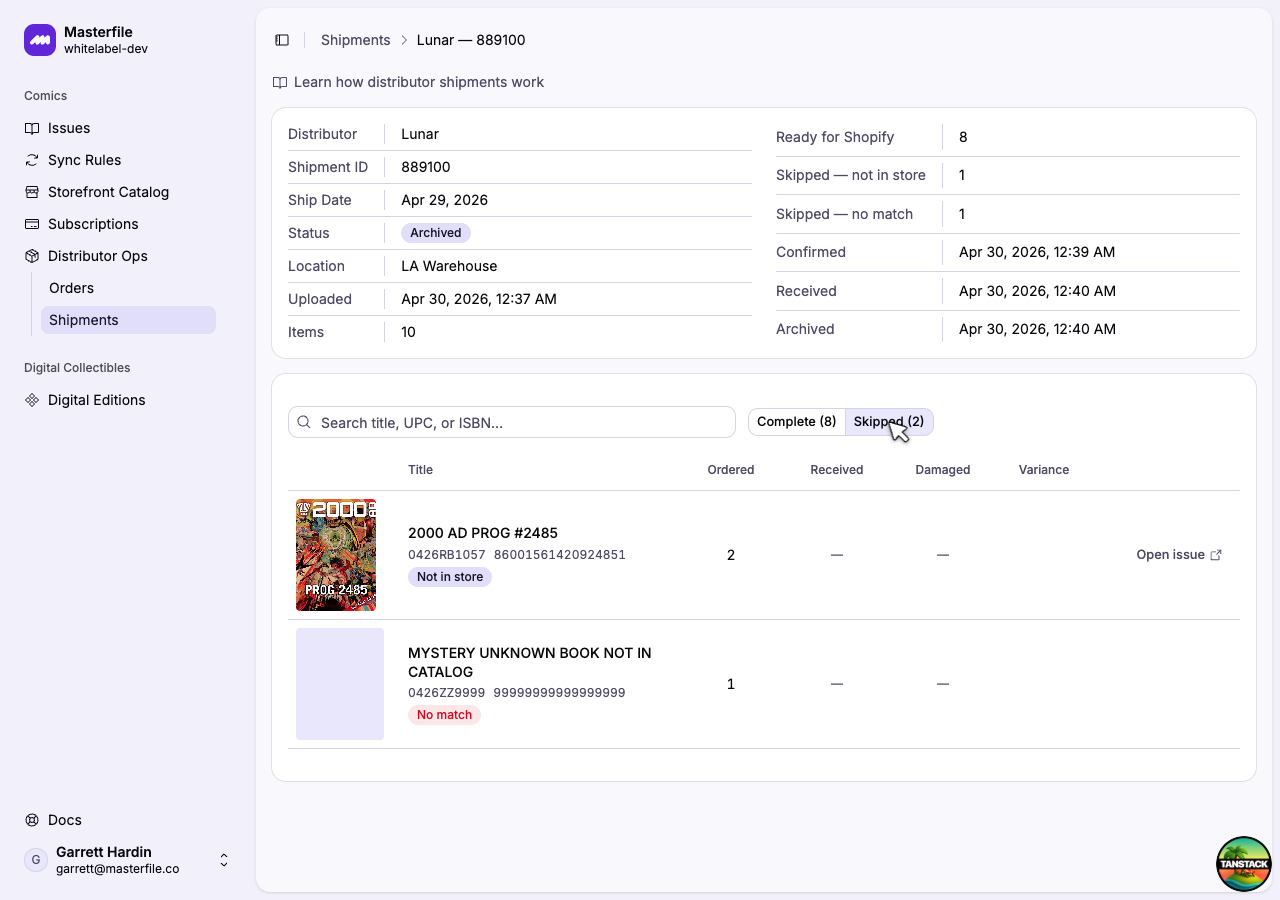
Anything not Ready lives under the Skipped tab. These lines are recorded for your records but won't touch Shopify inventory.
Lifecycle
Draft
You've uploaded the shipment, Masterfile has matched the lines, but nothing has touched Shopify yet. Edit ordered counts if you spot an obvious mistake, set the receiving location, then Mark inventory incoming to push Ready lines into Shopify's Incoming.
You can also delete a Draft outright — safe and reversible since Shopify hasn't been touched.
Receiving
Inventory is sitting in Shopify's Incoming. The page is a working grid with editable Received and Damaged counts.
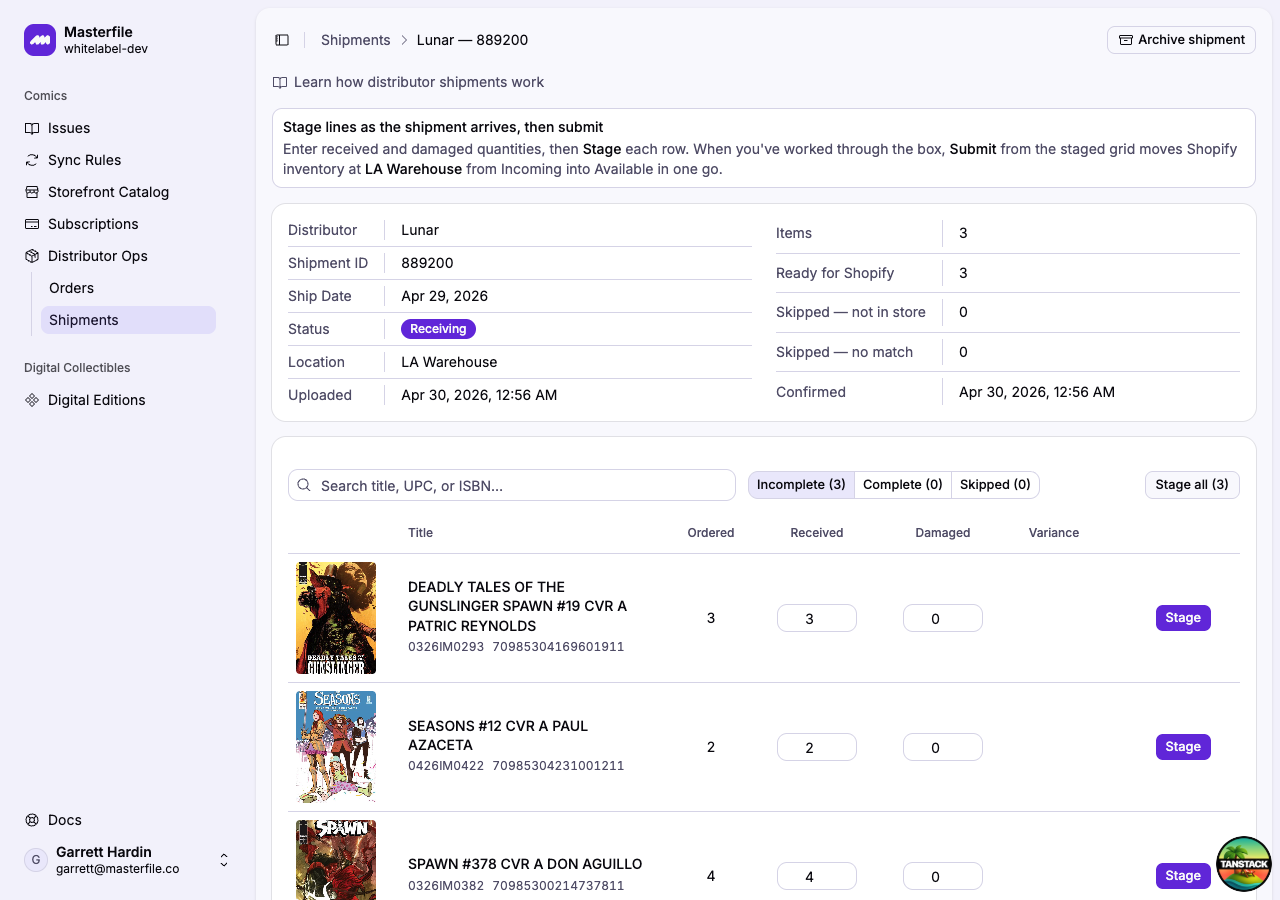
Receiving is two steps on purpose: Stage captures what you counted, Submit staged writes everything to Shopify in one batch. You can stage and submit as many times as you want — handy when a shipment arrives in pieces, or when you're working through a box across multiple sittings. Unstage anything you miscount before it's submitted.
When received stock becomes available, Masterfile also makes active any sold-out product it previously unlisted after final FOC. The product returns to storefront discovery automatically.
A variance appears when received + damaged doesn't equal ordered. It's a heads-up, not a block — submit it through and clean up the leftover in Shopify if needed (see When to edit inventory in Shopify).
Archived
The shipment is done. Either every line was received and Masterfile auto-archived it, or you force-archived with lines outstanding. Outstanding lines become Skipped ("won't be received") — Shopify Incoming stays put for them. Archived shipments are read-only.
Seeing the changes in Shopify
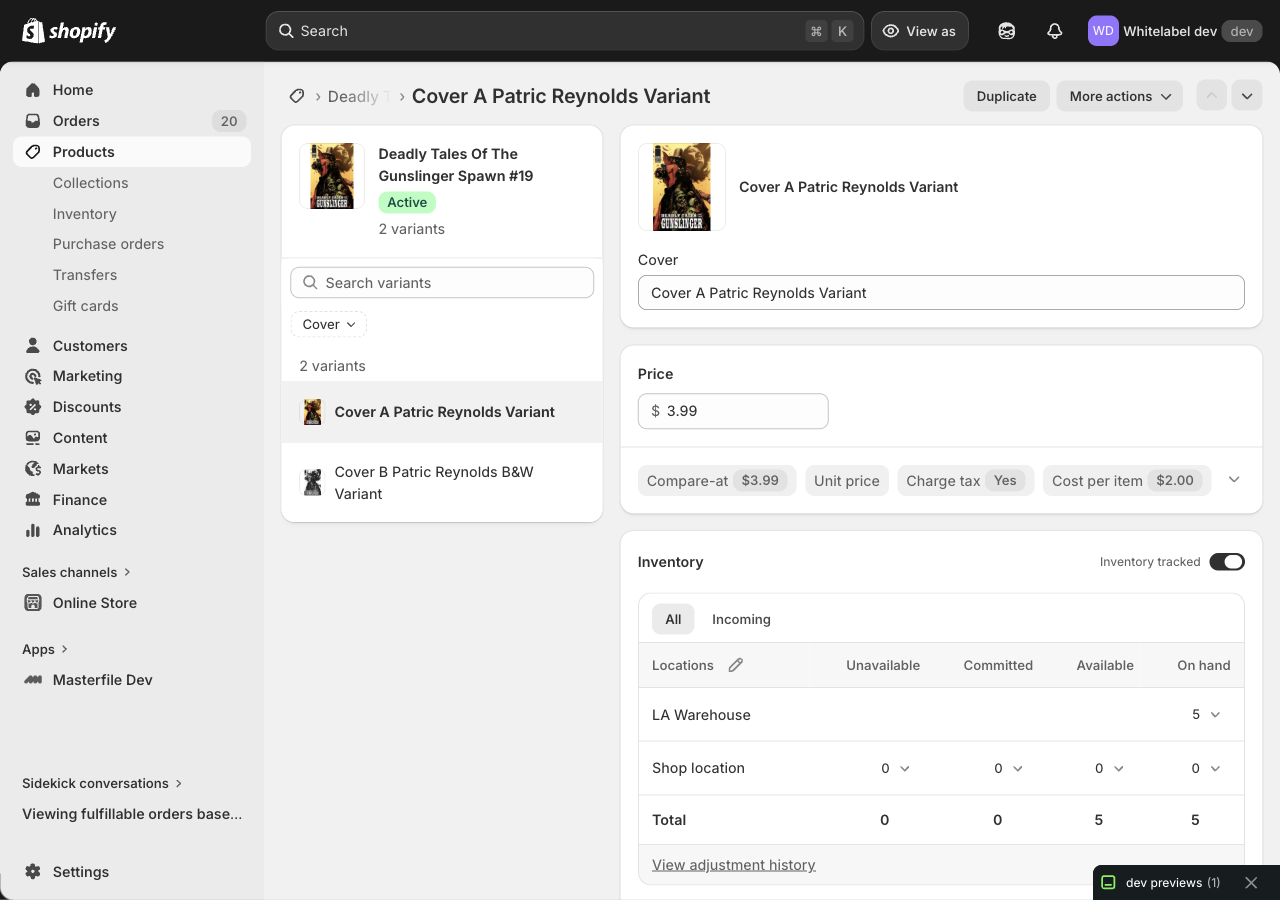
The View in Shopify action on any line opens that variant in the Shopify admin. The variant's Inventory section has two tabs:
-
All — total counts per location. Use this to confirm a received shipment landed in Available.
-
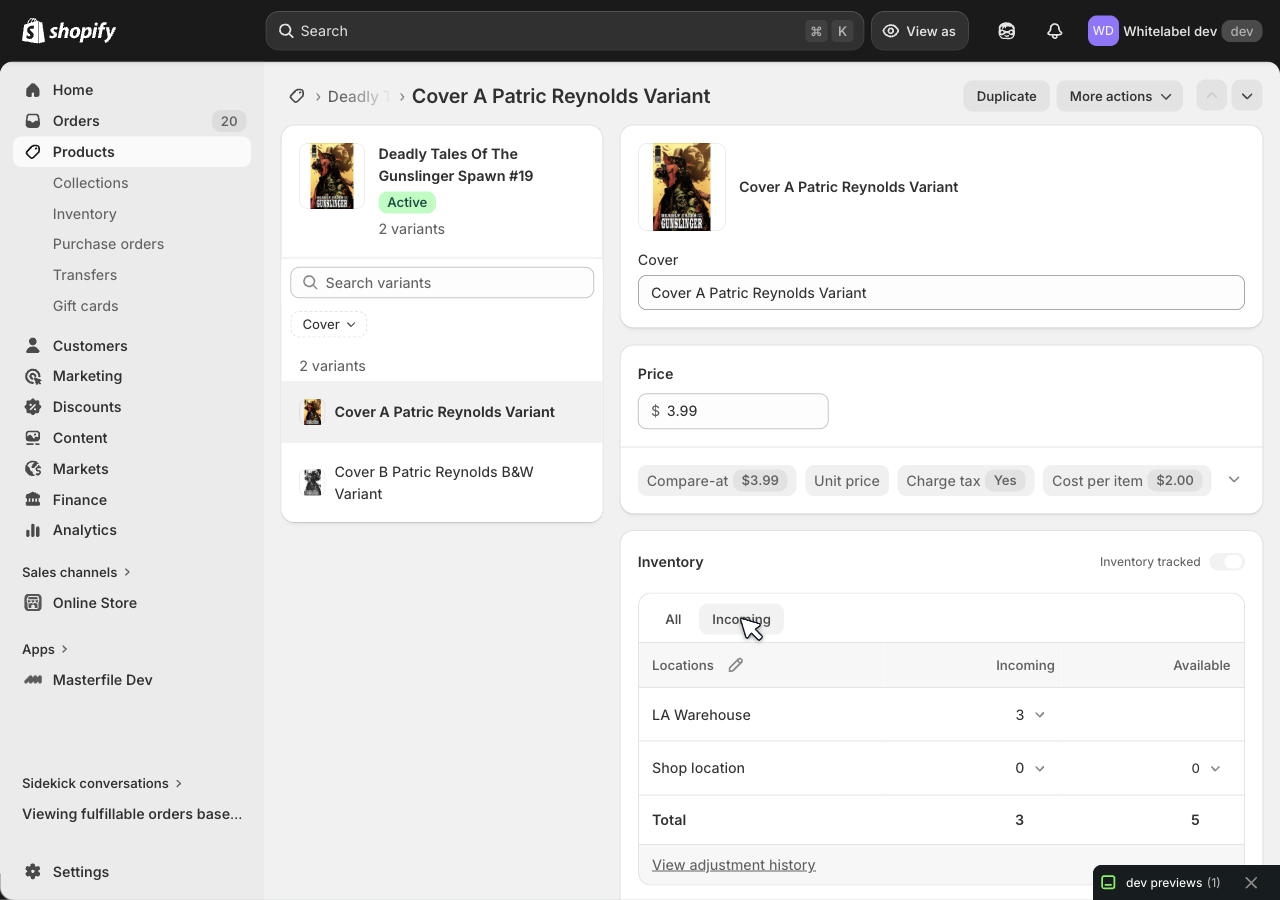
Incoming — per-location Incoming counts. This is where the quantities sit between marking incoming and receiving.
For a record of exactly what changed, click View adjustment history under the inventory grid:
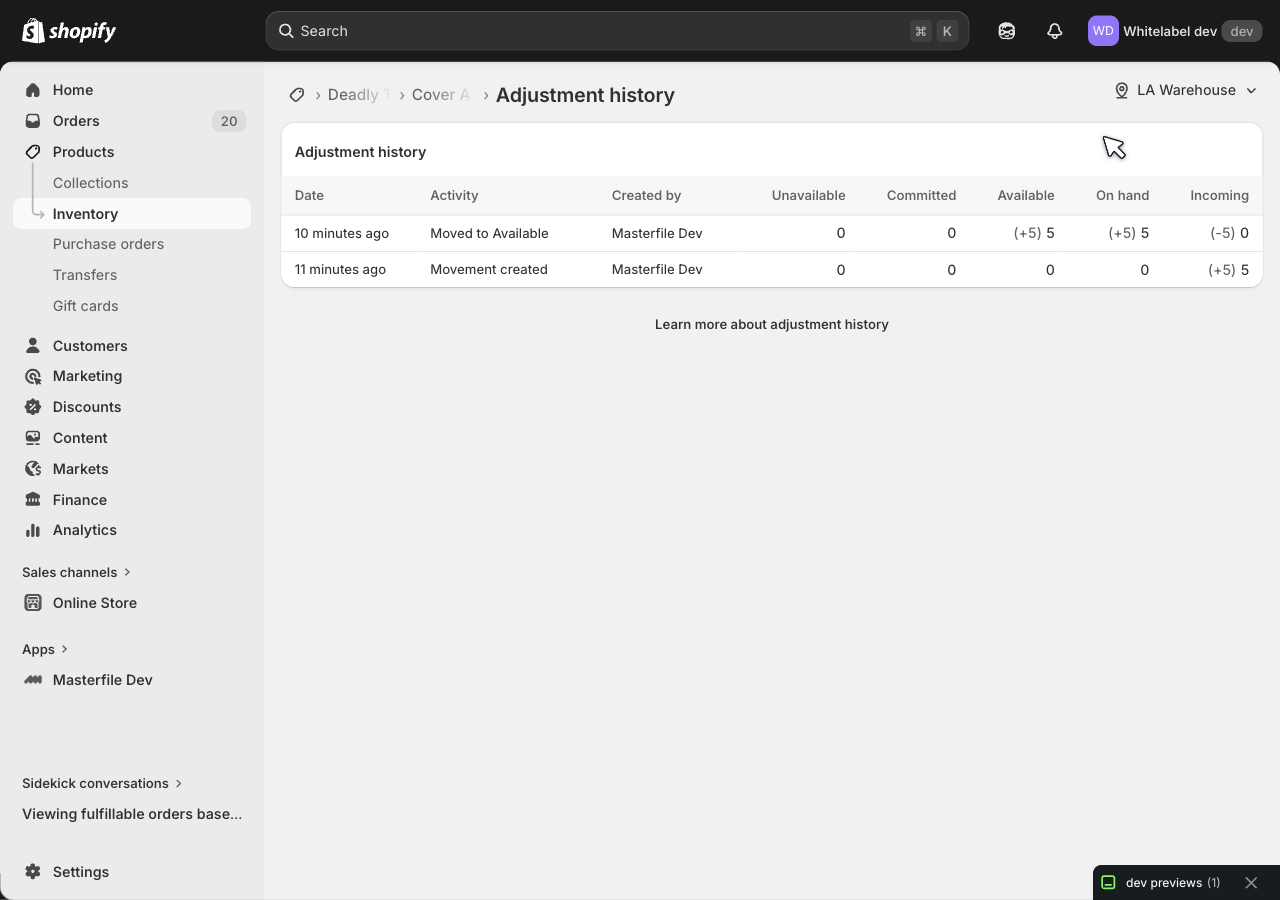
You'll see two kinds of entries from Masterfile:
- Movement created —
+Nto Incoming, written when you marked the shipment incoming. - Moved to Available —
+Nto Available,−Nfrom Incoming, written when you submitted staged lines.
Both rows are tagged with your installed Masterfile app's name, so it's always clear which writes came from a shipment versus a manual edit.
When to edit inventory in Shopify
Masterfile's two-step flow handles the standard case. Anything outside it — short shipments that never reconcile, distributor errors caught weeks later, miscounts on archived shipments, lines that came in unmatched — is faster to fix in Shopify directly than to work around in Masterfile.
The fastest path is View in Shopify on any line, then edit Available, On hand, or Incoming at the location. Manual edits sit in the same adjustment history as Masterfile's writes (with your name as the source), so the history stays intact. Masterfile reads Shopify's Available for everything downstream, so manual fixes flow through to pre-orders and subscriptions automatically.
Manual inventory edits do not automatically reactivate a product that Masterfile unlisted after FOC. If you add stock outside Masterfile's shipment receiving flow, set the product back to Active in Shopify yourself.
See Shopify's adjusting inventory quantities docs for the full set of options.
Sharp edges
- Matching uses codes, not titles. If a distributor's UPC or ISBN is wrong, the line will look skippable even though the title looks right. Fix the code or contact the distributor.
- Receiving location is per-shipment. If you split a box across locations, upload the shipment once per location with only that location's quantities.
- Force-archive is one-way. Skipped lines stay skipped. If the missing items eventually do show up, upload them as a new shipment.
- Late corrections are a new shipment. Masterfile doesn't merge updates into an existing shipment. Treat each one as final once it's in Shopify.
How it fits together
- Lines match against products from product sync — the same catalog that drives distributor orders.
- Incoming and Available live in Shopify; Masterfile only writes to them.
- Pre-orders and subscriptions read Available, so receiving a shipment is what flips a pre-ordered customer's order from committed to ready to ship.
To run a shipment end-to-end, see Receive a distributor shipment.