The Subscription Picker isn't showing on a product
Most reports come down to one of: the product isn't bound to a selling plan yet, or the theme block isn't on the product template.
Selling plans are assigned automatically by Masterfile per series — merchants don't create or attach them manually. See About subscriptions.
1. Check Purchase options in Shopify
Open the product in Shopify admin and scroll to the Purchase options card on the right.
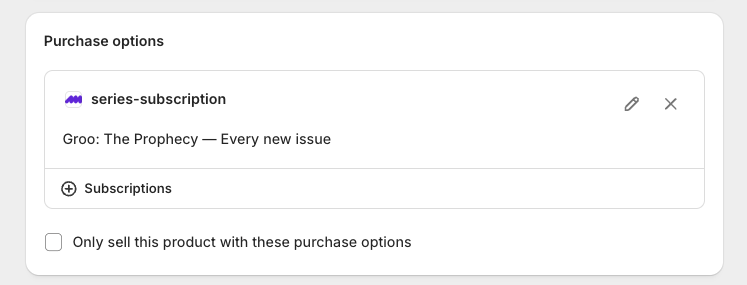
series-subscriptionis listed — Masterfile has assigned a selling plan. The picker should render on the storefront. Jump to step 4.- No purchase option listed — keep going.
2. Confirm subscriptions are enabled in sync rules
Open Sync Rules → Series Subscriptions. The toggle must be on. Sync itself must also be active at the top of the page.
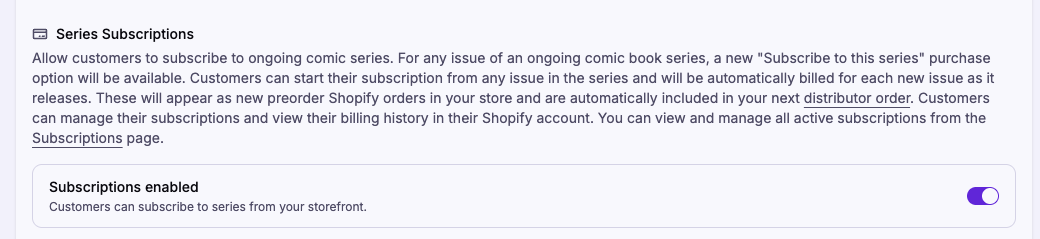
If you just turned it on, save the page. Saving re-syncs the catalog and assigns selling plans to every eligible product. Recheck Purchase options after the sync finishes (up to ~20 minutes for large catalogs).
3. Confirm the product is eligible
The picker only attaches to issues of an ongoing comic book series. These are excluded by design:
- One-shots, graphic novels, trades, hardcovers, magazines, toys, and other non-comic-book formats.
- Series flagged as concluded.
Open the issue on Issues and check the format and series. If it's not an ongoing comic book series, no selling plan will be assigned.
4. Confirm the Subscription Picker block is on your product template
Open Online Store → Themes → Edit theme, switch to your product template, and check that Subscription Picker is added under Product information.
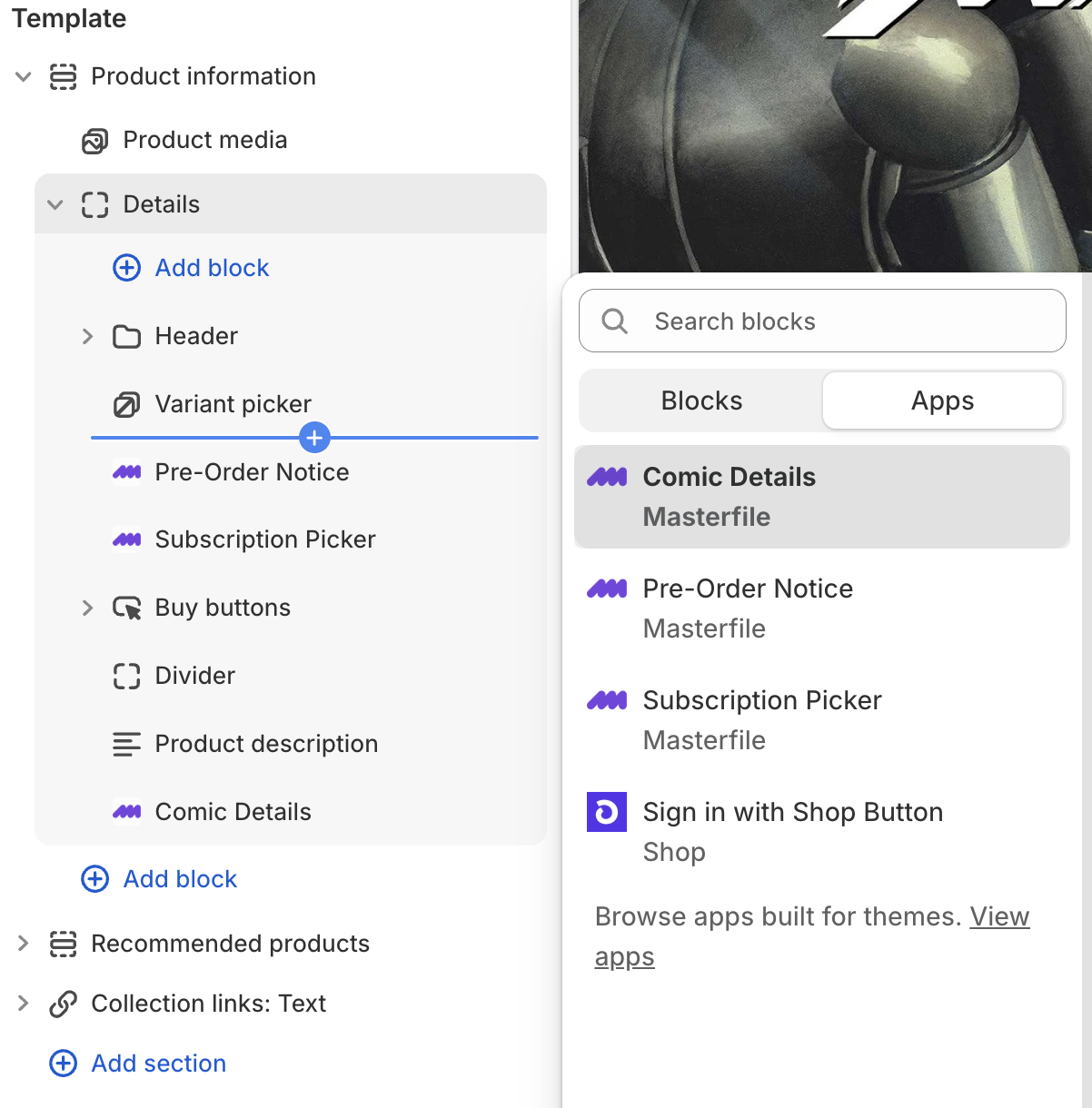
If it's missing, add it and save. See Configure your Shopify product theme. If your theme doesn't list Masterfile blocks at all, it likely doesn't support app blocks — see A theme block isn't appearing.
Still stuck
If series-subscription is on the product, the block is on the template, and the picker still doesn't render