About subscriptions
A subscription is one customer signed up to one ongoing series. Every time a new issue of that series comes out, Masterfile bills the customer automatically and adds a copy to your next distributor order. No per-issue action required on your end.
The subscribe option only appears once you've enabled it in sync rules, and only on ongoing comic book series. One-shots, graphic novels, trades, hardcovers, magazines, toys, and everything else are excluded — there's no "next issue" to bill against.
What the customer sees
On any issue of an ongoing series, the product page shows a Subscribe to this series option next to the normal one-time purchase. The customer picks subscribe, checks out once, and they're enrolled.
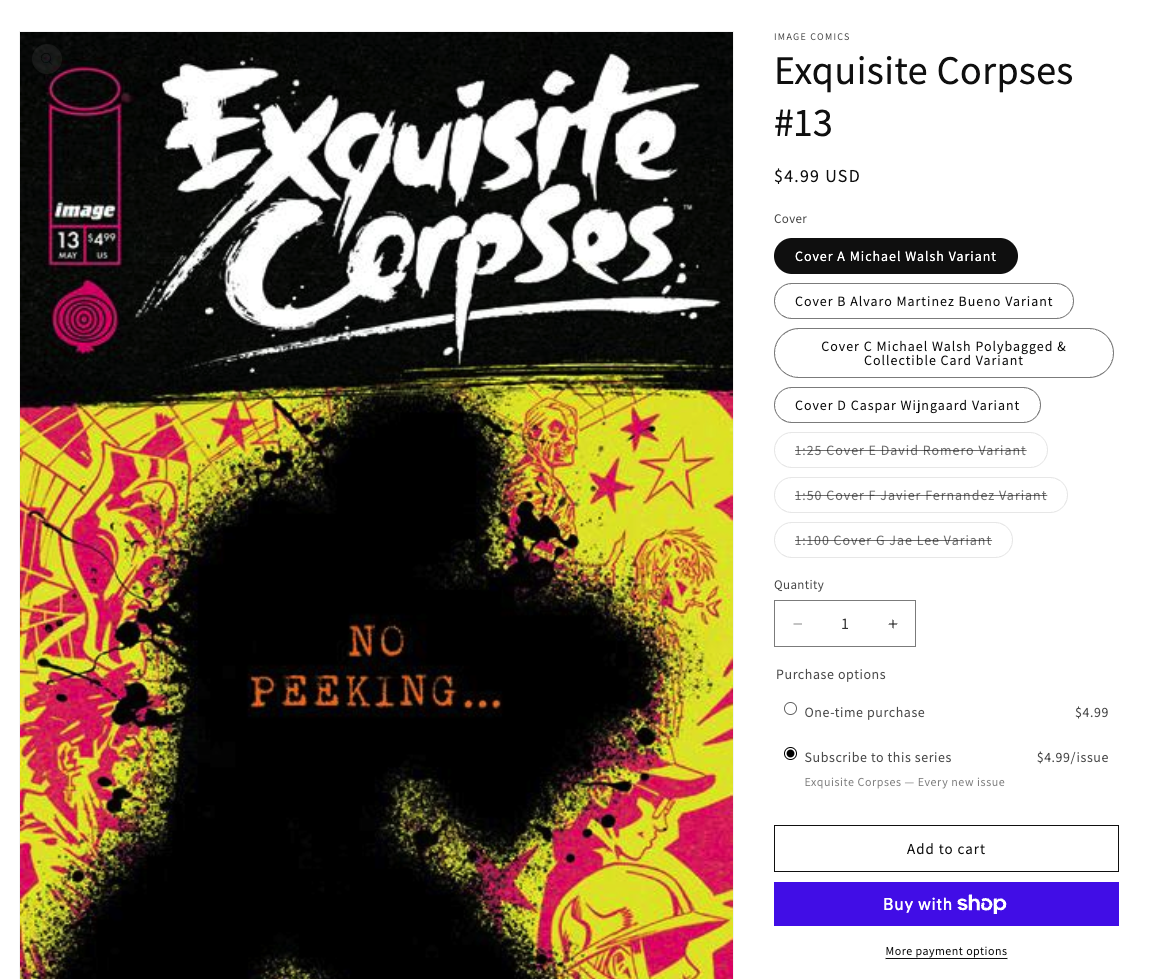
The subscribe option is rendered by the Subscription Picker theme block, which you add once to your Shopify product page template — see Configure your Shopify product theme. If the block is missing, shoppers only see the one-time purchase; see The Subscription Picker isn't showing on a product.
Under the hood, Masterfile attaches a Shopify selling plan named series-subscription to every eligible product. That selling plan is what Shopify uses to render the subscribe option on the storefront and to bill the customer on each new release. You can see the attachment under Purchase options on any eligible product in the Shopify admin — merchants don't create or manage selling plans by hand.
From there, the customer's role is passive: each new issue automatically bills their saved payment method on release and ships with the rest of their copies.
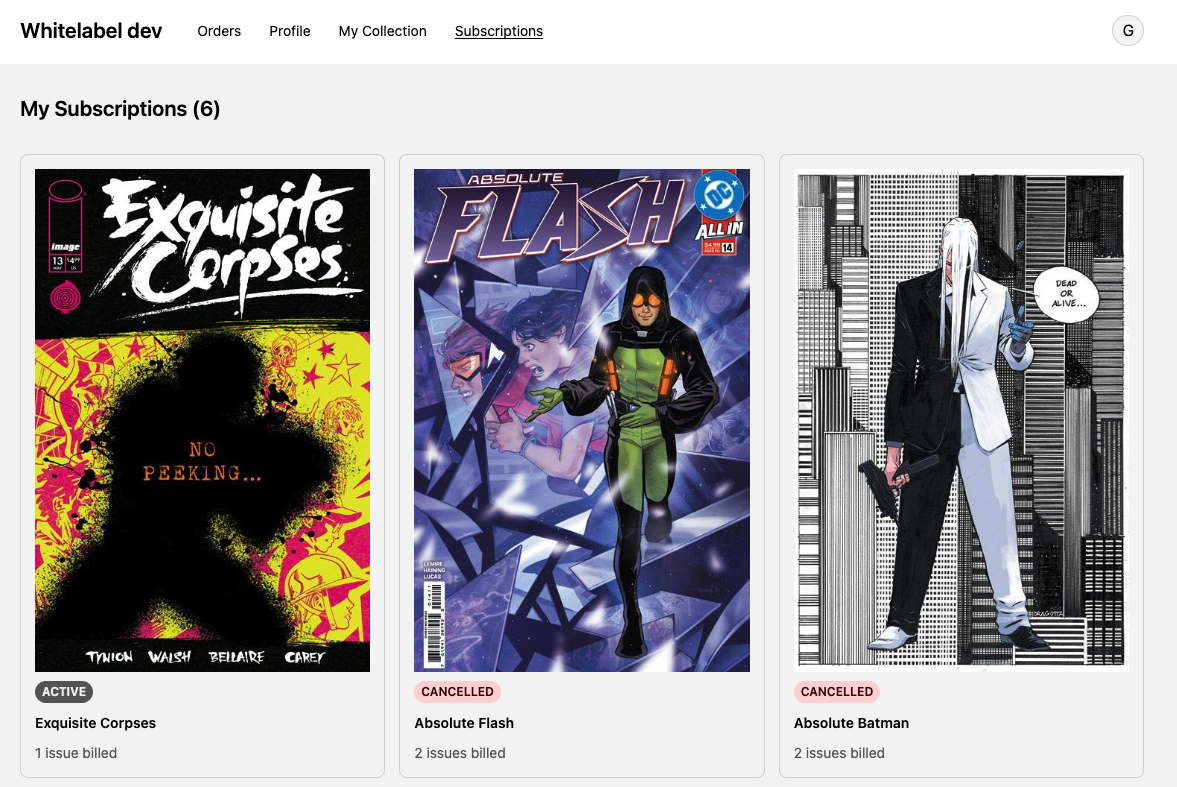
They manage their subscriptions from the My Subscriptions page in their customer account — one card per series they've ever subscribed to, active or not.
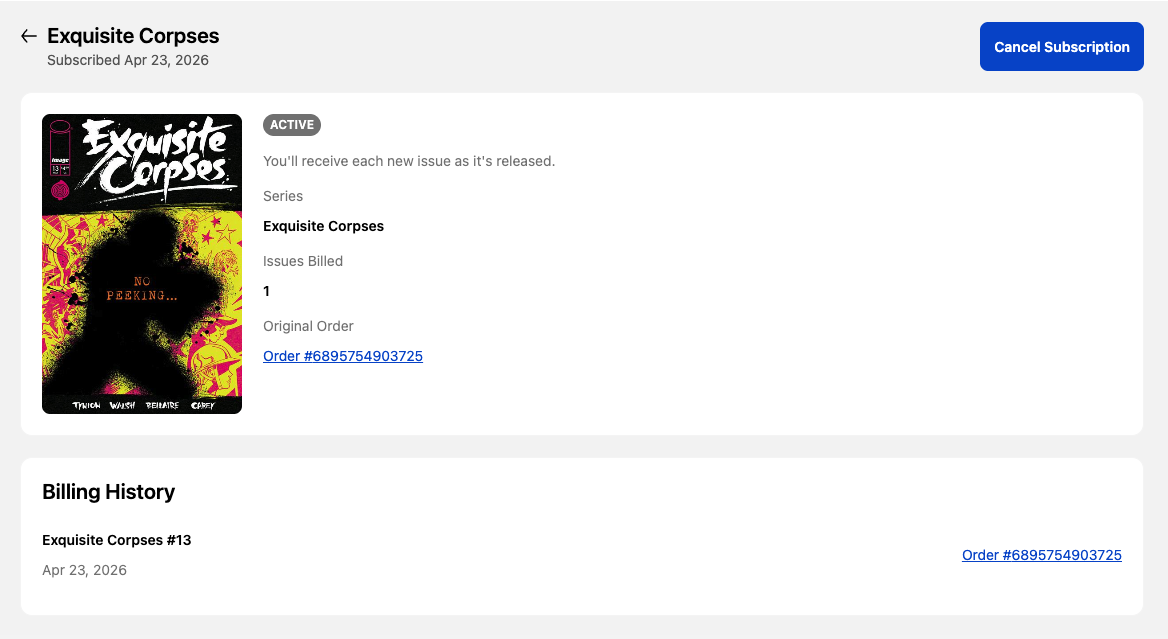
Opening one shows the full detail: status, issues billed, link to the original order, billing history, and a Cancel Subscription button.
See Help a customer cancel their subscription for the support path.
What you do to enable it
One toggle. Under Sync Rules → Series Subscriptions, flip Subscriptions enabled on. Sync rules themselves must also be enabled for products to be synced into your store in the first place.
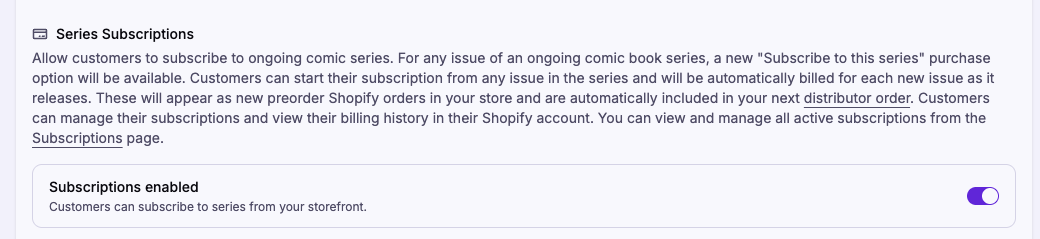
That's the entire merchant configuration. Masterfile creates the subscribe option on every eligible series and handles billing from there. See Configure sync rules for context.
Turning the toggle off later hides the subscribe option on your storefront. Existing subscriptions keep billing — disabling doesn't cancel them, it just stops new ones from starting.
The subscriptions page
Open Subscriptions for a list of every subscription across your store. The summary cards at the top count each status; the table shows one row per subscription with the customer, series, status, last billed date, issues billed so far, and start date.
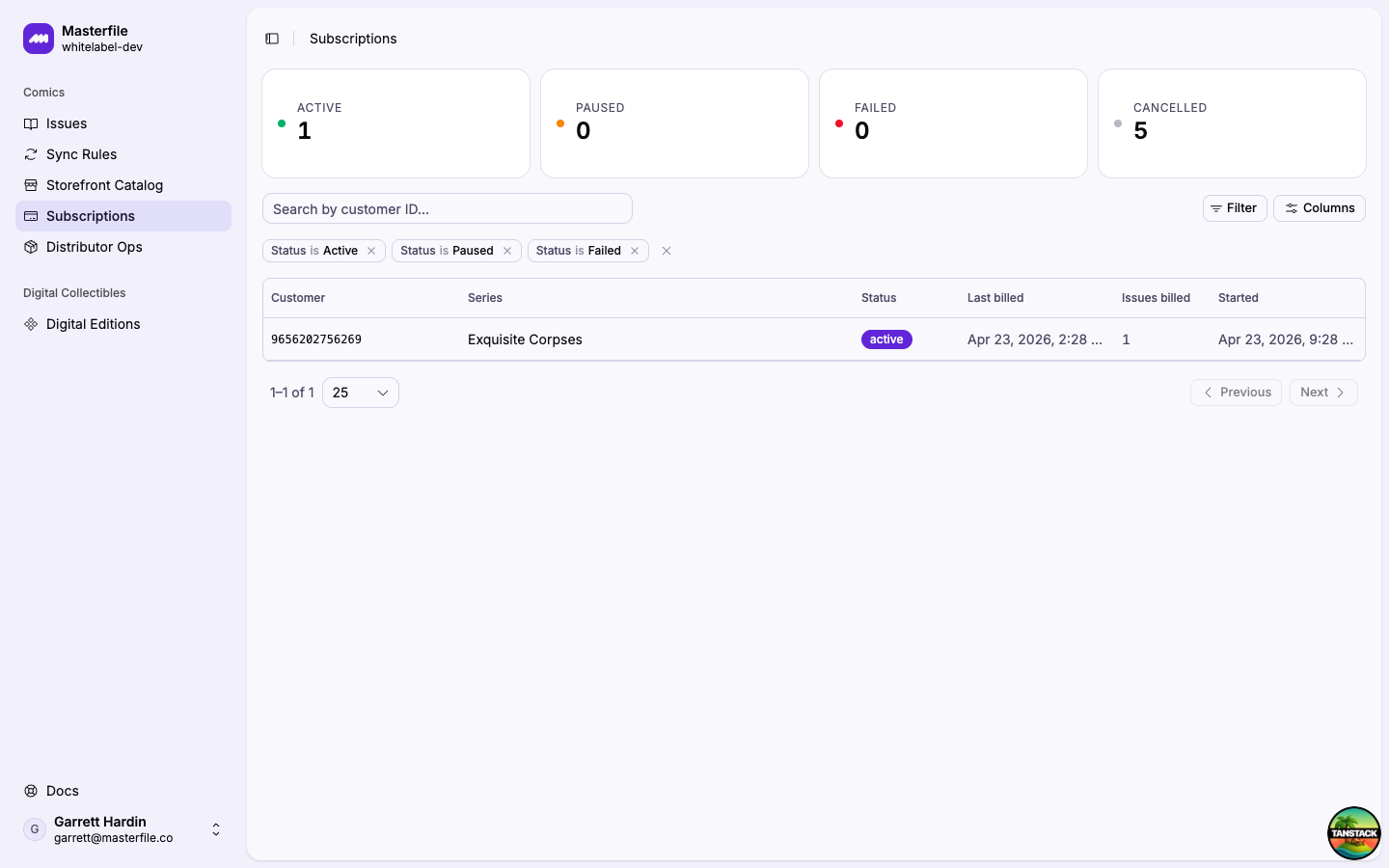
Click a row for the full history.
Inside a subscription
The detail page shows who, what series, when it started, and every issue billed to it.
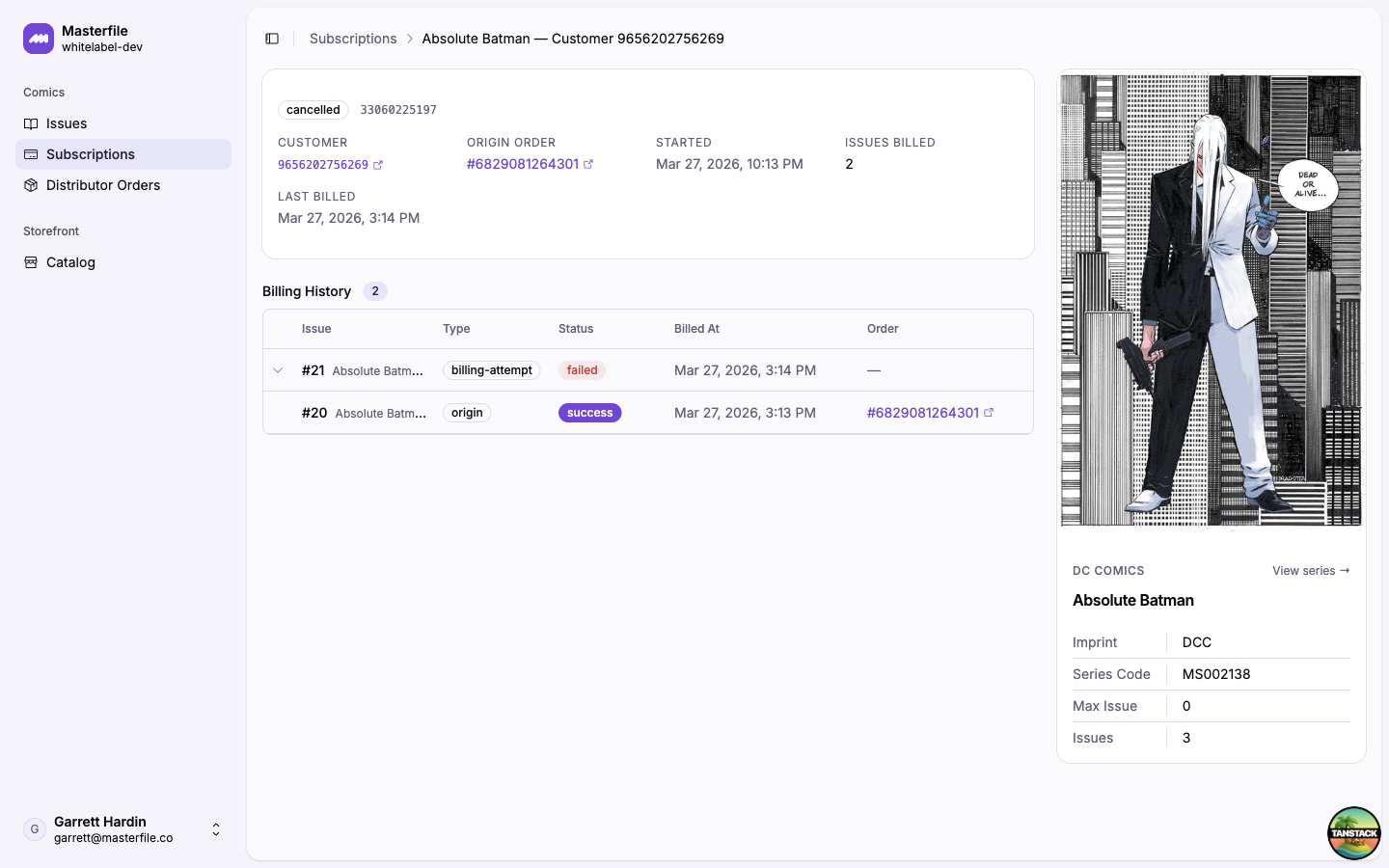
The Billing History lists each issue — the origin issue the customer bought to start the subscription, plus every new issue billed since. Each row shows the billing status; expand a row to see the underlying billing attempts if a charge retried.
Lifecycle
A subscription is always in one of these states:
- Active — billing normally on each new issue.
- Failed — the latest billing attempt failed (card declined, expired, insufficient funds). Shopify retries automatically. If retries exhaust, the subscription moves to cancelled.
- Cancelled — ended. No further billing. Previous orders remain.
- Expired — the series itself ended (reached its max issue). No further issues will bill.
Only Active and Failed can still produce demand. Cancelled and Expired are final.
Pricing and cover
Each renewal bills at the same price as a one-time purchase of that issue. Subscriptions are not discounted today. Subscriber-only pricing may be offered in a future release.
Every renewal ships the primary cover of each issue. This holds even when the customer started their subscription by buying an alternate cover of the origin issue — the initial order ships whatever cover they picked, but every new issue billed after that is the primary cover. Variant covers and ratio incentives are not subscribable; a customer who wants those buys them one-time from the product page.
How it feeds distributor orders
Each time a subscription bills a new issue, it's effectively a pre-order placed on the customer's behalf. The committed copy flows through the same path as any shopper-placed pre-order: it lands on the draft distributor order for that distributor and FOC, gets submitted with everything else at cutoff, and arrives in the same shipment. There's no separate subscription order to reconcile.
What's automatic vs. what you do
Automatic:
- Creating the subscribe option on eligible series.
- Billing on each new issue, retries on failure, status transitions.
- Rolling committed copies into the right distributor order.
You:
- Flip the toggle once in sync rules.
- Monitor Active / Failed counts on the Subscriptions page.
- Help customers cancel or update payment when they ask — these all live in the customer's account; you're guiding, not performing the action. See the Customer Support guides.