Publish a digital editions project
Publishing a project does two things at once: it makes the project visible to customers who own a matching entitlement, and it creates (or updates) a Shopify product so customers can buy it.
1. Confirm the project is ready
A project should have at least one capsule and one edition before you publish. Otherwise customers will own a Shopify variant that has nothing inside it. Check the Capsules and Editions cards on the project page and run Preview full edition on each edition first.
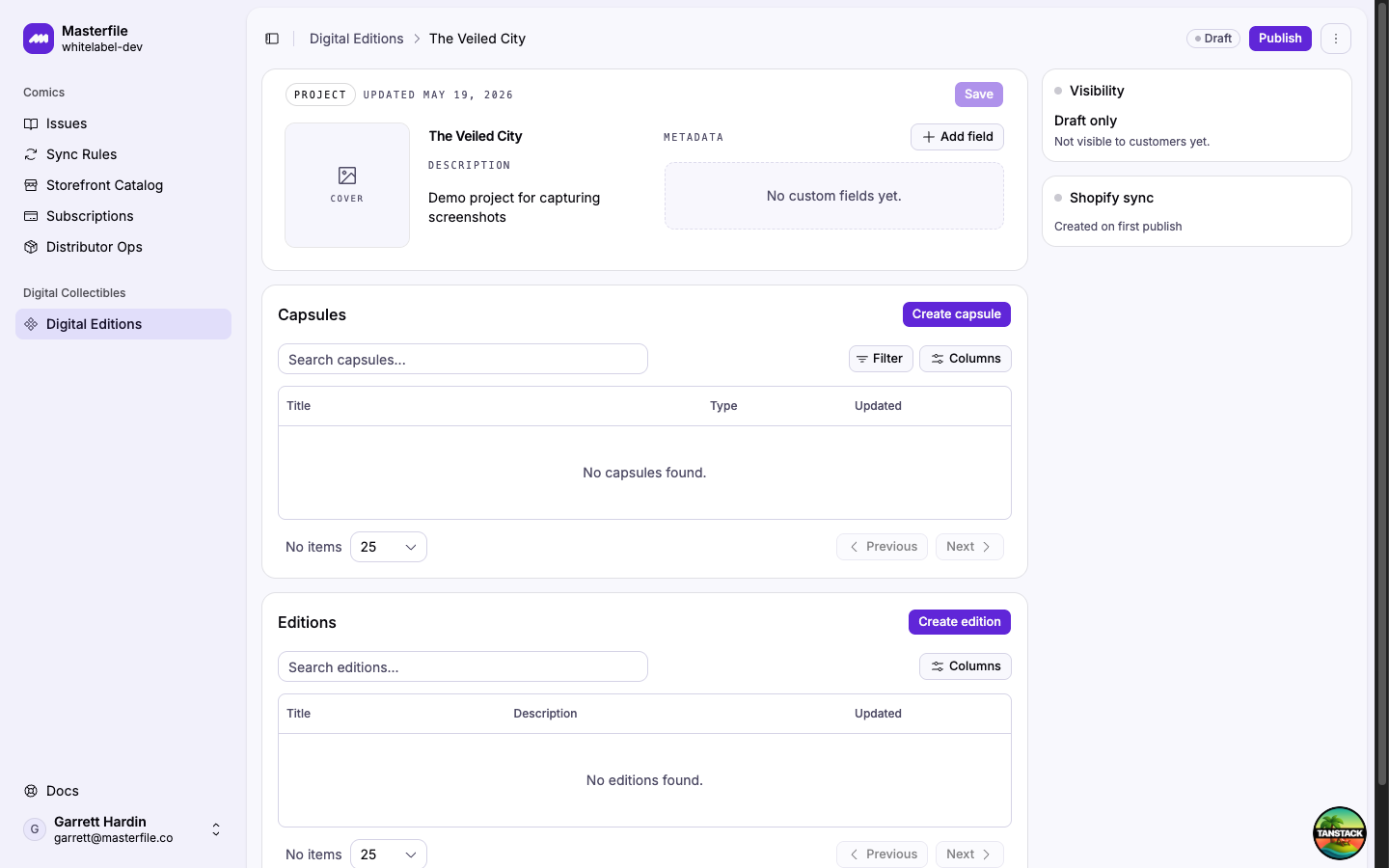
While the project is a draft, the sidebar shows Visibility · Draft only and Shopify sync · Created on first publish. Nothing has been pushed to Shopify yet.
2. Publish
Click Publish in the page header. Masterfile snapshots the current state of the project (title, cover, capsule contents, and the editions list) and pushes a product to Shopify with one variant per edition.
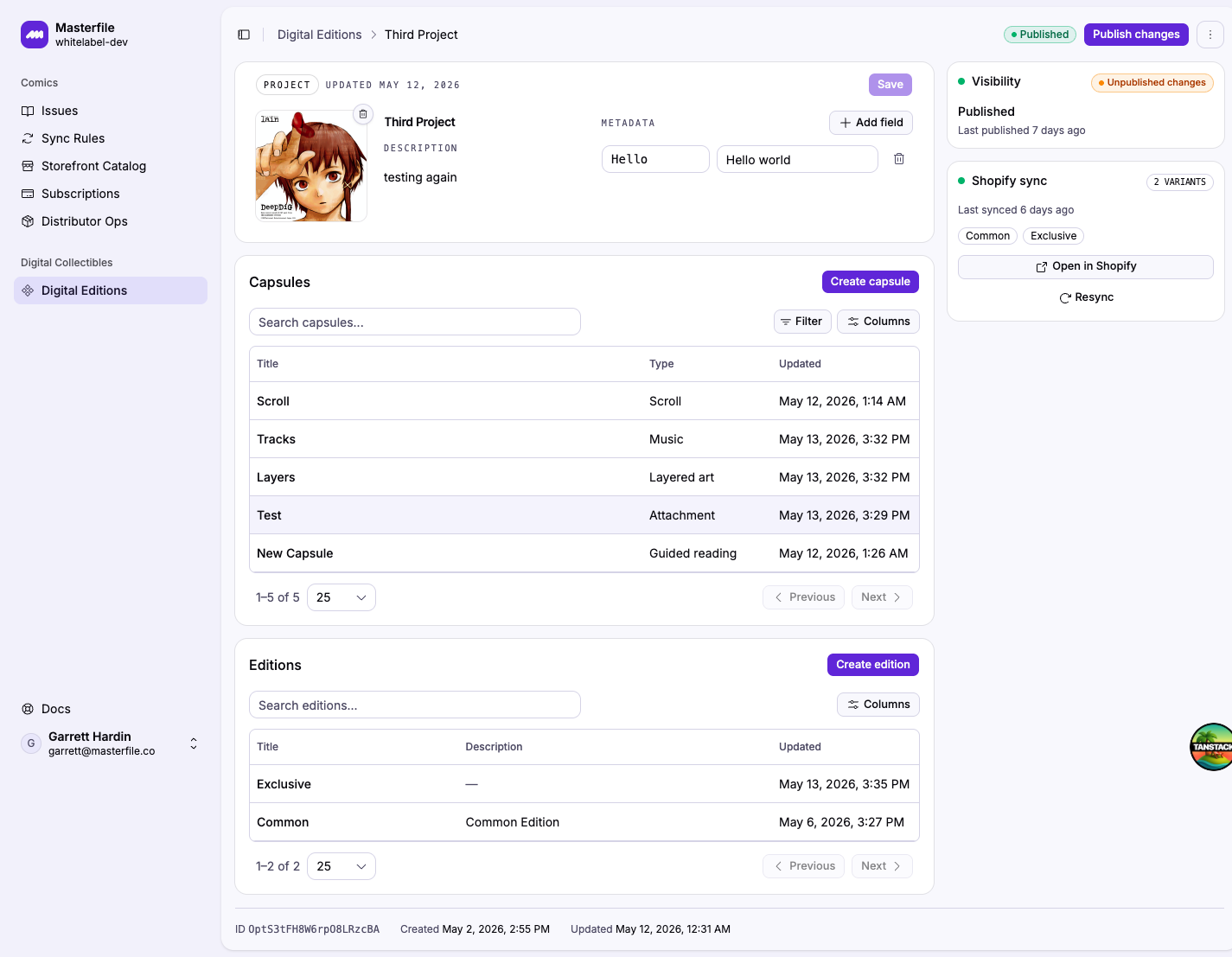
Once the sync finishes, the sidebar flips to Published with the publish timestamp, and the Shopify sync card shows one badge per edition variant plus an Open in Shopify shortcut.
Masterfile creates the product and variants but doesn't set price, inventory, or sales channels. Those are yours to configure in Shopify. Open the product via Open in Shopify and set a price on each variant, mark it available on the storefront and any other channels you sell through, and confirm the inventory policy matches how you want it sold. Customers can't check out until these are in place.
3. Ship updates
A project always has exactly one draft version and, after the first publish, one published version. Every edit you make to the project, its capsules, or its editions goes into the same draft. The published version doesn't change, and customers keep seeing it, until you publish again.
The header shows an amber Unpublished changes marker whenever the draft has moved ahead of the published version, and the action becomes Publish changes. Click it to replace the published version with the current draft. The Shopify product is updated in place. New editions add variants, removed editions delete their variants, and title and cover changes propagate through.
4. Reset, unpublish, or delete
Use the ⋮ menu next to Publish changes for less-common actions:
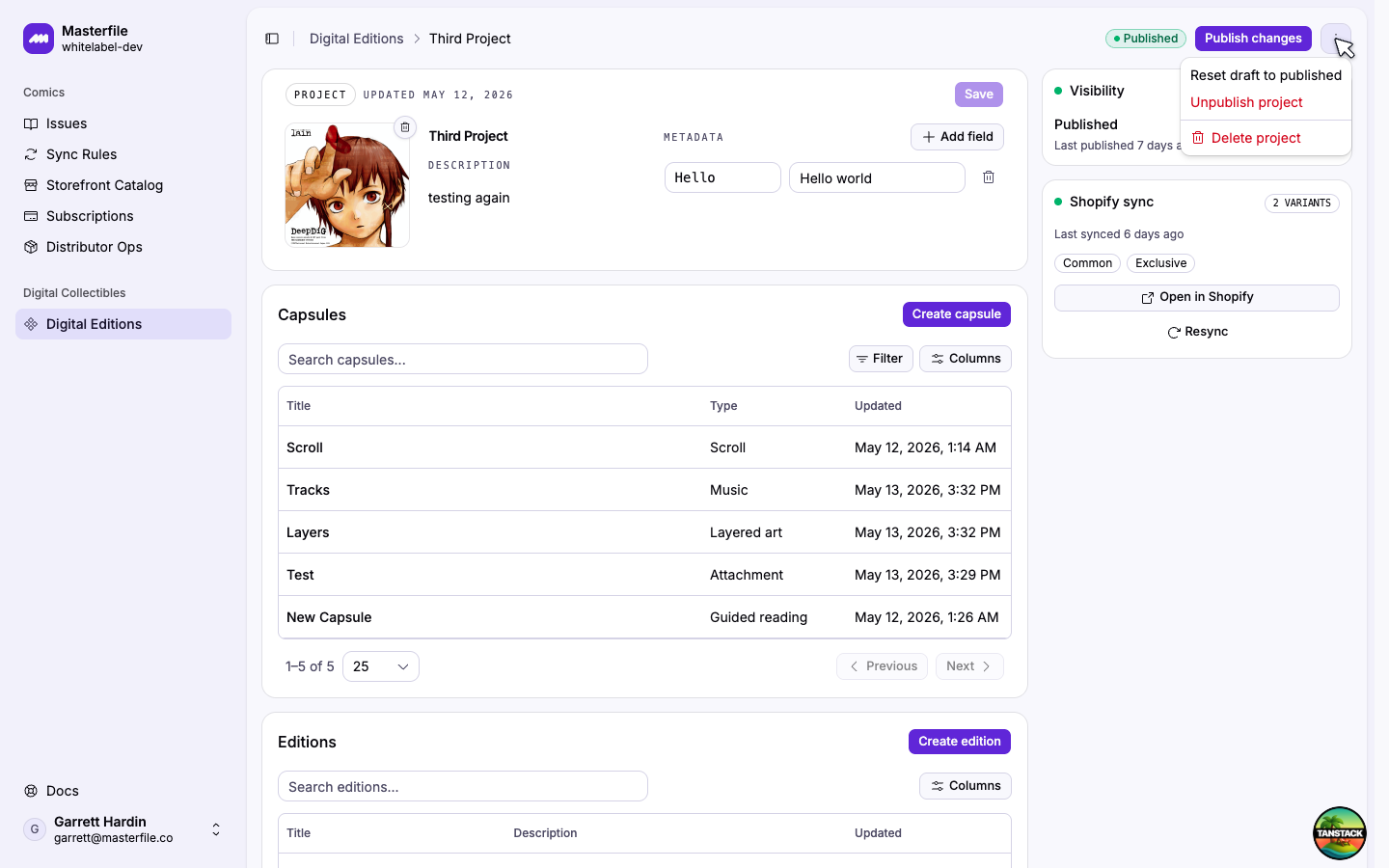
- Reset draft to published discards the unpublished edits and restores the last published snapshot. Useful when a work-in-progress went sideways and you want to step back to what customers currently see.
- Unpublish project hides the project from customers (entitled customers lose viewer access) but leaves the Shopify product alone. Re-publish later to restore access.
- Delete project removes the project from Masterfile entirely. Only available once the project is unpublished. Use Unpublish project first if it's still live. The Shopify product is not deleted; remove it from Shopify separately if needed.
Sharp edges
- The Shopify product is created on first publish and reused after that. Don't manually delete it in Shopify. Use Unpublish in Masterfile if you want to take the project down.
- If a sync fails (network blip, Shopify outage, validation error), the sidebar shows a red error with the reason. Use Resync to retry. See Resync an edition to Shopify.
- Customers who already own a Shopify variant of a published project keep their entitlement even after Unpublish. They just can't open the viewer while the project is hidden.
Next steps
- Resync an edition to Shopify when Shopify and Masterfile drift apart.
- Help a customer access a digital edition once the project is live.