Add a scroll capsule
A scroll capsule is a Webtoons-like vertical scrolling experience: each chapter is a stack of images the reader scrolls through end-to-end. For when to pick it over other capsule types, see the concept page.
1. Create the capsule
From your project's Capsules card click Create capsule, give it a title, pick Scroll, and click Create.
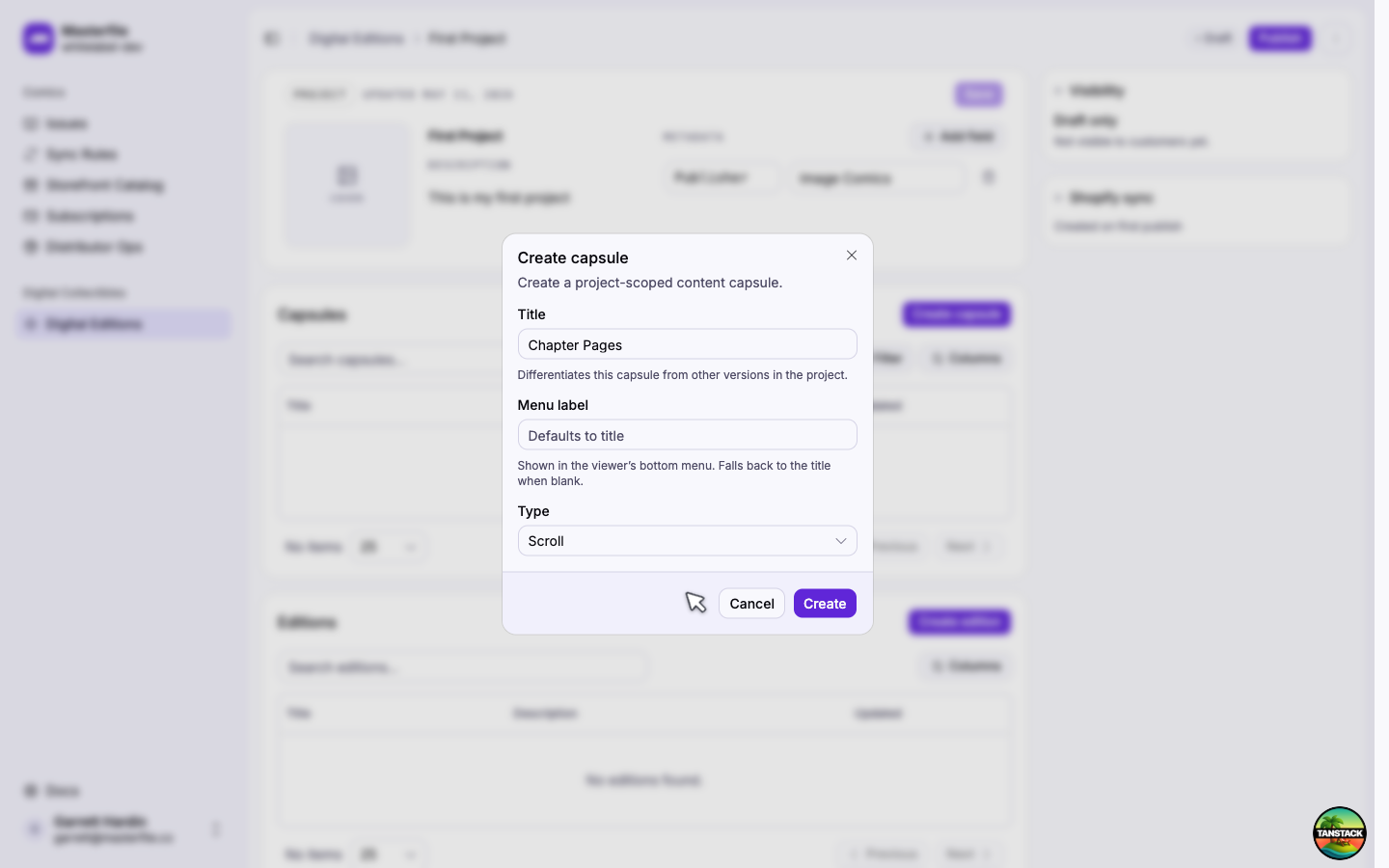
Menu label is what readers see in the viewer's bottom bar. Leave it blank to fall back to the title.
2. Add a chapter and frames
Each chapter is its own scroll. Click Add the first chapter, rename it in the header field, then click Add frames to open the media library.
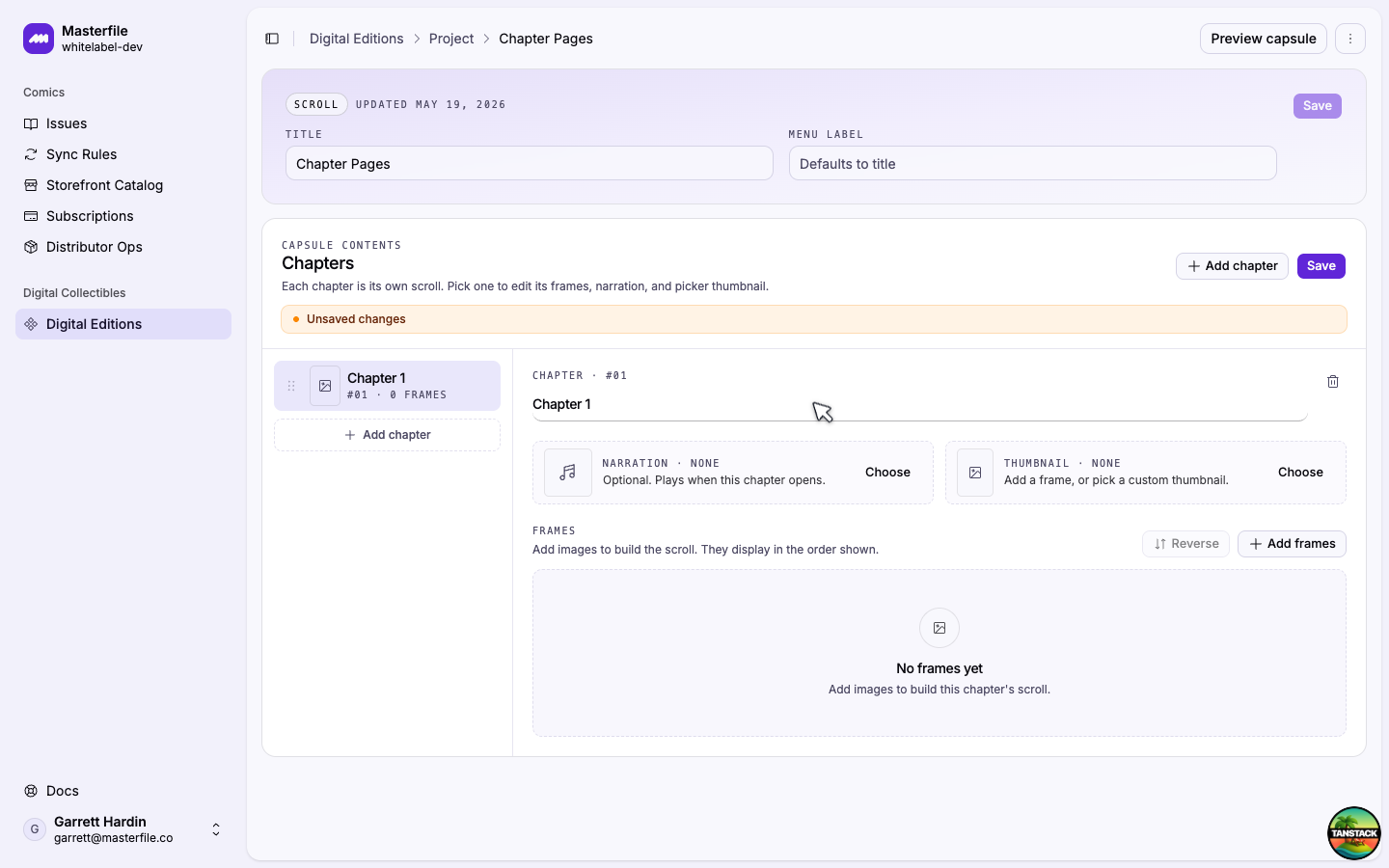
Pick existing images or switch to Upload to add new ones (PNG, JPEG, WebP, or AVIF). Frames render in the order shown. Drag the handle to reorder, or use Reverse if you uploaded them backwards.
3. Add narration (optional)
Click Choose under Narration and pick an audio file (MP3, AAC, WAV, OGG, FLAC, or audio-only MP4/WebM). It plays from the top when the reader opens the chapter and stops when they close it. Narration is per-chapter, so you can score only the ones that need it.
Despite the name, narration doesn't have to be voiceover. Background music or ambient audio works just as well for giving a chapter atmosphere.
4. Set a picker thumbnail (optional)
By default each chapter uses its first frame as its picker thumbnail. Click the star on any frame to use that one instead, or use Thumbnail · Choose to pick an unrelated image.
5. Save
Click Save in the Chapters card header.
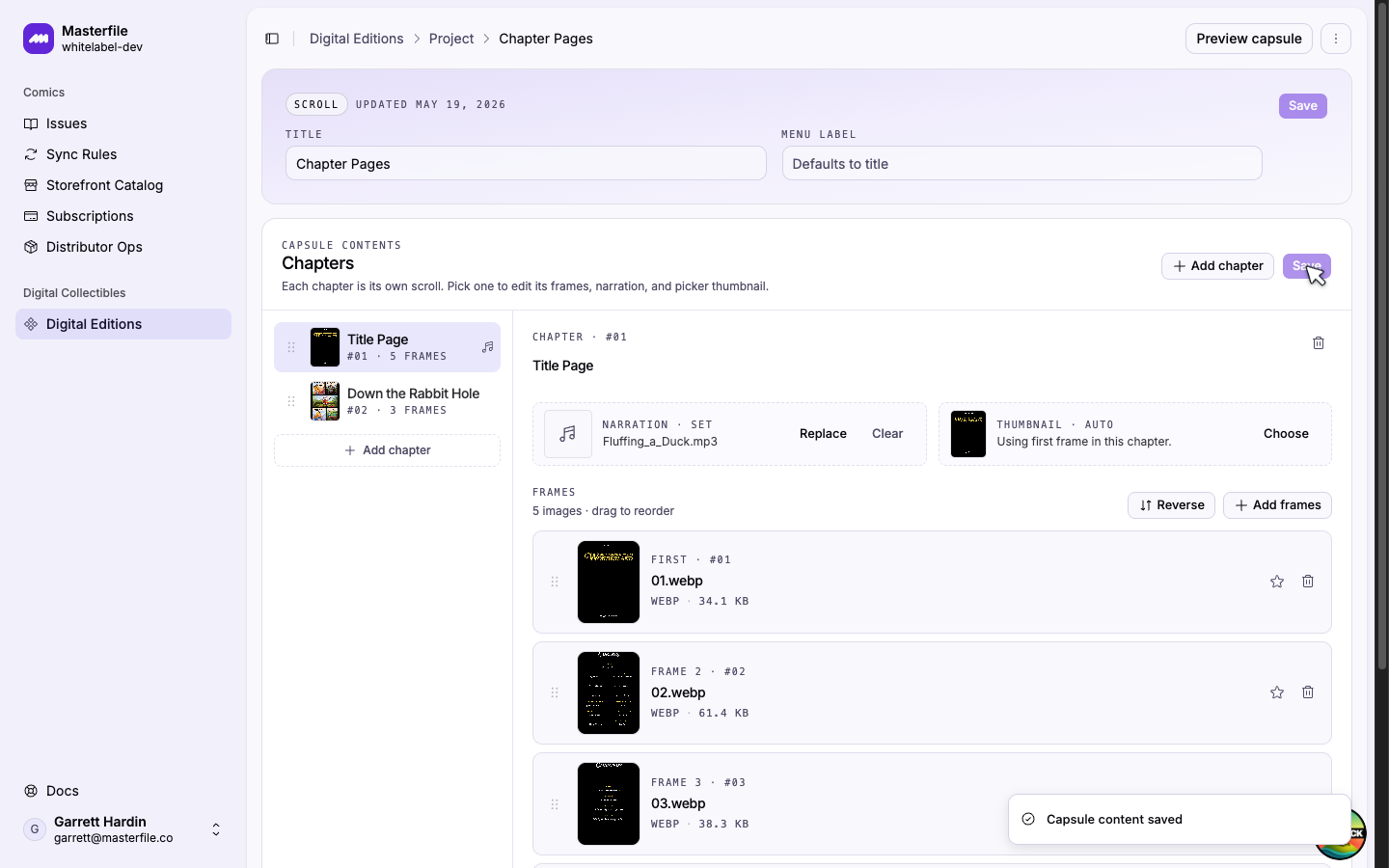
Repeat steps 2–4 to add more chapters. Drag chapter rows in the left rail to reorder; that's also the order Next chapter advances through.
6. Preview
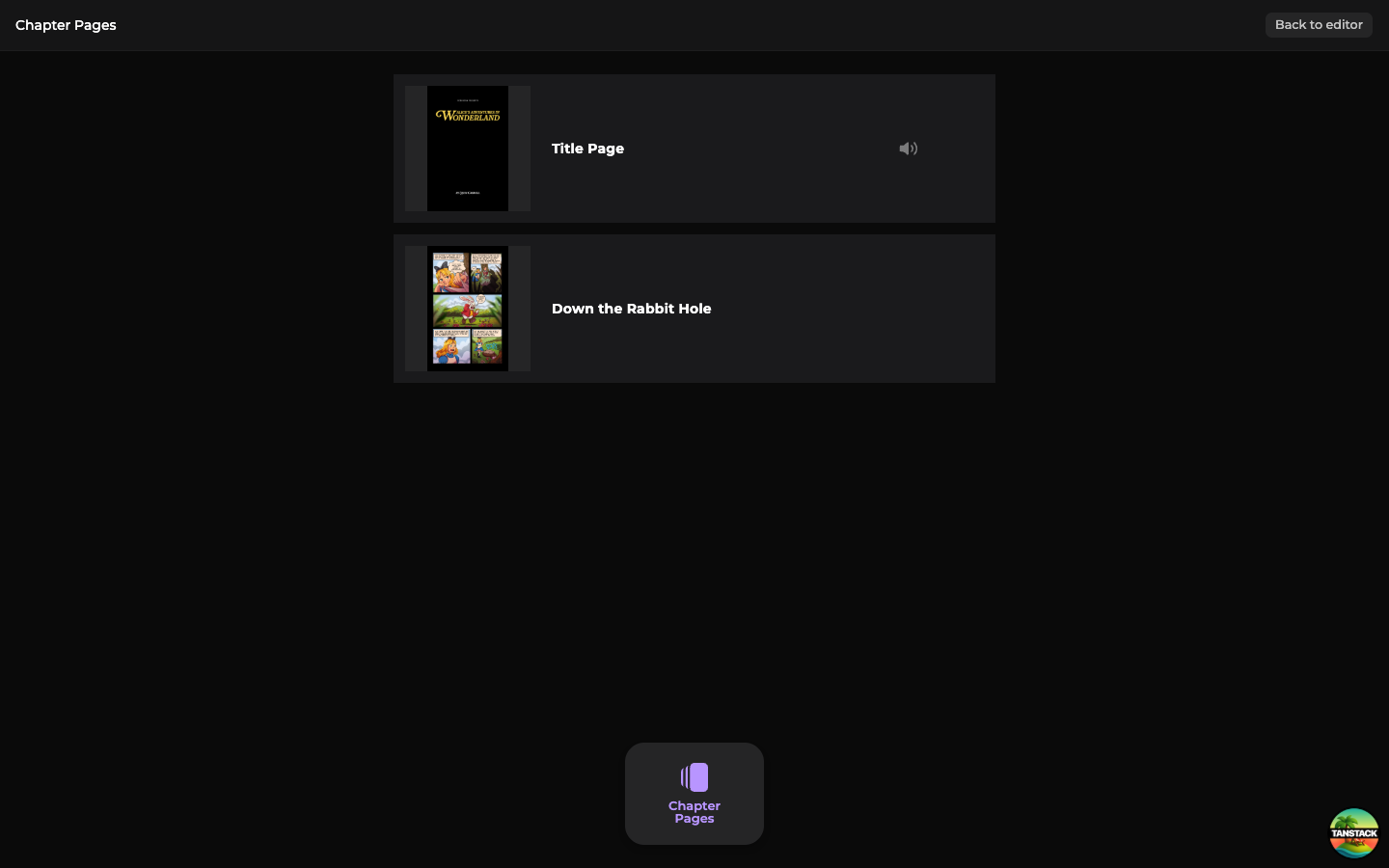
Click Preview capsule in the page header to see the capsule exactly as customers will.
Next steps
Capsules reach customers once they're bundled into an edition and the project is published. Continue with Compose and preview an edition.