Add a guided reading capsule
A guided reading capsule leads the reader panel by panel through a comic page: each page is one image with ordered frames drawn over it, and the viewer pans and zooms from frame to frame on a tap. For when to pick it over other capsule types, see the concept page.
1. Create the capsule
From your project's Capsules card click Create capsule, give it a title, pick Guided reading, and click Create.
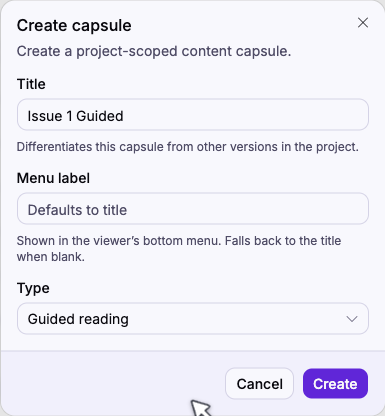
Menu label is what readers see in the viewer's bottom bar. Leave it blank to fall back to the title.
2. Add pages
Click Add pages to open the media library and pick one image per page (PNG, JPEG, WebP, or AVIF). Each image you pick becomes a page in the left rail. Drag the handle to reorder pages; that order is the sequence readers move through. Rename a page in the Page name field, or leave it blank to fall back to "Page 1", "Page 2", and so on.
3. Draw frames on each page
Select a page, then draw the frames the reader will move through. In Edit mode, drag a rectangle on the page to draw a frame, or click Add in the Frames panel to drop one you can then resize. The numbered badge on each frame is its reading order.
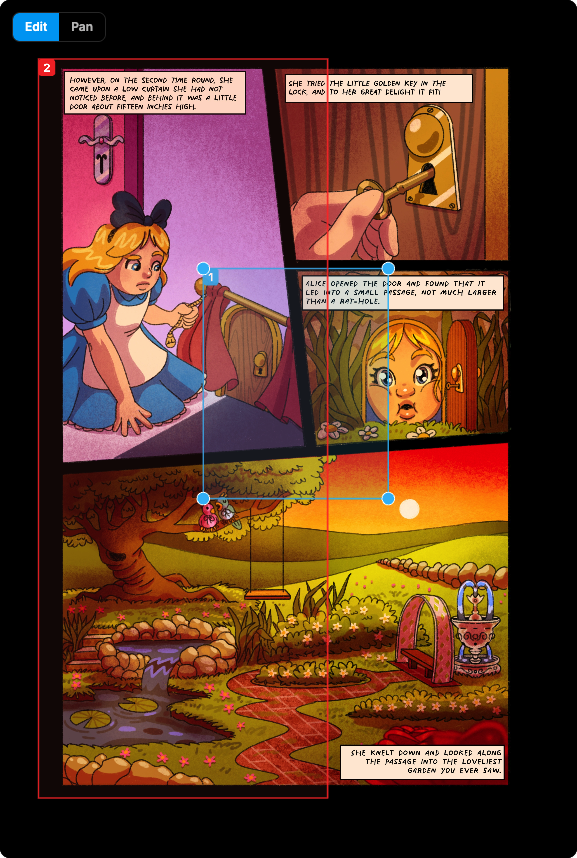
Switch to Pan mode to pan and zoom the page without editing, to line up a tight panel or check one that spills past the edge. The canvas shows frames exactly as the reader's viewer will, so what you draw is what they get.
Reorder frames by dragging the rows in the Frames panel; delete one with its trash icon. A frame's normalized coordinates are listed in its row for reference.
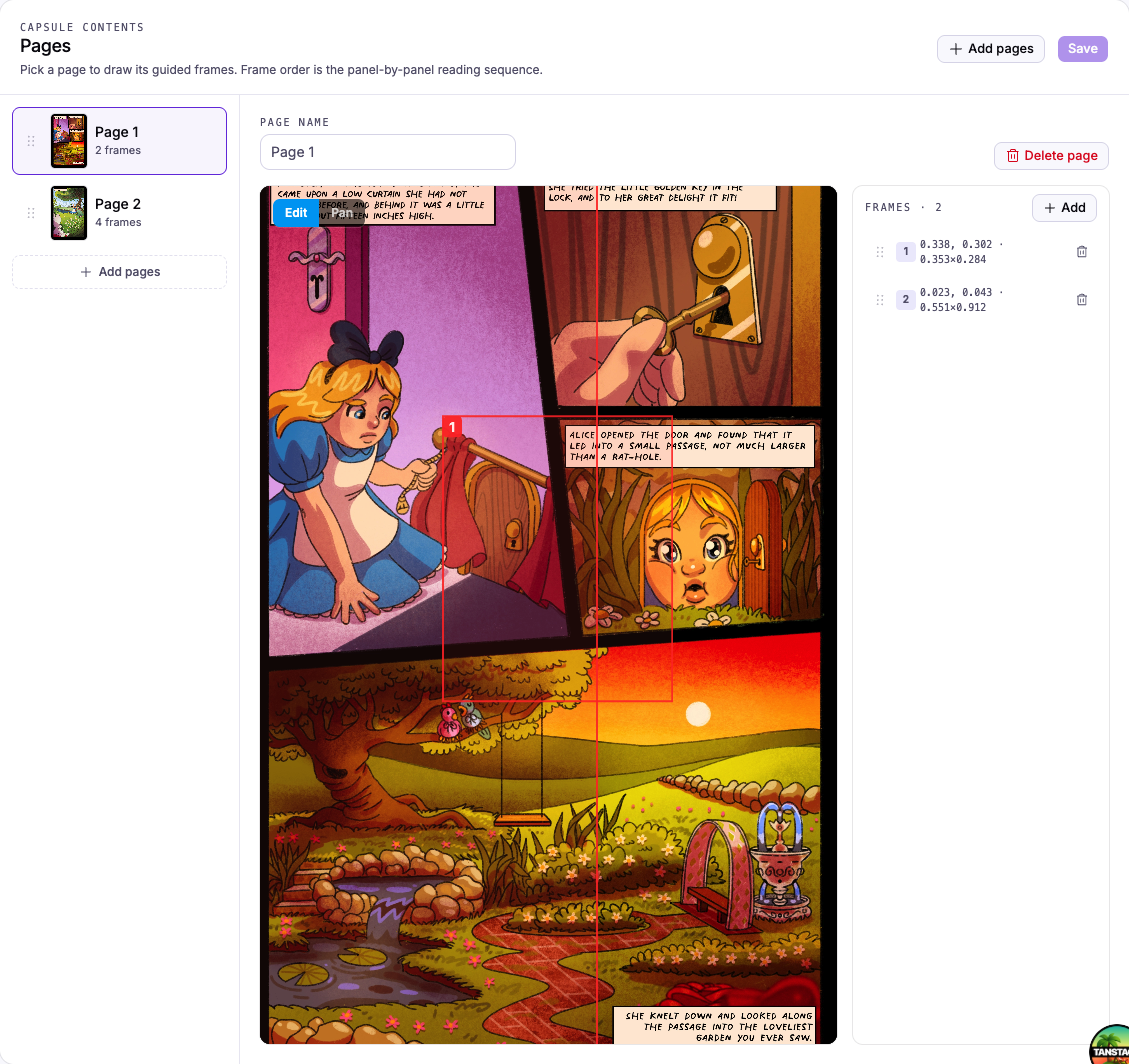
4. Save
Click Save in the Pages card header. An Unsaved changes marker appears whenever you have edits pending.
Repeat steps 2 and 3 for the rest of the pages.
5. Preview
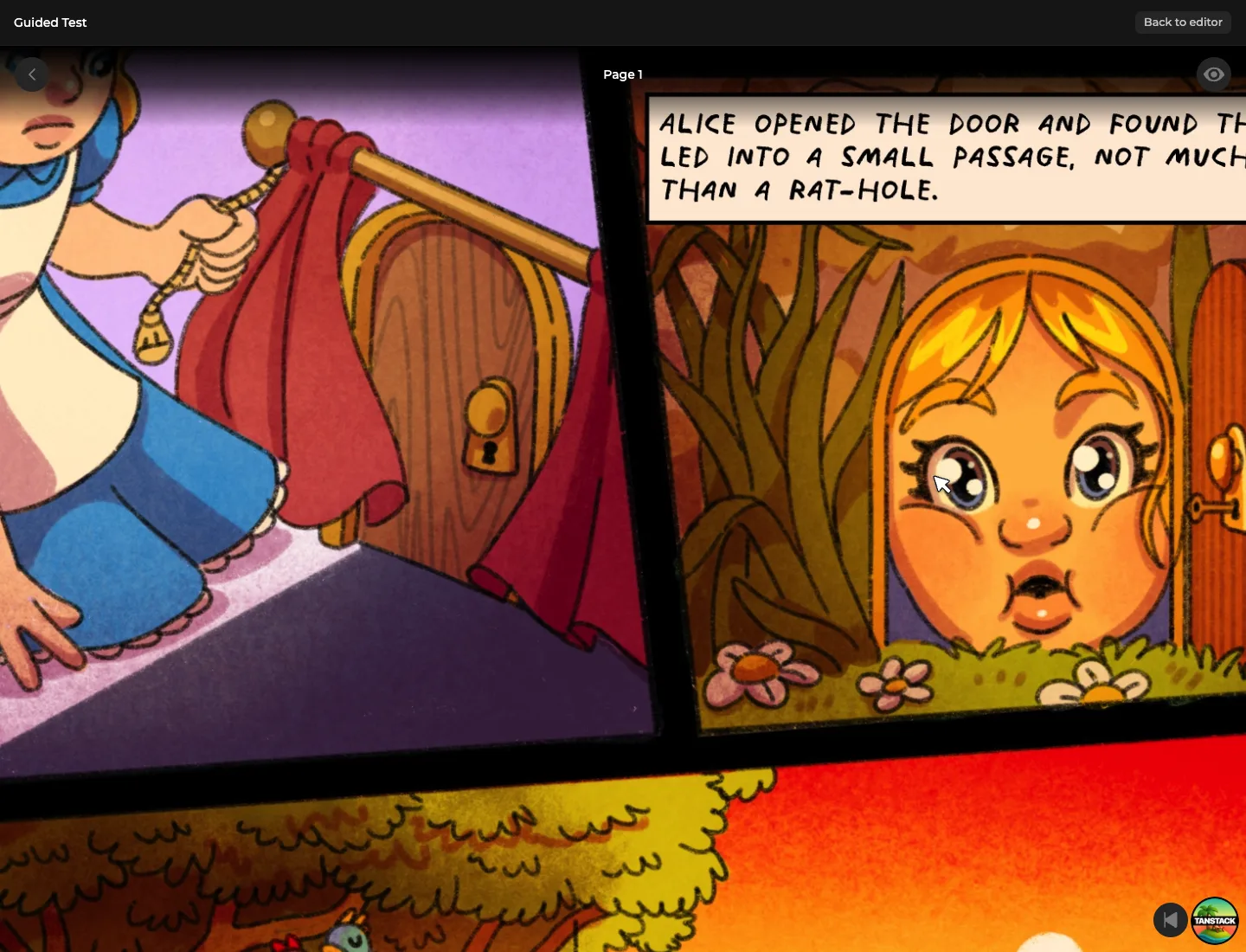
Click Preview capsule in the page header to see the capsule exactly as customers will. Tapping a page starts the guided tour; readers can also drop into free-look to explore the full page themselves.
Next steps
Capsules reach customers once they're bundled into an edition and the project is published. Continue with Compose and preview an edition.