About distributor orders
A distributor order automatically tracks everything you need to order from a single distributor by a single FOC date. Masterfile keeps it in sync with pre-order and subscription demand on your Shopify store so you never miss a cutoff.
Open Distributor Ops → Orders to see every order grouped by FOC date across all distributors.
Behind the scenes
When customers pre-order an issue or subscribe to a series, Shopify treats the committed-but-not-yet-in-hand copies as negative available inventory on the matching variant.
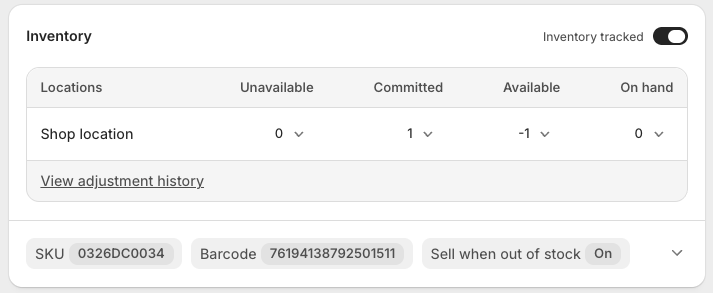
For products Masterfile has synced to your store, we watch those inventory levels and roll the demand up by distributor and FOC date. That rollup is the distributor order.
The orders page
Each row is one order, scoped to exactly one distributor (PRH or Lunar) and one FOC date. Rows are grouped by FOC so you can treat each cutoff as a single unit — one visit, one submission, one set of numbers to sanity-check. The Upcoming / Past toggle splits the page by whether the FOC is still in the future.
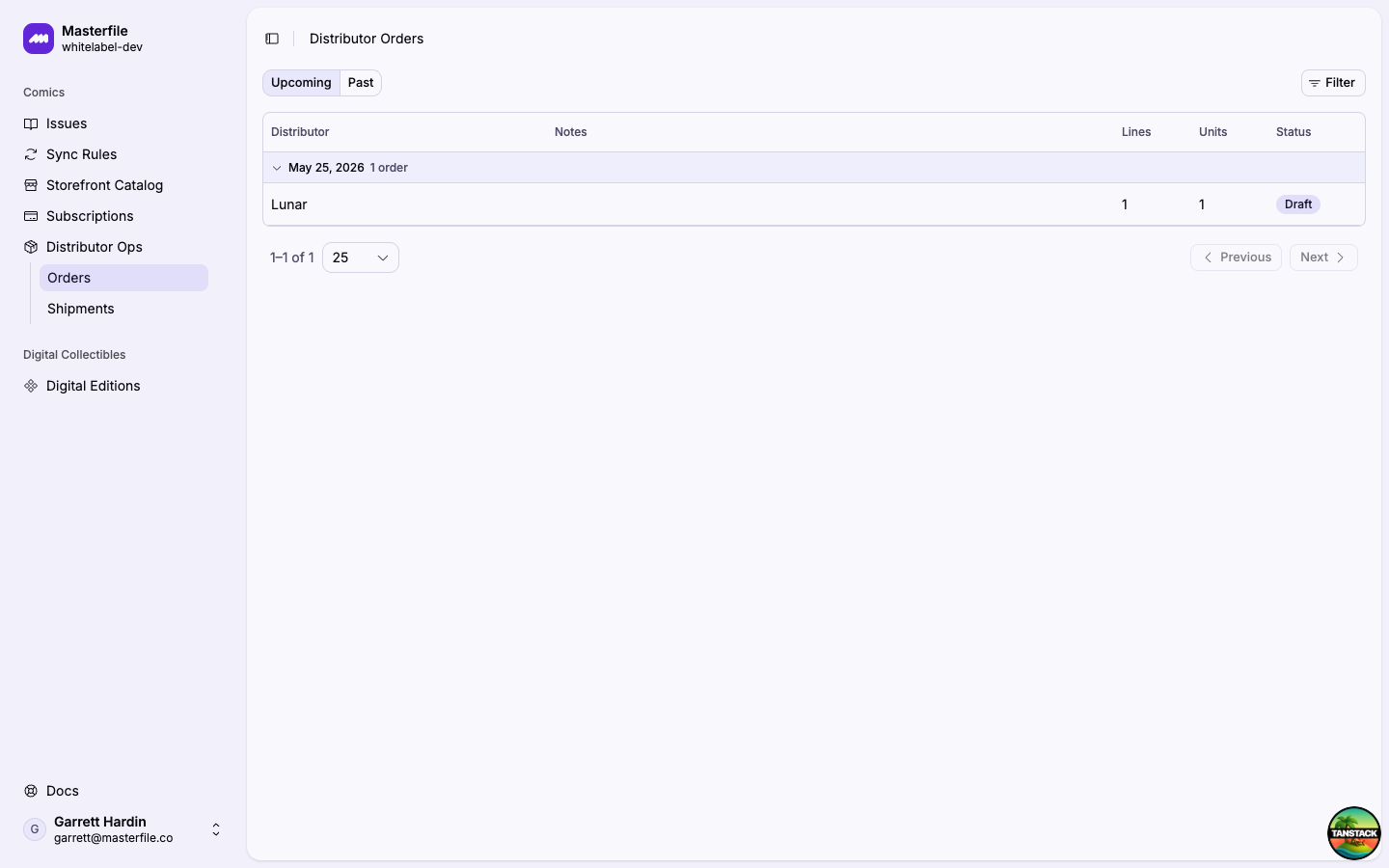
More than one entry for the same distributor and FOC is normal — see late demand.
Inside an order
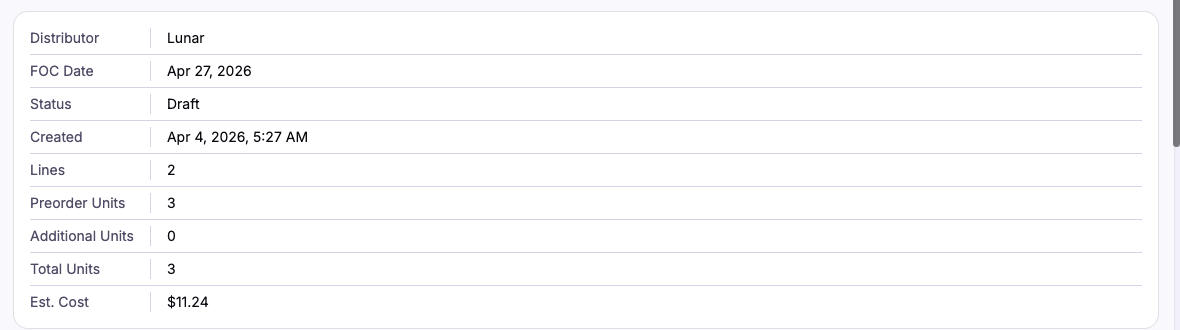
The summary card shows the distributor, FOC date, status, and per-line totals. Estimated cost uses your configured distributor costs.
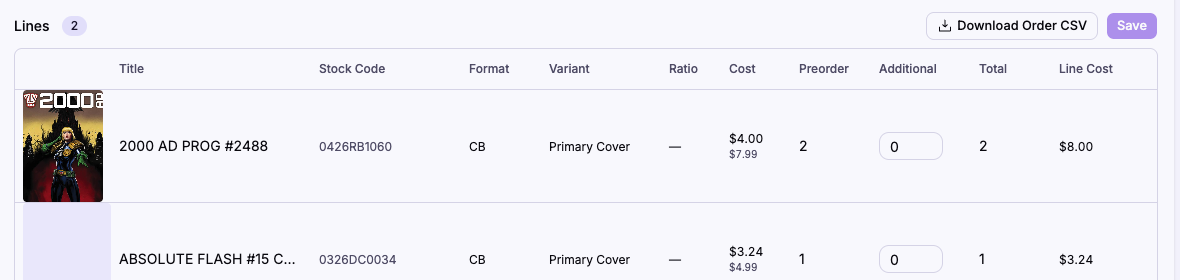
Each line has two quantity columns:
- Preorder is customer demand — the negative-inventory total Shopify is tracking for that item, minus any quantity already claimed by a submitted order under the same FOC. Read-only; it changes when customer orders, refunds, or subscription billings land.
- Additional is what you add on top for the shelf, for subscribers who order outside the storefront, or as a buffer. Editable while the order is a draft.
The export total per line is Preorder + Additional.
Adding items manually
Lines only contain issues customers have pre-ordered. To stock something nobody has pre-ordered yet, scroll to Add Items on any draft. The browser is pre-scoped to the current distributor and FOC, so every result is eligible — enter a quantity and click Add and the item joins the order in the Additional column.
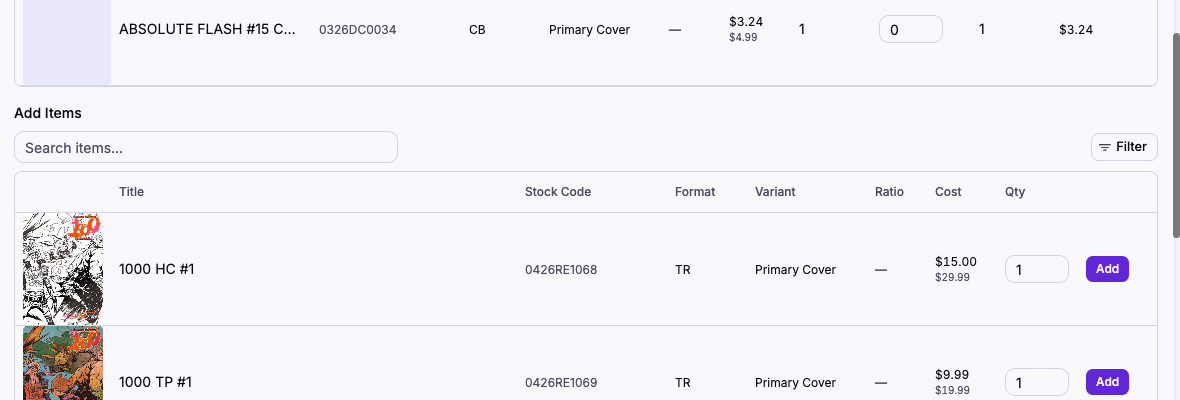
You can remove lines with zero preorder quantity. If a line has real preorder demand, refund the customer order or cancel the subscription contract instead — editing the line would just desync from inventory.
Lifecycle
Each order moves through two statuses one-way: Draft → Submitted.
- Draft is where the work happens. Masterfile maintains Preorder and may add new lines as inventory changes. You can edit Additional, add items, and remove zero-preorder lines.
- Submitted freezes everything. Quantities lock, Masterfile stops updating them, and the order becomes a record of the quantities you placed with the distributor.
Submit from the button at the top right of the detail page after you've uploaded the order to the distributor's system.
Submitting only flips the status — it doesn't send anything anywhere. You still have to get the quantities into the distributor's own ordering system: Download Order CSV for Lunar (upload to your Lunar account) or Copy Order Lines for PRH (paste into your PRH portal).
Late demand after submission
Customer demand doesn't stop when you submit. If another subscription bills or a new pre-order arrives afterwards, Masterfile spins up a new draft for the same distributor and FOC rather than reopening the submitted one. This is deliberate: the submitted order is frozen so it stays a faithful record of the order quantities you've already placed, and the new draft captures only the delta — no double-counting, no re-ordering copies you've already committed to.
The new draft appears as its own row in the Distributor Ops → Orders table (grouped under the same FOC) and is also linked from the Additional Orders card at the top of the submitted order's detail page. Siblings typically show up in the last day or two before FOC when late subscription billing lands.
How it fits together
Distributor orders are a byproduct of everything else in Masterfile:
- Lines come from products created by product sync — the distributor code and FOC date on the item are what place it on the right order.
- Costs come from Set your distributor costs.
- Preorder quantities come from subscriptions and pre-orders.
If any of those isn't configured, your first order won't populate correctly. Fix the upstream piece — the next draft regenerates automatically the next time inventory changes.